
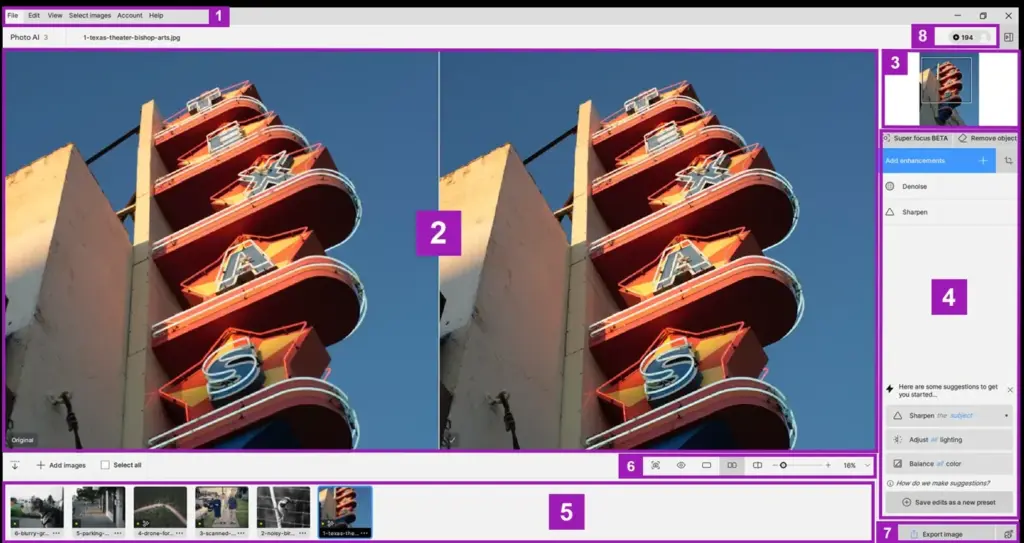
This topaz photo ai review finds a specialist tool that removes noise, sharpens soft detail and upscales images with results that often beat traditional methods. It is not a general editor, and it can create artificial textures when pushed. For high-ISO, wildlife and low-light shooters it is a strong addition to a workflow.
Verdict From This Topaz Photo AI Review
Topaz Photo AI focuses on three jobs: cleaning up noise, restoring sharpness and enlarging images. It analyzes each photo, suggests settings automatically and lets you refine them, and on noisy raw files the improvement can look like a better camera.
The tool is a specialist rather than a replacement for your main editor. It does not manage libraries, handle color grading or offer layers. Its strength is as a step in a workflow, usually early on, where it prepares an image before you tone it elsewhere.
Used with restraint, the results look natural and detailed. Pushed hard, the AI can invent texture on fur, skin and foliage, so check at full size before you export.
Performance and Reliability
Speed depends heavily on your graphics card. On a recent GPU, a single photo processes in several seconds, while a processor-only system can take much longer, and batch jobs on big raw files can run for a long time. Memory use is high, and the program can feel sluggish when previewing large images at full size. Stability has improved with updates, though occasional bugs appear. Running it as a final batch step overnight is a practical way to avoid waiting, and using a fast drive helps with large folders.
Key Features
AI Noise Reduction
The denoise model removes grain while preserving edges, and it handles color noise and luminance noise together. It is especially helpful for photos taken at high ISO. For background on why noise appears, see photon shot noise and ISO explained.
Sharpening and Recovery
Separate models target motion blur, lens softness and focus errors. They cannot rescue a hopeless frame, but they can make a nearly sharp image usable. Good technique still matters, and fixing blurry shots covers what to try first.
Upscaling
The enlargement tool increases resolution while adding plausible detail, useful for large prints and tight crops. Results are strongest at two or three times the original size.
Autopilot and Manual Control
Autopilot detects subjects and picks settings, and manual sliders let you fine-tune strength, recovery and fine detail. Standalone and plug-in modes work with the main raw editors.
Raw Support and Batch Processing
It can process raw files directly and handle batches, which helps after a long shoot. Output can be returned as raw-like files for further editing.
Learning Curve and Support
The basics take minutes, because Autopilot chooses settings and shows a before-and-after preview. The learning is mostly about restraint: when to lower strength, when to skip a model and how to spot artificial texture at full size. The company publishes tutorials and many photographers share comparisons. It helps to learn where the tool belongs in your workflow, typically after basic raw development and before final toning, and to keep an untouched original for comparison.
Pricing
Topaz Photo AI has been sold as a license with a period of included updates and as part of a subscription bundle with the company other tools. The single-product price has typically been in the low hundreds of dollars.
Because the company has changed its licensing several times, check the vendor site for current pricing and what the upgrade terms include. A free trial is generally available, with watermarked exports.
Compare the cost with other denoise tools before buying, since some raw editors now include their own AI noise reduction.
Is It Good Value?
The value is strongest for photographers whose images regularly need rescue. If one saved wildlife frame per month justifies the cost, it pays off quickly. Casual shooters may find that the AI tools built into their editor are enough. Because the license and update rules have shifted, work out whether you are paying for a fixed version or ongoing updates. A free trial lets you test on your own files, and you should do so before buying.
Pros and Cons
What It Does Well
- Cleans noisy raw files better than traditional noise reduction.
- Restores useful detail in slightly soft or blurred images.
- Upscaling gives larger prints and tighter crops.
- Autopilot makes it quick to use.
- Works standalone or as a plug-in.
Where It Falls Short
- Can create a smooth, artificial look when over-applied.
- Not a full editor, with no library or color tools.
- Needs a good graphics card for reasonable speed.
- Licensing and upgrade terms have changed over time.
- Hallucinated detail can be a problem for documentary work.
Bottom Line
Topaz Photo AI is a strong, focused tool that can turn unusable files into keepers. It is best treated as a rescue and polish step rather than the center of your workflow. Use it with a light hand, check results closely and keep your originals. If you already shoot in demanding light, it is likely to earn its price. If not, the cost may be better spent on lenses or technique.
Who It Is For
Topaz Photo AI suits wildlife, sports, concert and astro photographers who often shoot at high ISO, and anyone who needs to crop heavily or print large. It is also a good tool for rescuing older photos taken with weaker cameras.
If you rarely shoot in difficult light, or your editor already includes strong AI denoising, you may not need it. Photojournalists should also be cautious about AI-generated detail.
Learn the camera fundamentals too. Good technique, including shutter speed choices, reduces the number of images that need rescue.
Getting Started
Open a noisy raw photo in the trial and let Autopilot analyze it. Zoom to 100 percent and compare the result with the original. Reduce the denoise strength if skin or fur looks plastic, and add a little sharpening only where needed. Try upscaling a cropped image to double size and look at fine detail. Then process a small batch and import the results into your usual editor. Keep your original raw files so you can reprocess later as the software improves.
Before You Buy
Before committing to Topaz Photo AI, run a short checklist. Confirm that your computer meets the system requirements, download the trial or free version if one exists, and test it on a real project from your own library rather than a demo file. Compare the exported result with what you get from your current tool, note how long each step takes, and check the vendor site for current pricing and upgrade terms. A program that suits the way you already work is worth more than one with a longer list of features.
Alternatives
AI cleanup has become competitive.
| Alternative | Best Reason To Pick It |
|---|---|
| DxO PureRAW | Excellent raw demosaicing and denoising with lens corrections |
| Adobe Lightroom | Built-in AI denoise as part of the editor |
| Topaz Video AI | Sister product for video footage |
| Darktable | Free open-source noise tools for tinkerers |
Test the trial on your worst high-ISO files, since that is where the differences between tools become clear.
Common Questions
Is Topaz Photo AI worth it?
If you often shoot in low light or crop heavily, yes. For casual shooting in good light, the benefit is smaller.
Does Topaz Photo AI replace Lightroom?
No. It is a specialist cleanup tool that works alongside an editor and does not manage or tone libraries.
Can it fix a blurry photo?
It can improve mild blur and softness, but severely blurred images cannot be fully restored.
Does it need a powerful computer?
A modern graphics card makes it much faster. Processing on weaker hardware is slow.
Try It Yourself
See what it can do on your own photos and footage.
Some links are affiliate links: if you buy through them we may earn a small commission at no extra cost to you. How this works.