
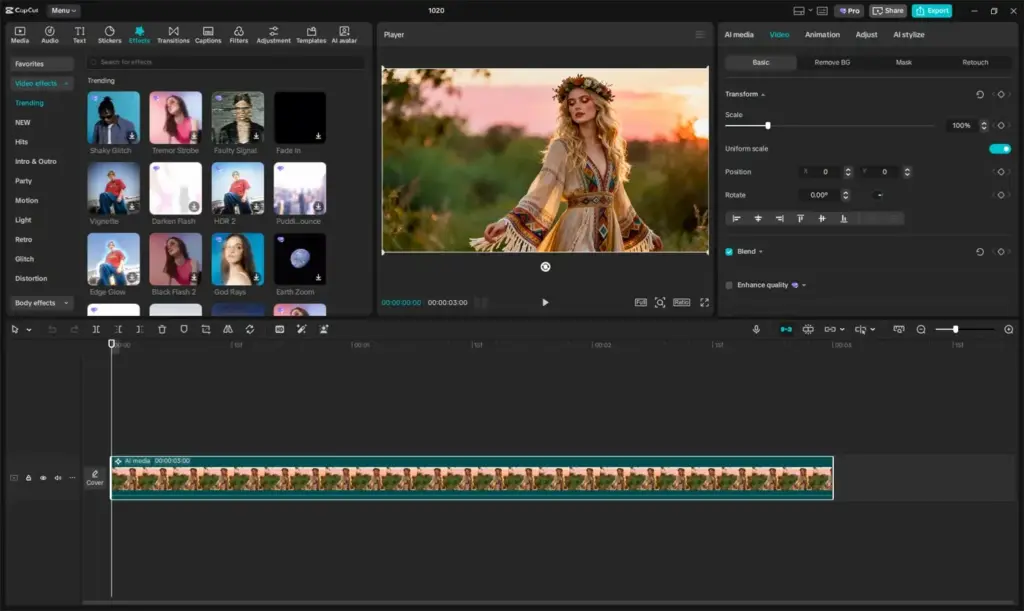
This capcut review finds a free-to-start video editor with easy templates, auto captions and effects that make short vertical videos fast to produce. It is excellent for social media creators and beginners. Limits include a paywall for advanced features, weaker professional tools and privacy and availability questions that depend on where you live.
Verdict From This CapCut Review
CapCut is built for fast, attractive short videos. Its mobile and desktop apps offer templates, trending effects, text styles, auto captions and background removal, which makes it easy for beginners to produce polished results in minutes.
It is not a professional finishing tool. Color control, audio mixing and project management are basic compared with dedicated editors, and some of the most attractive features require a paid plan.
For creators posting to social platforms, it is hard to beat for speed. For longer projects or client work, a more capable editor is a better choice.
Performance and Reliability
On a modern phone or computer, previews are quick and exports of short clips finish in moments. Heavy effects and long 4K projects slow things down, and the desktop version benefits from a good graphics card. Stability is generally good, though frequent updates can occasionally change the interface or move features. Cloud syncing depends on your connection, and large projects take time to upload. Keeping clips organized and exporting in sensible resolutions keeps performance smooth.
Key Features
Templates and Effects
Ready-made templates let you drop in clips and get a finished, music-timed video. Effects and transitions follow current social trends. For pacing ideas, see video frame rates and slow motion video.
Auto Captions
Speech-to-text generates captions that you can style and edit, saving a lot of manual work for talking-head videos.
Editing Tools
Multi-track timeline, keyframes, speed ramps and background removal support more than simple trimming. Matching frame rates across clips keeps playback smooth.
Mobile and Desktop Apps
Projects move between phone, desktop and the web, so you can start on a phone and finish on a computer.
Export Options
Export presets for common social platforms and resolutions up to 4K, with some higher quality options reserved for paid plans.
Learning Curve and Support
CapCut may be the easiest video editor to learn. Templates teach structure by example, and the interface is designed around touch controls and simple timelines. Tutorials are abundant on social platforms, often from the same creators using the app. The risk is relying entirely on templates, which can make videos look similar to everyone else. Learning basic pacing, cutting on action and audio balance will improve your work whichever tool you use.
Pricing
CapCut has a free tier that covers most basic editing, with a paid subscription that unlocks premium effects, cloud storage and higher quality features. Subscription prices have typically been in the range of ten to twenty dollars a month, with discounts for annual plans.
Because the company changes plans and regional availability often, check the vendor site for current pricing. Some previously free features have moved behind the paywall over time.
Test the free version thoroughly before paying, since many creators never need the upgrade.
Is It Good Value?
The free tier offers excellent value, and many creators never need more. The paid plan makes sense if you rely on premium effects, cloud storage or higher quality exports. Compare it with free alternatives like DaVinci Resolve if you are willing to learn a more complex program. Watch for changes to what is free, since features have moved behind the paywall in the past.
Pros and Cons
What It Does Well
- Free tier is useful and easy to start with.
- Templates and auto captions save significant time.
- Works across phone, desktop and web.
- Large library of effects, filters and fonts.
- Quick results with almost no learning curve.
Where It Falls Short
- Many attractive features require a subscription.
- Professional color and audio tools are limited.
- Plans and feature availability change often.
- Some users have privacy and regional availability concerns.
- Not built for long-form or collaborative projects.
Bottom Line
CapCut is a fast, friendly editor that lowers the barrier to making good short videos. It is not the tool for every job, but for social content it is hard to beat. Start with the free tier, learn the fundamentals and upgrade only when you reach a clear limit. If your work grows beyond short clips, plan to move to a more capable editor. Remember that platform rules, regional availability and feature access can change, so keep a copy of your finished videos and original clips outside the app. Exporting a master file at the highest quality you can, then making smaller versions for each platform, protects your work if a feature or plan changes later. It also helps to learn basic editing habits, such as trimming dead air, balancing music under speech and keeping text readable on a small screen.
Who It Is For
CapCut is ideal for short-form creators, small businesses, students and anyone who wants to make social videos quickly. It is also a gentle introduction to editing concepts for beginners.
Filmmakers, editors who work with clients and anyone needing precise color grading or advanced audio should move to a full editor as their needs grow.
As you improve, learn the basics of shutter angle and motion so your footage cuts better.
Getting Started
Install the app and import a few short clips. Try a template to see how music and cuts are timed, then build a simple edit on the timeline. Add auto captions and adjust their style. Use a speed ramp or a basic effect sparingly. Export at a resolution that matches your target platform and watch it on a phone. Keep your original clips in a separate folder, and name projects so you can find them later.
Before You Buy
Before committing to CapCut, run a short checklist. Confirm that your computer meets the system requirements, download the trial or free version if one exists, and test it on a real project from your own library rather than a demo file. Compare the exported result with what you get from your current tool, note how long each step takes, and check the vendor site for current pricing and upgrade terms. A program that suits the way you already work is worth more than one with a longer list of features.
Alternatives
The social video editing space is crowded.
| Alternative | Best Reason To Pick It |
|---|---|
| DaVinci Resolve | Free and far more powerful, with a steeper curve |
| Adobe Premiere Pro | Professional standard with many integrations |
| Wondershare Filmora | Beginner friendly with a perpetual license option |
| Final Cut Pro | Fast Mac editor with a one-time purchase |
Try the free tier first and edit a real project before deciding whether you need more.
Common Questions
Is CapCut free?
It has a free tier that covers basic editing. A paid subscription unlocks extra effects and features.
Is CapCut good for professional work?
It is better for social media content than for professional finishing, where color, audio and project tools are limited.
Does CapCut work on desktop?
Yes. There are desktop and web versions in addition to the mobile apps.
Can CapCut add captions automatically?
Yes. Its auto caption feature generates editable captions from speech.
Try It Yourself
See what it can do on your own photos and footage.
Some links are affiliate links: if you buy through them we may earn a small commission at no extra cost to you. How this works.