
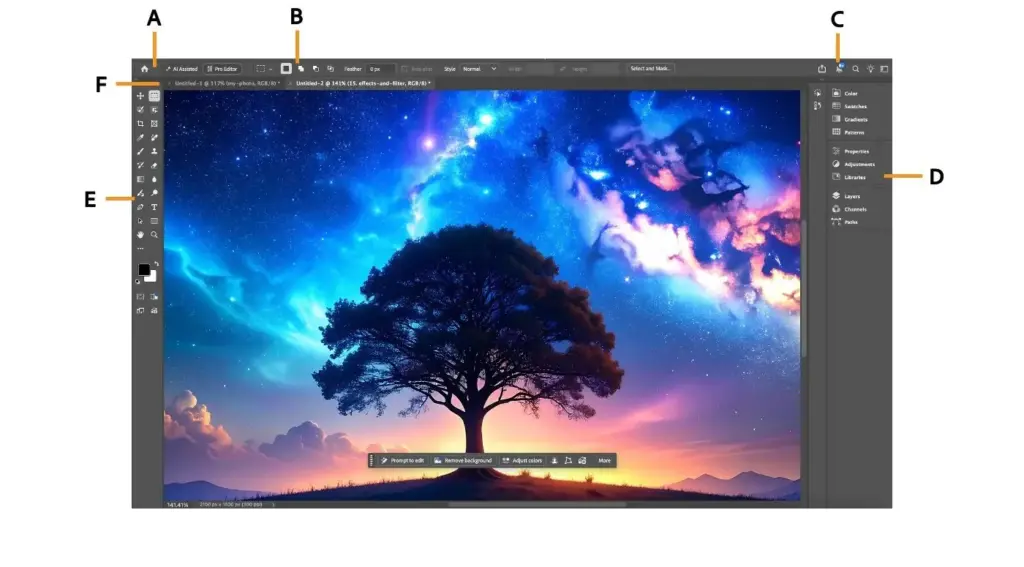
This adobe photoshop review finds it the most capable image editor available for compositing, retouching and creative work. Layers, masks, selections and generative tools are unmatched, but the subscription cost and steep learning curve are real. It is the right choice for professionals and serious hobbyists, and overkill for quick photo fixes.
Verdict From This Adobe Photoshop Review
Photoshop remains the reference point against which every other image editor is measured. It handles pixel editing, retouching, compositing, typography, simple animation and even some 3D work in a single window. If a task can be done to an image, there is almost certainly a Photoshop way to do it, and a large body of tutorials to show you how.
The trade-off is complexity and cost. The interface is dense, the subscription never ends, and most photographers who only need exposure, color and cropping will be better served by a dedicated raw editor. Photoshop earns its place when you need to change what is actually in the picture, not just how it is toned.
In day-to-day work it feels fast on a capable computer, and recent AI features have shortened tasks that used to take an afternoon. Stability is good, file support is broad, and PSD files are readable by almost every competing editor.
Performance and Reliability
On a modern computer with plenty of memory and a fast solid state drive, Photoshop opens large files quickly and handles dozens of layers without complaint. Brush strokes stay responsive, filters preview in real time, and the graphics processor accelerates many operations. Problems appear when files grow into the gigabytes or when the scratch disk fills, at which point it slows noticeably. Crashes are uncommon, and autosave recovers most work. Cloud-based generative tools depend on your connection, so expect a short wait for each result. Keeping the program updated and giving it a dedicated scratch drive are the two most useful performance habits.
Key Features
Layers and Masks
Layers are the heart of the program. You can stack adjustments, pixel edits, text and smart objects, then hide or reveal each with a mask. Non-destructive editing means you can return to an earlier decision weeks later. A good starting point is the guide to layer masks in Photoshop.
Selection Tools
Photoshop offers quick selection, object selection, color range, channels and a refined mask workspace. Its subject detection is very good on hair and fur. Learn the options with the lesson on Photoshop selection tools and the faster Select Subject feature.
Generative Fill and AI Tools
Generative fill can extend a canvas, remove distractions or add elements from a text prompt, working on its own layer so the original stays safe. Results vary by subject, and you should expect to try several variations. See how generative fill works before relying on it for client work.
Smart Objects and Non-Destructive Editing
Smart objects keep the original pixels intact while you scale, filter or warp them. Smart filters stay editable, which makes it easy to adjust a sharpen or blur later. The smart objects lesson explains the workflow.
Blend Modes and Retouching
Dozens of blend modes, healing brushes, frequency separation and dodge-and-burn layers make skin and product retouching precise. If you are new to the modes, blend modes explained is a useful companion.
Learning Curve and Support
Few programs have a larger body of free instruction. There are official tutorials, video courses, forums, books and countless creators who share techniques for every genre. The built-in search and the Discover panel help you find tools by describing what you want to do. The risk is overload: it is easy to watch tutorials without practicing. A better approach is to choose one real project, such as removing a distracting object or building a simple composite, and learn only what that project needs. Within a few weeks you will have the core habits.
Pricing
Photoshop is sold by subscription. It is available as a single-app plan, as part of a photography bundle that includes Lightroom, and inside the full Creative Cloud collection. Single-app pricing has typically sat between about $20 and $35 a month depending on billing terms, and the photography bundle is usually the better value if you also use Lightroom.
There is no perpetual license, and a free trial is normally offered. Prices and plan names change, so check the vendor site for current pricing before you commit. Students and teachers often qualify for a notable discount.
Think in terms of cost per year. If your income depends on image work, the subscription is a small business expense. If you edit a few holiday photos a year, a one-time purchase editor is far cheaper.
Is It Good Value?
Value depends entirely on how much you use the features that only Photoshop offers. A retoucher or designer will earn the cost back quickly, and the photography bundle makes it even cheaper because Lightroom is included. A casual photographer who adjusts exposure and crops will be paying for tools they never touch. Consider an annual plan if you are sure you will keep it, and cancel during quiet months if your work is seasonal. Also compare the cost of a one-time purchase editor over three or four years before deciding.
Pros and Cons
What It Does Well
- The deepest toolset for pixel-level work, from retouching to full composites.
- Layers, adjustment layers and masks keep every edit reversible.
- AI selection and generative tools shorten tedious tasks.
- Smooth handoff to Lightroom, Illustrator, Bridge and the rest of Adobe.
- Enormous library of tutorials, brushes, actions and plug-ins.
Where It Falls Short
- Ongoing subscription, with no way to own the software outright.
- The learning curve is long, and the interface can overwhelm beginners.
- Demands a strong processor, plenty of memory and fast storage.
- Generative features need an internet connection and use cloud credits.
- Not the best place to manage or batch process a large photo library.
Who It Is For
Photoshop suits retouchers, composite artists, product photographers, graphic designers and anyone who regularly needs to change the content of an image. It also suits photographers who already pay for the photography bundle, since Photoshop costs little extra in that case.
It is a poor fit for people who only crop, straighten and adjust exposure. A raw editor handles those jobs faster and with less fuss. If you are unsure which camp you fall into, try the trial and attempt a real project before paying.
To get started quickly, learn masks first, then selections, then smart objects. That order covers most professional workflows. The lesson on making selections is a sensible first read.
Getting Started
Begin with a single document and a simple goal. Open a photo, add a duplicate layer, and experiment with a layer mask to hide and reveal parts of an adjustment. Next, try the object selection tool on a clearly defined subject and refine the edge. Save your work as a layered file so you can return to it. Only after those basics feel natural should you move on to smart objects, blend modes and generative features. Keep your workspace simple by closing panels you do not need, and learn a handful of keyboard shortcuts for brush size, undo and zoom.
Before You Buy
Before committing to Adobe Photoshop, run a short checklist. Confirm that your computer meets the system requirements, download the trial or free version if one exists, and test it on a real project from your own library rather than a demo file. Compare the exported result with what you get from your current tool, note how long each step takes, and check the vendor site for current pricing and upgrade terms. A program that suits the way you already work is worth more than one with a longer list of features.
Alternatives
Several tools overlap with Photoshop, and each has a different strength.
| Alternative | Best Reason To Pick It |
|---|---|
| Affinity Photo | One-time purchase with strong layer and retouching features |
| GIMP | Free and open source, good for budget-conscious editors |
| Pixelmator Pro | Mac-only, friendly interface with solid AI tools |
| Adobe Lightroom | Better for managing and toning large photo libraries |
If your priority is toning photos rather than altering them, start with a raw editor instead and add Photoshop only when you need layers.
Common Questions
Is Photoshop worth the subscription?
It is worth it if you use layers, masks or retouching often, or earn money from image work. For simple adjustments, a cheaper editor will do the same job.
Is Photoshop hard to learn?
The basics take a few weeks, but mastery takes much longer. Starting with layers, masks and selections gives the quickest return on your time.
Can I buy Photoshop once and own it?
No. It is subscription only. Several alternatives, including Affinity Photo, are sold as one-time purchases.
Does Photoshop replace Lightroom?
They do different jobs. Lightroom organizes and tones photos, while Photoshop edits pixels and builds composites. Many photographers use both together.
Try It Yourself
See what it can do on your own photos and footage.
Some links are affiliate links: if you buy through them we may earn a small commission at no extra cost to you. How this works.