
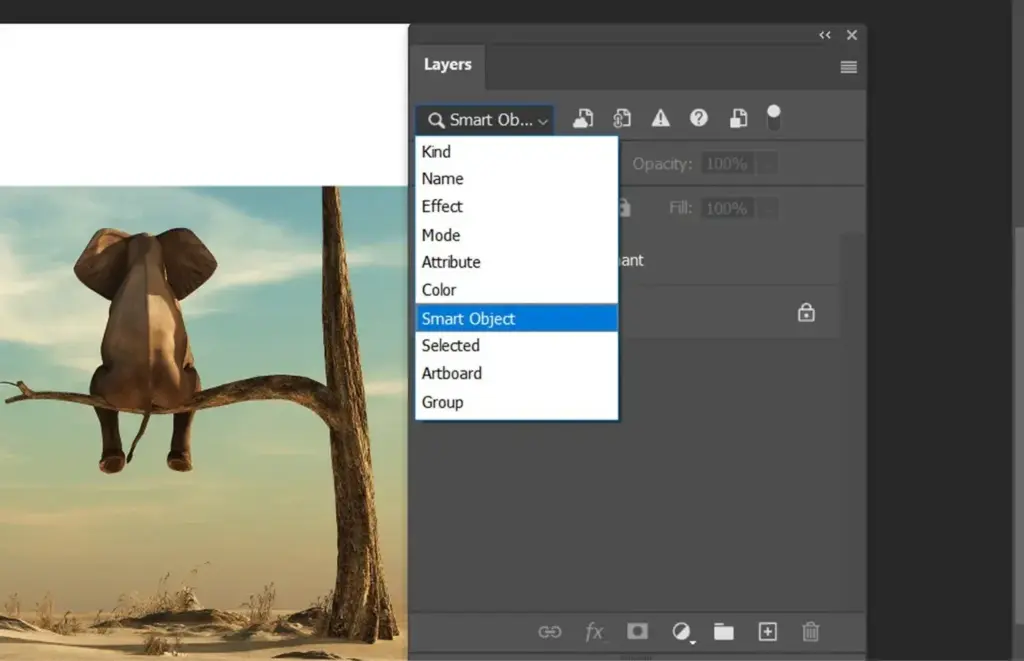
Smart objects are Photoshop layers that store the original image data inside a protective container. Because the source pixels are kept, you can scale, rotate, warp and apply filters repeatedly without losing quality, and filters stay editable as smart filters. They are the safest way to work with photos you will change more than once.
Why It Matters
Normal pixel layers lose detail each time you resize them. Shrink a layer and then enlarge it again, and the picture looks soft and blocky because the lost pixels cannot return. Filters applied to a normal layer are permanent once you commit them.
Smart objects fix both problems. Photoshop remembers the original and re-renders the result from the source each time. This makes them essential for compositing, mockups and repeatable edits.
Beginner Creating And Using Smart Objects
A smart object appears in the Layers panel with a small page icon in the corner of its thumbnail. The layer behaves like a normal one in most ways, but it protects its content.
Make A Smart Object
- Select one or more layers in the Layers panel.
- Right-click and choose Convert to Smart Object, or choose Layer, then Smart Objects, then Convert to Smart Object.
- Look for the icon on the thumbnail to confirm it worked.
You can also place a file as a smart object by choosing File, then Place Embedded, which adds the file to your document as a smart object in one step. Opening a raw file with the Open as Object option, found in the Camera Raw dialog, keeps it as a smart object so that you can reopen raw settings later.
Resize Without Loss
- Convert a layer to a smart object.
- Press Ctrl+T on Windows or Command+T on macOS and shrink it to a small size. Press Enter.
- Press Ctrl+T again and enlarge it back. The picture is as sharp as the original, up to its starting size.
Enlarging beyond the original size still loses quality, because Photoshop has no extra pixels to draw on. Smart objects protect from repeated change but do not add detail.
Edit The Contents
Double-click the smart object thumbnail. Photoshop opens its contents in a new tab. Make changes, save with Ctrl+S or Command+S, and close the tab. The main document updates. This is how mockups work: you design a poster once, and each copy placed in a scene updates when the source changes.
Smart Filters
When you apply a filter such as Gaussian Blur or Smart Sharpen to a smart object, it becomes a smart filter. It appears under the layer with its own mask and an eye icon. Double-click the filter name to change its settings, click the eye to hide it, or paint on the filter mask to apply it to part of the picture. Sharpening is covered in Smart Sharpen.
Embedded Versus Linked
An embedded smart object stores a copy of the source inside your Photoshop file, which makes the file larger but self-contained. A linked smart object points to an external file, using File, then Place Linked. Linked objects keep the document small and update automatically when the source file changes. If the source file is moved or deleted, Photoshop shows a missing link warning, so keep the files together.
Common Mistakes
- Painting or cloning directly on a smart object, which Photoshop does not allow until you rasterize or add a new layer above it.
- Rasterizing too early and losing the protection.
- Moving a linked source file and breaking the link.
- Expecting a smart object to enlarge a small image without softness.
Handy for this: Pen Tablet — precise retouching. (affiliate link)
Advanced Advanced Smart Object Workflows
Duplicates And Shared Content
If you duplicate a smart object using Layer, then New, then Layer via Copy, the copies share the same source. Edit the contents of one and all copies update. That is ideal for repeated elements such as logos, patterns or a texture across a design. To make a copy independent, use Layer, then Smart Objects, then New Smart Object via Copy, so that editing one will leave the other unchanged.
Replace Contents
Choose Layer, then Smart Objects, then Replace Contents, and pick a new file. The new image takes the place of the old one while keeping the transform, mask and filters. This makes mockups and templates fast: set up the frame once and swap in each new photo.
Working With Raw Files
Opening a raw file as a smart object keeps it connected to its Camera Raw settings. Double-click the layer to reopen the raw adjustments at any time. This is a safe way to move between Lightroom and Photoshop for detailed work. Another option is to convert any layer to a smart object and apply Camera Raw Filter from the Filter menu, which becomes a smart filter and can be tweaked later, as explained in Camera Raw Filter.
Smart Objects And Masks
Smart objects accept layer masks, so you can hide parts of them without damage. When you combine a cutout with a mask and then convert the layer to a smart object, later scaling will not harm the edge. Masks are covered in layer masks. To limit the visible effect of adjustments, pair the smart object with adjustment layers clipped on top.
Exporting And Stack Modes
Right-click a smart object and choose Export Contents to save the source file. Layer, then Smart Objects, then Stack Mode combines multiple images inside a smart object using statistical methods such as Median, which can remove moving people or reduce noise from several frames. Photoshop needs aligned images for this to work well, so shoot on a tripod.
Performance Considerations
Smart objects can slow large documents, because Photoshop re-renders from the source after each change. If a file with many smart filters feels sluggish, hide filters you are not working on, or rasterize finished layers on a duplicate copy. Keep the layered master unflattened, and save versions as you go.
When To Rasterize
Rasterize a smart object only when you need to paint on it, use a tool that does not support it, or finish the file for delivery. To retain flexibility, rasterize a copy rather than the original. You can also add an empty pixel layer above the smart object and paint there, which keeps the smart object intact.
File Size
Each embedded smart object stores its full source, so a file with many large images grows quickly. Using linked objects, or keeping only the smart objects that need to remain editable, keeps your files manageable. Compress with ZIP in the file save options for PSD or TIFF files when disk space is tight.
Try It
- Open a photo, convert it to a smart object, and shrink it to about 20 percent with Ctrl+T or Command+T.
- Enlarge it back to the original size and compare it with a normal layer you shrank and enlarged the same way.
- Apply Filter, then Blur, then Gaussian Blur and then double-click the smart filter name to change the radius.
- Paint on the smart filter mask with black to remove the blur from part of the picture.
- Double-click the smart object, change something in its source tab, save and close, and see the main document update.
Common Questions
What is a smart object in Photoshop?
It is a layer that keeps the original image data inside a container. You can scale, warp and filter it repeatedly without destroying the source, and filters stay editable.
What is the difference between embedded and linked smart objects?
Embedded ones store the source inside the Photoshop file. Linked ones reference an outside file and update when it changes, but break if the file is moved or deleted.
Why can I not paint on a smart object?
Smart objects protect their pixels, so painting and cloning are blocked. Add a new empty layer above and paint there, or rasterize a copy when you must edit pixels directly.
Do smart objects improve image quality?
They prevent quality loss from repeated resizing but cannot add detail. Enlarging beyond the original size will still look soft.
Related Lessons
- Adjustment Layers to keep tone and color edits non-destructive too.
- Layer Masks to hide parts of smart objects and smart filters.
- Camera Raw Filter to apply raw-style edits as a smart filter.
- Smart Sharpen to sharpen with an editable smart filter.
- Photo Compositing to build scenes that stay editable.
Gear That Helps With This
Hand-picked kit that makes this lesson easier to put into practice.
Some links are affiliate links: if you buy through them we may earn a small commission at no extra cost to you. How this works.