
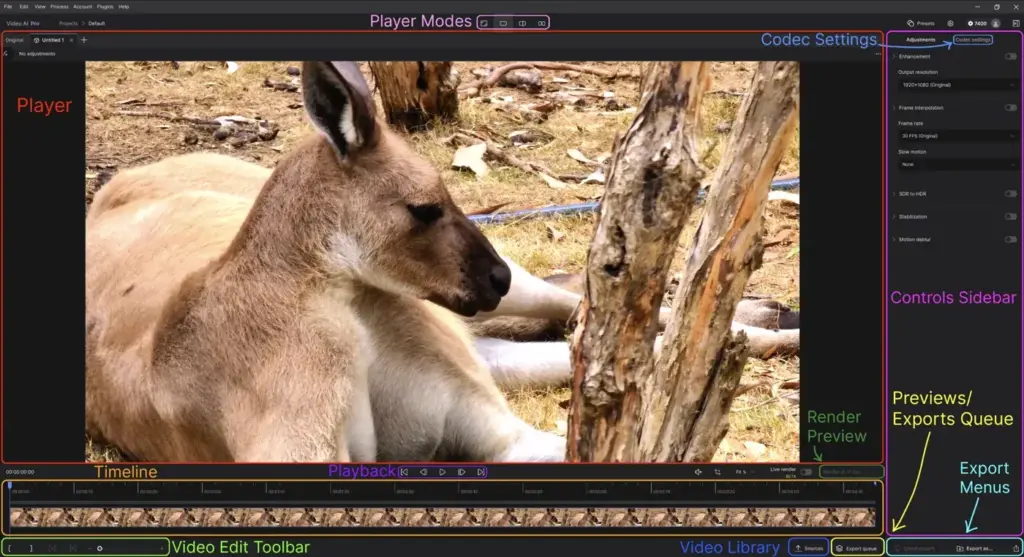
This topaz video ai review finds a powerful upscaler and cleanup tool that sharpens old footage, reduces noise and creates smooth slow motion with AI. Results can be remarkable on soft or low-resolution clips. Processing is slow, hardware demands are high, and it cannot fix severe problems, so use it selectively for restoration work.
Verdict From This Topaz Video AI Review
Topaz Video AI uses machine learning to enlarge footage, remove noise, stabilize shaky clips and generate extra frames for slow motion. On archived family video, older broadcast material or soft drone clips, it can produce a startling improvement.
It is a processing tool, not an editor. You feed it clips, choose a model, wait, and then bring the result into your editing program. The wait is substantial: even a short clip can take a long time on modest hardware.
Use it where improvements matter, such as a single hero shot or a restoration project. It is a poor choice for processing hours of footage without a dedicated computer.
Performance and Reliability
Performance is the weak point. Even on a strong graphics card, upscaling to high resolution may run at a fraction of real time, and some models take many seconds per frame. Long clips can run for hours, and multiple passes multiply the wait. The program uses a lot of video memory, so large resolutions can fail on weaker cards. Stability varies by version, and updates sometimes change results. Processing overnight, in segments, and keeping previews short are practical ways to keep the work manageable.
Key Features
AI Upscaling
Several models enlarge standard definition or 1080p footage to higher resolutions while recovering detail. Different models suit different content, so test a short section first. Make sure you understand 8-bit vs 10-bit video when choosing output formats.
Noise Reduction and Sharpening
Denoise models clean grain from low-light footage, and sharpening restores softness. Combine them gently to avoid a waxy look.
Frame Interpolation and Slow Motion
The tool can add frames to turn 24 or 30 fps footage into smooth slow motion. Real high-frame-rate capture is still better, as discussed in slow motion video and video frame rates.
Stabilization
Shaky handheld clips can be smoothed with motion analysis, with a trade-off in cropping. Better capture habits like those in steady walking shots reduce the need.
Previews and Export Options
A preview window lets you check a short segment before committing, and export options include common professional and delivery codecs.
Learning Curve and Support
The interface is simple, with a preview window, a model selector and a few sliders. The harder part is knowing which model to use for which problem. The vendor provides guides, and the user community shares comparisons. A good habit is to test several models on a ten-second sample, view at full size and compare with the original. Over time you learn which models suit old tape, compressed web video or drone footage, and how much strength to apply.
Pricing
Topaz Video AI has historically been sold as a license that includes a year of updates, with renewal available, and as part of a subscription bundle with other tools. Single-product prices have typically been a few hundred dollars.
Because the vendor has changed models several times, check the vendor site for current pricing and renewal terms. A trial exists, with watermarked output.
Remember that hardware is part of the cost. A strong graphics card and plenty of storage are practically required.
Is It Good Value?
If a single restored clip is worth a lot to you, the price is easy to justify. A hobbyist rescuing a few family videos may spend more on the software and hardware than the project is worth. Think about how often you will use it and whether your editor already provides adequate scaling or noise reduction. The cost of a strong graphics card is a significant part of the total, so check your existing hardware first.
Pros and Cons
What It Does Well
- Genuinely improves soft, noisy or low-resolution footage.
- Several specialized models for different types of video.
- Smooth slow motion from standard frame rates.
- Integrates with common editors and workflows.
- Preview feature saves time before full processing.
Where It Falls Short
- Processing is slow, even on good hardware.
- Needs a powerful graphics card and fast storage.
- Artifacts and a plastic look can appear on faces and textures.
- Not an editor, so it adds a step to your pipeline.
- Licensing and updates have changed over time.
Bottom Line
Topaz Video AI can do things that were impossible a few years ago, making old footage look much better and creating convincing slow motion. It also demands time, hardware and judgment. Treat it as a special-purpose tool for important clips, keep expectations realistic and always compare against the original. If restoration or upscaling is part of your work, it is likely to be useful. If not, there is little reason to add the complexity.
Who It Is For
Topaz Video AI suits archivists, documentary makers, family video restorers and creators who occasionally need to rescue a soft clip or upscale older material. It is also useful for converting standard definition footage for modern displays.
If you shoot clean 4K with good light, you will rarely need it. Editors working to tight deadlines may not have time for long processing.
Plan your shoots well to avoid the problem altogether. Choosing a consistent frame rate and good shutter settings, such as those in shutter angle, gives cleaner source material.
Getting Started
Choose a short, representative clip and open it in the preview window. Try an upscaling model and compare the result with the original at full size. Adjust denoise and sharpening lightly, then render a ten-second test. Export using a high-quality intermediate codec for editing, such as a professional format, rather than a heavily compressed file. Bring the result into your editor and check how it cuts with other clips. Only then queue the full footage.
Before You Buy
Before committing to Topaz Video AI, run a short checklist. Confirm that your computer meets the system requirements, download the trial or free version if one exists, and test it on a real project from your own library rather than a demo file. Compare the exported result with what you get from your current tool, note how long each step takes, and check the vendor site for current pricing and upgrade terms. A program that suits the way you already work is worth more than one with a longer list of features.
Alternatives
Alternatives range from built-in tools to other AI products.
| Alternative | Best Reason To Pick It |
|---|---|
| DaVinci Resolve Studio | Built-in noise reduction and super scale |
| Neat Video | Specialist noise reduction plug-in |
| Adobe Premiere Pro | Basic scaling and optical flow retiming |
| Topaz Photo AI | Sister tool for still images |
For clean footage, your editor may already do enough, so test before adding another step.
Common Questions
Is Topaz Video AI worth it?
It is worth it for restoration and occasional rescue jobs. If you shoot clean high-resolution video, you may not need it.
Can it upscale to 4K?
Yes. It can upscale standard definition and HD footage to 4K and higher, with variable results depending on source quality.
Does it need a powerful computer?
Yes. A modern graphics card matters a lot, and processing can still take hours for long clips.
Can it replace an editor?
No. It is a processing tool that prepares clips for editing in another program.
Try It Yourself
See what it can do on your own photos and footage.
Some links are affiliate links: if you buy through them we may earn a small commission at no extra cost to you. How this works.