
This adobe lightroom review finds the cloud-based version simple, fast to learn and excellent for editing across phone, tablet and computer. Its tools are polished and its AI masks are strong. Storage costs add up and organizing options are thinner than in Lightroom Classic, so it suits casual and mobile-first photographers best.
Verdict From This Adobe Lightroom Review
Lightroom takes the editing engine that photographers know and wraps it in a simpler, cloud-first design. You import photos, they sync to storage, and you can continue editing on any device. For people who snap pictures on a phone and a camera, that convenience is hard to beat.
The cost of that convenience is storage. Every original is uploaded to the cloud, so large libraries need large plans. The library tools are also lighter than in Lightroom Classic, with fewer ways to search, filter and manage big collections.
As an editor, though, it is excellent. The sliders, masks and presets give results close to the Classic version, and the learning curve is gentle.
Performance and Reliability
Because everything is built around cloud syncing, performance depends on both your computer and your connection. Editing is fast on the device, since the program works from local previews, but uploading a large library of raw files can take days on a slow connection. Syncing is generally dependable, and edits appear on other devices within moments once uploads finish. On a phone, the app is responsive, though very large raw files may need a recent device. Offline use works if you keep local copies, and changes sync when you reconnect.
Key Features
Cloud Syncing
Photos and edits stay in step on every signed-in device. Start a rating or crop on a phone and finish at a desk without exporting anything. Local copies can be kept, but the cloud copy is the master.
Editing and Presets
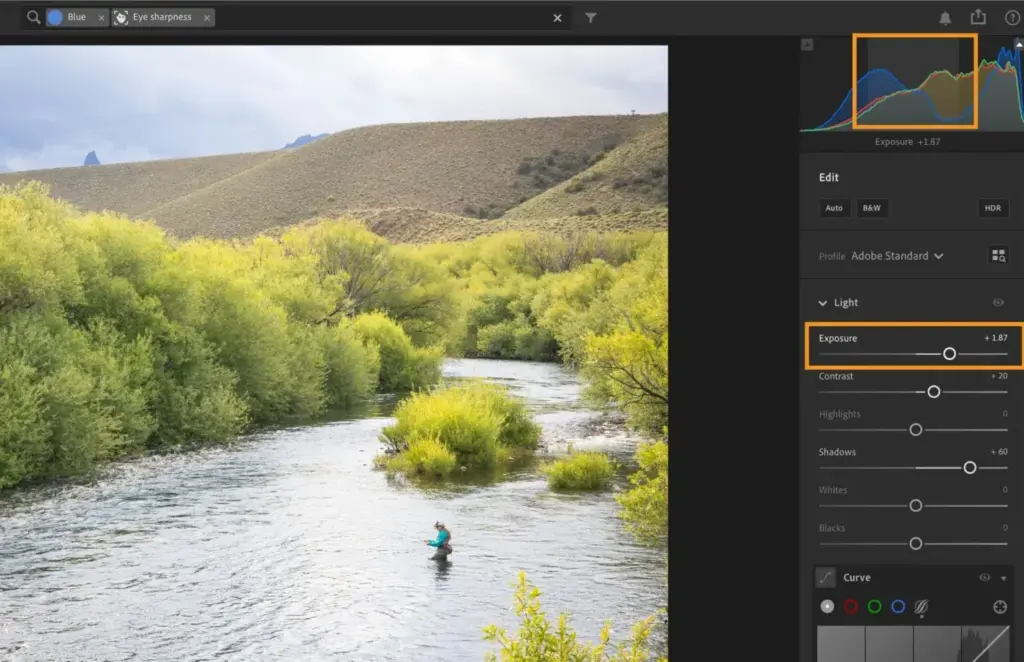
Light, color, detail, optics and geometry panels cover everything most photographers need. Presets apply a look in one tap, and you can build your own from any edit.
AI Masking
Subject, sky, background and people masks are generated in a click and can be refined with brushes and gradients. The principles are covered in the lesson on Lightroom masks.
Mobile Editing
The phone app is full featured, with the same sliders and masks as the desktop. It also works well for shooting raw files in-app on supported phones. Our guide to moving camera photos to a phone helps with getting images in.
Albums, Sharing and Discover
Albums replace the collections of Classic, and you can share web galleries with a link. Discover shows edits from other photographers, which is a handy way to learn techniques.
Learning Curve and Support
Lightroom is the easier of the two Lightroom programs to learn. The interface has fewer panels, the tools are labeled clearly and the Discover section shows how other photographers achieved particular looks. Built-in tutorials walk through the sliders step by step, and the mobile and desktop apps share the same layout, so skills transfer. Because there are fewer advanced options, you will reach the ceiling sooner than with the Classic version, but most casual and enthusiast photographers never feel limited.
Pricing
Lightroom is sold by subscription with a choice of cloud storage amounts, from a small allowance up to a terabyte or more. Monthly prices generally run from roughly $10 to $25, rising with storage.
A free mobile tier exists with limited tools, and a trial of the paid plan is usually offered. Check the vendor site for current pricing, because plans and storage allotments change.
Budget for storage honestly. A shooter who captures raw files on a camera will outgrow a small plan quickly, and extra terabytes increase the monthly bill.
Is It Good Value?
The headline price looks low, but storage is the real cost. A small plan fills quickly if you shoot raw files, and moving to larger storage tiers raises the monthly fee. Compare that with buying an external drive and using a one-time purchase editor, which may be cheaper over several years. On the other hand, you receive automatic backup, access everywhere and a polished editor in one subscription. If convenience and backup are worth paying for, the value is good. If you only edit at a desk, think twice.
Pros and Cons
What It Does Well
- Gentle learning curve with a tidy, modern interface.
- Seamless syncing between phone, tablet and computer.
- Excellent AI masks, healing and noise reduction.
- Strong presets and a useful learning community.
- Reliable cloud backup of every original.
Where It Falls Short
- Cloud storage costs grow with your library.
- Search, filtering and metadata tools are less deep than in Classic.
- Initial uploads of large libraries are slow.
- Subscription only, with no perpetual option.
- Limited control over where files are stored.
Bottom Line
Taken as a whole, Lightroom is a very good editor wrapped in a cloud service. If you value access on every device, automatic backup and a gentle interface, the monthly cost is reasonable. If you prefer local files, deep library controls or the lowest possible running cost, look at Lightroom Classic or a one-time purchase editor. The best way to decide is to try the free tier on your phone, edit a handful of real photos and see whether the syncing and the interface fit the way you already work.
Who It Is For
Lightroom suits hobbyists, travelers and social media photographers who value convenience, plus professionals who edit on the road. It is a good first serious editor because the interface does not bury you in options.
If you manage tens of thousands of images, want local control or work in a studio with tethering, Lightroom Classic is the better fit. The lesson Lightroom Classic vs Lightroom compares the two directly.
To get the most out of it, learn masks and keep an eye on storage use. For editing basics, raw versus JPEG explains why raw files give you more room to adjust.
Getting Started
Install the app on your phone and computer, sign in, and import a small batch of photos first to see how syncing behaves. Try the light and color sliders, then generate a subject mask and adjust it. Save a preset from an edit you like and apply it to another photo. Decide early whether you want full-size originals in the cloud or only smart previews, as that choice drives your storage use. Use albums to group favorites, and share one with a friend to see how web galleries work.
Before You Buy
Before committing to Adobe Lightroom, run a short checklist. Confirm that your computer meets the system requirements, download the trial or free version if one exists, and test it on a real project from your own library rather than a demo file. Compare the exported result with what you get from your current tool, note how long each step takes, and check the vendor site for current pricing and upgrade terms. A program that suits the way you already work is worth more than one with a longer list of features.
Alternatives
If cloud editing appeals, these alternatives are worth a look.
| Alternative | Best Reason To Pick It |
|---|---|
| Lightroom Classic | Deeper library tools and local storage |
| Snapseed | Free and quick for casual phone edits |
| Capture One Pro | Finer color control for studio work |
| Affinity Photo | One-time purchase with no cloud storage costs |
Unlike a plain phone editor, Lightroom also keeps your original photos backed up, which is part of what you are paying for.
Common Questions
Is Lightroom free?
The mobile app has a free tier with basic tools. Full features, desktop editing and cloud storage need a paid plan.
Does Lightroom need internet?
Basic editing can work offline with local copies, but syncing and some AI features require a connection.
Is Lightroom better than Lightroom Classic?
Neither is better in every case. Lightroom is simpler and more mobile friendly, while Classic offers deeper library management.
Can I edit raw files in Lightroom?
Yes. It supports raw files from most cameras and gives full editing control over them.
Try It Yourself
See what it can do on your own photos and footage.
Some links are affiliate links: if you buy through them we may earn a small commission at no extra cost to you. How this works.