
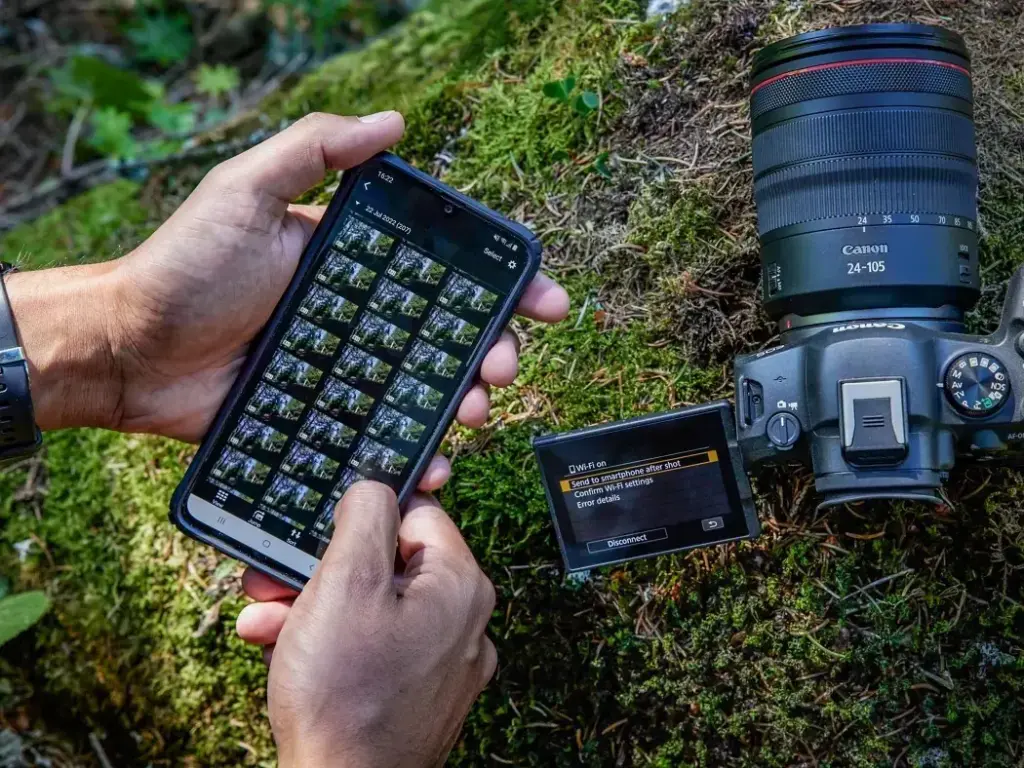
Camera to phone transfer is easiest with the maker app, which pairs over Bluetooth and Wi-Fi and sends JPEG copies of your photos to your phone. For full quality or RAW files, use a card reader or a USB-C cable instead. Pick the method based on file size, speed and whether you need original metadata.
Why It Matters
A photo that stays on a memory card does nothing for you. Most people want to share a frame while still at the event, or back up a day of shooting before heading home. Your phone is the fastest route to social media, messages and cloud storage.
Different transfer methods trade speed, quality and convenience. Knowing which to choose saves battery, storage and time, and keeps your original files safe while you share smaller copies.
Beginner Choose The Easiest Way To Move Photos
Almost every modern camera has a companion phone app from the maker. You install the app, turn on Bluetooth and Wi-Fi in the camera menu, pair the two devices once, and then pick photos from the app to save onto the phone. Most apps send a reduced size JPEG, often around 2 megapixels, which is perfect for sharing and uses little space.
Your Main Camera To Phone Transfer Options
| Method | Best For | Trade-Off |
|---|---|---|
| Maker app over Wi-Fi | Quick sharing of JPEGs | Slower, often downsized files |
| Bluetooth auto-send | Background copies while shooting | Small files only, uses battery |
| SD card reader | Full quality, RAW and many files | Needs an adapter and a spare moment |
| USB-C cable | Direct copy from the camera | Camera must support it and drain battery |
| Cloud upload | Backup without cables | Needs a network and storage plan |
Steps For The Maker App
- Install the camera maker app on your phone and open it.
- In the camera menu, turn on Wi-Fi or Bluetooth and choose the pairing option.
- Accept the pairing request on both devices and wait until the app shows a connection.
- Select the pictures you want, choose the size if the app offers one, and tap save.
- Check the photos in your phone gallery, then turn off the camera wireless feature to save battery.
Common Mistakes
- Trying to transfer with a nearly empty camera battery, which stops the connection midway.
- Forgetting to allow local network and Bluetooth permissions on the phone.
- Sending only the small JPEG and then deleting the original from the card.
- Using a charging only cable that cannot carry data.
- Pairing in a crowded place with many cameras, which can confuse the connection.
A card reader is the most reliable method for beginners who want original quality. Many phones accept a small USB-C or Lightning card reader, which shows the card as a folder in the Files app. You can then copy the images you want, and nothing is resized or stripped of information.
Tips For Faster Sharing
- Shoot in JPEG plus RAW, so you have a small file to send and a large file to keep.
- Rate or flag your best frames in the camera, so you can send only those.
- Send photos in small batches, because large selections can time out.
- Keep the phone and camera within a few feet during Wi-Fi transfers.
Remember that a transfer is not a backup. The files on your phone are copies, and the originals are still on the memory card. Keep the card until the pictures are safe in at least two places, following the habits in the 3-2-1 backup strategy.
Handy for this: Pen Tablet — precise retouching. (affiliate link)
Advanced Card Readers, USB-C, RAW And Metadata
Direct USB-C Transfer
Many cameras with a USB-C port can connect to a phone with a data cable. Set the camera USB mode to mass storage or file transfer, not charging only or tethering. Phones then list the camera as a drive in a file manager, and you can copy whole folders. Speed depends on the camera USB version. USB 2.0 ports move about 30 megabytes per second at best, while USB 3 can be several times faster. Because the camera supplies the power or draws it from the phone, use a camera with a full battery. The details of power over USB are in USB camera charging.
Card Readers And Card Speed
A card reader uses the card own speed, so a fast UHS-II card with a matching reader can copy hundreds of megabytes per second, far above the camera Wi-Fi. Phone storage is the real limit, since a day of RAW files can fill many gigabytes. Check SD card speed to pick a card and reader that match, and memory card types if your camera uses CFexpress or microSD.
RAW Handling On A Phone
RAW files from cameras are large, usually 20 to 80 megabytes each, and most gallery apps cannot display them well. Phones can open common RAW formats through the operating system or editors such as Lightroom Mobile. Read Lightroom Mobile for a typical editing route. Some cameras send a JPEG preview along with the RAW, while others only send what the app supports. If you want to edit RAW on the go, use a card reader or cable, then import into a RAW capable app. See RAW vs JPEG for the trade-offs of each format.
Metadata, Location And Copyright
Transferred files carry EXIF data such as exposure, lens and time. Some maker apps add GPS coordinates from the phone to the camera images, while others strip data when they resize. If copyright information matters to you, set it in the camera, as described in camera copyright metadata, so it travels with the files. Social networks often strip this information when you upload, so keep your originals separate from the copies that you share.
Connection Reliability
Wi-Fi transfers work by making the camera an access point, which means your phone may leave your home network for the duration of the transfer. If the phone shows no internet, that is normal. Disable automatic network switching while you transfer, and reconnect afterward. Firmware updates often fix pairing problems, so check camera firmware update when the app refuses to connect.
Try It
- Install the maker app, pair it with your camera and send three JPEG photos to your phone.
- Connect a card reader to the phone and copy the same photos in full size.
- Compare file sizes and check which version holds the EXIF details.
- Time how long ten photos take with each method and note the winner.
- Back up the originals to a second place before erasing the card.
Common Questions
What is the fastest way to move photos from a camera to a phone?
A card reader or a USB 3 cable is usually the fastest, because both avoid the slow wireless link. The maker app is easier but slower, especially for large files and RAW images.
Can I transfer RAW photos to my phone?
Yes, through a card reader or a USB cable. Many maker apps send only JPEG. Once on the phone, use a RAW capable editor such as Lightroom Mobile to open and edit them.
Why does my camera not connect to my phone?
Check that Bluetooth and Wi-Fi are on, the battery is charged and the app has permissions. Forget the old pairing on both devices, then pair again. A firmware update may fix stubborn problems.
Do transferred photos keep their metadata?
Full size transfers keep EXIF data. Some apps resize files and drop details, and social networks often strip information on upload. Keep the originals on your card or computer as the master copy.
Related Lessons
- USB Camera Charging for power and data over one cable.
- SD Card Speed to match your card and reader.
- RAW vs JPEG to decide which file to send.
- Lightroom Mobile to edit transferred photos on the phone.
- 3-2-1 Backup Strategy to keep originals safe after copying.
Gear That Helps With This
Hand-picked kit that makes this lesson easier to put into practice.
Some links are affiliate links: if you buy through them we may earn a small commission at no extra cost to you. How this works.