
Photographing a computer screen cleanly means matching your shutter speed to the screen refresh rate, usually 1/30 second or slower for a 60 Hz display, and controlling angle and distance. A slow shutter averages many refresh cycles, which removes dark bands, while a small change in position breaks up moire patterns and reflections.
Why It Matters
A screen looks steady to your eyes, but it is not. A typical monitor redraws the picture 60 times each second, and many panels dim their backlight in rapid pulses. A fast shutter catches only part of that cycle, so the photo shows dark horizontal bars, uneven brightness or a rolling band.
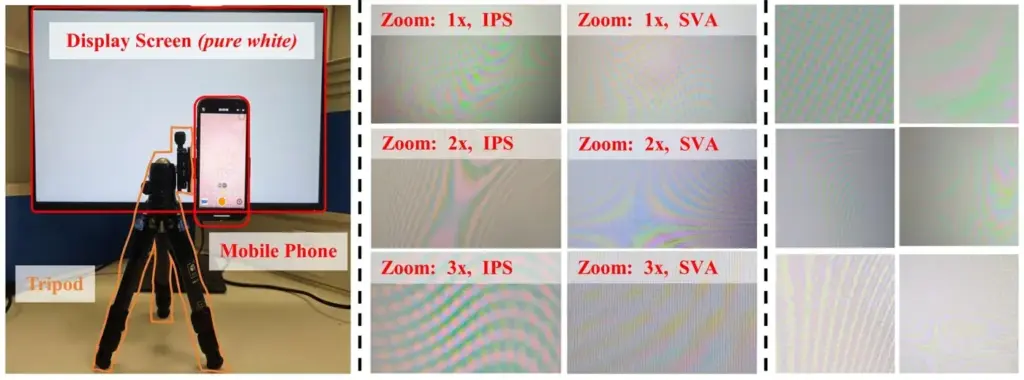
Photographers also run into moire, a rippled pattern that appears when the pixel grid of the screen interacts with the pixel grid of the sensor. Add glare from room lights and a screen shot can look like a mess. Each problem has a simple cause and a simple fix, and once you know them, product shots, tutorials, reviews and photos of your work become easy.
Beginner Photographing A Computer Screen: The Basics
Fix Banding With A Slower Shutter
Banding happens when the shutter is faster than the screen refresh cycle. A 60 Hz screen refreshes every 1/60 second, so a shutter speed of 1/30, 1/15 or 1/8 second collects at least two full refresh cycles, and the bands vanish. The rule is to use a shutter that is a whole multiple of the refresh time or longer. Many screens and phones also dim by pulse width modulation, which flickers faster than the refresh rate, so a longer shutter helps with those as well.
| Screen Refresh | One Cycle | Safe Shutter Speeds |
|---|---|---|
| 60 Hz | 1/60 s | 1/30, 1/15, 1/8 or longer |
| 120 Hz | 1/120 s | 1/60, 1/30 or longer |
| 144 Hz | 1/144 s | 1/72, 1/36 or longer |
| Unknown or PWM dimming | Varies | 1/15 or longer, and test |
Basic Setup
- Put the camera on a tripod so a slow shutter does not blur the image.
- Set the camera to Aperture Priority or manual, use ISO 100 to 400 and an aperture of f/5.6 to f/8.
- Use a two second timer or remote release to prevent shake.
- Lower the screen brightness, because a bright screen next to a dark room will clip highlights.
- Focus on the text with magnified live view, then check the shot at 100 percent.
Cut Down Reflections
- Turn off lights behind you and close curtains, or move the lamp out of the line of reflection.
- Wear dark clothing, since a light shirt can show up in a glossy screen.
- Shoot slightly from above or below center, which turns the reflection of the room away from the lens.
- Hang a black cloth or card behind you to block windows.
Easy Moire Fixes
If you see colored ripples on the screen, move the camera a little closer or farther, or change the zoom. Rotate the camera a few degrees. Moire comes from a close match between two grids, so a small change often removes it. Photographing slightly out of focus can also help, but this softens text.
Common Mistakes
- Using a fast shutter such as 1/200 second and getting dark bands.
- Shooting a bright white page against a dark room, which creates a blown screen and a murky background.
- Holding the camera by hand with a slow shutter.
- Missing the glare of a window in the screen until the editing stage.
Handy for this: Carbon Fiber Tripod — sharp at slow shutter speeds. (affiliate link)
Advanced Angle, Distance, Refresh Matching And Color Balance
Why Angle And Distance Matter
A flat, square-on view invites reflections and moire at the same time. Shooting from a small angle of 10 to 15 degrees off the screen center sends glare away from the lens. Perspective correction can fix the slight keystone later. For a straight, even result, step back and use a longer focal length such as 70 to 100mm, which gives less distortion at the screen edge than a close wide-angle shot. A moderate distance also changes the size of the pixel grid seen by the sensor, which changes the moire pattern.
Matching Refresh Rate In Video
Video adds frame rate to the problem. If you record 24 or 30 frames per second of a 60 Hz screen, a shutter angle of 180 degrees gives 1/48 or 1/60 second shutter, and 1/48 can show a slowly rolling bar. Choose a shutter speed that is a whole multiple of the refresh period, such as 1/60 for 30p on a 60 Hz screen. Many cinema cameras offer a synchro scan or clear scan setting that adjusts the shutter in fine steps until the bar disappears. Cameras with anti-flicker modes can detect the screen frequency. See anti-flicker shooting and the 180 degree shutter rule.
Dealing With Pulsed Backlights
OLED phones and laptops often use pulse width modulation at brightness levels below maximum. At full brightness, the pulsing often stops. If a phone screen shows bands at a safe shutter speed, raise its brightness to maximum and reduce the camera exposure with a smaller aperture or lower ISO. A slower shutter also averages the pulses, and a long exposure of 1/4 second is rarely troubled by them.
Color Balance And Brightness
Most computer screens are calibrated near 6500 Kelvin, which is close to daylight, so set white balance to Daylight or choose a custom setting using a gray card held in front of the screen. Room lights with a different color mix with the screen light and create a color cast on your hands or desk. Switch them off or match them. A screen that is much brighter than the room can blow out, so expose for the screen highlights, usually the white of a text window, and let the background fall dark. See custom white balance and color temperature Kelvin.
Polarizers And Reflections
Most LCD screens emit polarized light. A circular polarizer on the lens can darken or brighten the screen as you rotate it, so rotate until the picture looks best, and remember that it also removes some reflections from the room. On some tablets and phones, it can make the display look dim from one angle, so check the preview. If a window or lamp still shows in the glass, the techniques in shooting through glass apply here too.
Alternatives To Photographing
If you only need the content of the screen, a screenshot is always sharper, free of moire and exact in color. Photograph a screen only when you need to show the real device, the room or the hands using it. For a process or review, combine a clean screenshot with a single well-lit photo of the setup. When timing matters, the shutter speed guide explains how each setting affects the whole picture.
Try It
- Set your camera to 1/250 second, photograph a monitor and note the dark bands.
- Repeat the shot at 1/60, 1/30 and 1/15 second and compare the bands and exposure.
- Take the same photo from directly in front and from 15 degrees to the side and note how glare changes.
- If you see moire on a text window, step back, zoom in and take another shot to find a clean spot.
Common Questions
Why do photos of screens have black bands?
The shutter is faster than the screen refresh, so it captures only part of the redraw. Use a shutter speed of 1/30 second or slower for a 60 Hz screen, or turn on anti-flicker.
What is moire on a screen photo?
It is a rippled color pattern caused by the pixel grid of the screen interacting with the sensor grid. Changing distance, zoom or angle slightly usually removes it.
What white balance is best for a screen?
Daylight, around 6500 Kelvin, is a good start because most screens are set near that value. A gray card gives a more exact custom setting.
Can a polarizer help when photographing a screen?
It can reduce room reflections, but because many LCD screens emit polarized light, it may also darken the display at some angles, so rotate it and check the preview.
Related Lessons
- Anti-Flicker Shooting for camera features that avoid banding from lights and screens.
- 180 Degree Shutter Rule for matching shutter speed to frame rate in video.
- Custom White Balance to set exact color for mixed light.
- Shooting Through Glass for another reflection problem and its fixes.
- Shutter Speed Guide to understand how shutter time affects every scene.
Gear That Helps With This
Hand-picked kit that makes this lesson easier to put into practice.
Some links are affiliate links: if you buy through them we may earn a small commission at no extra cost to you. How this works.