
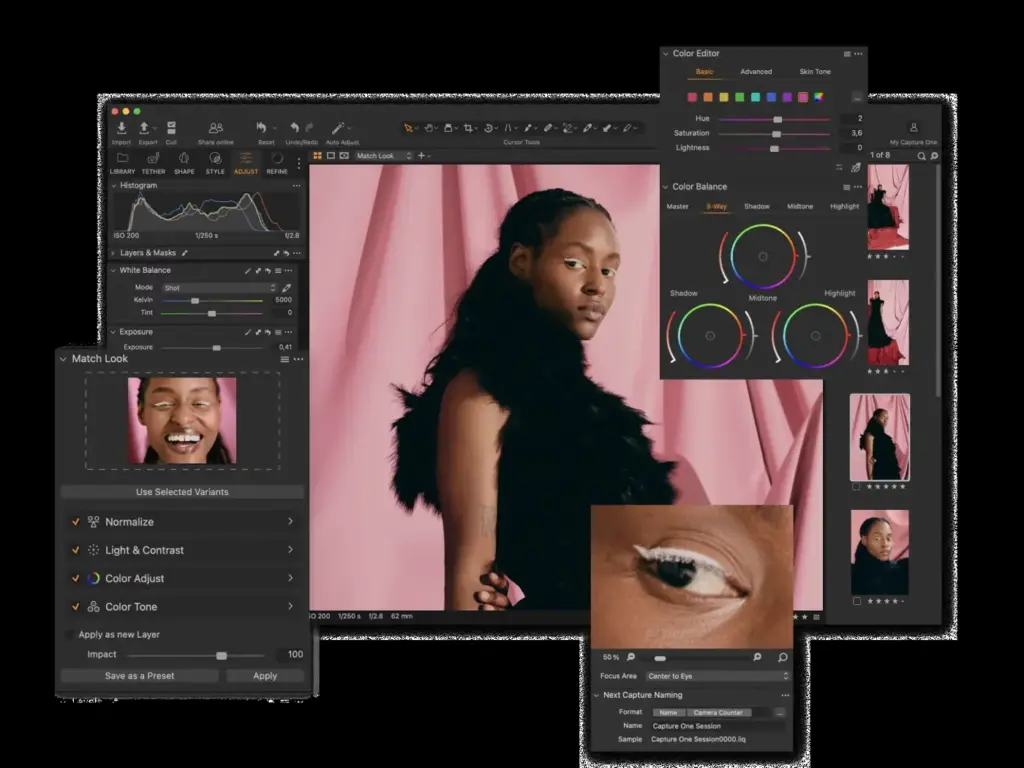
This capture one pro review finds a premium raw converter with excellent color rendering, superb tethering and a flexible, layer-based workflow. It is a favorite in studios and fashion work. The cost is high, the interface is complex, and the library tools feel less natural than Lightroom, so it suits committed professionals best.
Verdict From This Capture One Pro Review
Capture One built its reputation in commercial and fashion studios, where fast tethered capture and accurate color matter most. Its raw rendering is clean and detailed, and the color editor is among the most precise available.
Everything is customizable, from tool tabs to keyboard shortcuts, which delights power users and bewilders newcomers. Layers and masks allow local edits that rival a pixel editor for many jobs.
It costs more than most competitors, and organizing a huge personal library is smoother in Lightroom Classic. If tethering and color accuracy drive your work, though, it is hard to beat.
Performance and Reliability
Capture One is responsive on a capable computer, and its tethered capture is famously stable, with images appearing quickly after each shot. Previews generate in the background, and a good graphics card accelerates adjustments. On modest hardware, large raw files and many layers can feel sluggish, and the program uses more memory than some competitors. Catalogs of very large size can slow down, which is why many studios use per-job sessions. Regular updates add support for new cameras quickly, which matters for working professionals.
Key Features
Raw Rendering and Color Editor
Camera profiles are tuned per sensor, and the color editor lets you select and adjust ranges with precision, including skin tones. For background reading on why raw matters, see raw vs JPEG.
Tethered Capture
Connect a camera and images appear instantly with live view, capture pilot and fast naming. Studio photographers often choose the program for this alone.
Layers and Masks
Local adjustments use layers with brush, gradient and AI masks, so you can keep edits non-destructive. If you are new to the idea, layer masks explain the concept.
Sessions and Catalogs
Sessions keep a single shoot self-contained, while catalogs manage large archives. Choosing between them early helps, and the lesson on catalog setup covers general principles.
Styles and Customization
Styles bundle adjustments for quick looks, and the workspace can be rebuilt to match your habits. Exposure judgment still matters, so dynamic range explained is useful reading.
Learning Curve and Support
This is not the easiest program to learn. The interface is built from customizable tool tabs, and the sheer number of options can feel intimidating. The vendor and many professional photographers publish tutorials, and the community is dedicated, if smaller than Adobe. Expect a few weeks to become comfortable with the basics and longer to master the color editor and layers. A helpful approach is to start with the default workspace, learn one tool tab at a time and only then customize.
Pricing
Capture One Pro has been sold both by subscription and as a perpetual license, with the latter priced noticeably higher up front. Monthly plans have often been in the range of about $15 to $25, and versions for specific camera brands have sometimes been cheaper.
Educational discounts and trials are generally available. Because plans, bundles and camera-brand editions change, check the vendor site for current pricing before buying.
Compare total cost over several years. A perpetual license can pay off if you upgrade rarely.
Is It Good Value?
Capture One is priced for professionals, and it makes the most sense when its strengths directly affect your income: faster tethered sessions, better skin tones and consistent color across a shoot. For hobbyists, the premium is harder to justify when other raw editors cost less. Consider whether you will use a camera-brand edition, which can be cheaper, and whether a perpetual license suits you better than a subscription. A trial lets you check rendering on your own files before paying.
Pros and Cons
What It Does Well
- Raw rendering and skin tone control are excellent.
- Tethering is fast and reliable in studio settings.
- Layer-based local editing is flexible and non-destructive.
- Highly customizable workspace and shortcuts.
- Perpetual license option is available.
Where It Falls Short
- More expensive than most rivals.
- The learning curve is steeper than Lightroom.
- Catalog and library tools feel less intuitive.
- Needs a capable computer for smooth performance.
- Smaller community and preset market.
Bottom Line
Capture One Pro is a specialist tool that rewards serious users. Its rendering, tethering and color control are excellent, and its customization lets you build a workflow that fits like a glove. It is not the cheapest or simplest option, and photographers who want an effortless library may prefer Lightroom. If you work in a studio or care deeply about color, it is well worth a trial. If you shoot casually, you will probably be happier and a little richer with a simpler alternative.
Who It Is For
Capture One suits studio, commercial, product and fashion photographers, and any enthusiast who values color accuracy and tethered shooting. It also suits photographers who want to customize their workspace deeply.
If you mainly edit travel and family photos and want an easy library, Lightroom is simpler and cheaper. If you want free tools, consider open-source options.
Spend time on color editor basics and sessions. Good exposure and metering at capture, covered in metering modes compared, give any raw editor better data to work with.
Getting Started
Begin with a session rather than a catalog for your first shoot. Connect the camera for tethered capture or import files, set up your naming template and choose a style to apply on import. Adjust exposure and white balance in the base tool tabs, then try the color editor to refine skin tones. Add a layer and paint a local adjustment. Export using a recipe for your destination. Save your workspace once it feels comfortable, and make a backup of the session folder.
Before You Buy
Before committing to Capture One Pro, run a short checklist. Confirm that your computer meets the system requirements, download the trial or free version if one exists, and test it on a real project from your own library rather than a demo file. Compare the exported result with what you get from your current tool, note how long each step takes, and check the vendor site for current pricing and upgrade terms. A program that suits the way you already work is worth more than one with a longer list of features.
Alternatives
Raw editors compete on color, speed and price.
| Alternative | Best Reason To Pick It |
|---|---|
| Adobe Lightroom Classic | Better library tools and wider community |
| DxO PhotoLab | Strong noise reduction and lens corrections |
| ON1 Photo RAW | Perpetual license and built-in layers |
| Darktable | Free, with deep controls for tinkerers |
Download trials of two or three and edit the same raw file in each, because rendering preferences are personal.
Common Questions
Is Capture One better than Lightroom?
Capture One is stronger for tethering and color, while Lightroom has easier library management and a larger community.
Is Capture One good for beginners?
It can be used by beginners, but the customization and tools can feel overwhelming at first.
Does Capture One have a perpetual license?
It has been offered, though plans change. Check the vendor site for what is currently available.
Do I need Capture One for tethering?
No, but its tethering is among the best, which is why studios prefer it.
Try It Yourself
See what it can do on your own photos and footage.
Some links are affiliate links: if you buy through them we may earn a small commission at no extra cost to you. How this works.