
A Lightroom catalog is a database file that records where your photos are, what edits you made, and your ratings, keywords and collections. It does not contain the photos themselves. Keep one catalog on a fast drive, store originals in a clear folder system, and back up both on a schedule.
Why It Matters
The catalog is the brain of Lightroom Classic. If it is lost, your edits, collections and keywords are lost even though the photo files survive. If it is stored in the wrong place, the program feels slow. A little planning at the start saves a lot of cleanup years later.
Most problems new users report, such as missing photos with question marks or edits that vanish, trace back to a catalog or folder choice made without thinking. Setting it up properly takes about ten minutes.
Beginner Creating And Placing Your Catalog
The catalog is a file ending in .lrcat. Next to it, Lightroom creates a previews file and, if you use smart previews, a smart previews file. All of these sit together in one folder that you choose. Lightroom Classic opens one catalog at a time.
One Catalog Or Many
For most photographers, one catalog for everything is the best setup. It lets you search across all your photos, and it keeps collections and keywords in one place. Separate catalogs make sense only for clearly separate businesses, such as a studio that must keep each client apart for legal reasons.
Where To Store It
- Put the catalog on your fastest internal drive, ideally a solid-state drive, because it is read constantly.
- Do not store the catalog on a network drive or in a folder that a cloud sync service is actively syncing. The constant locking can corrupt it.
- Keep the photos on a larger drive if needed. The catalog and the photos do not have to share a drive.
Steps To Make A New Catalog
- Choose File, then New Catalog.
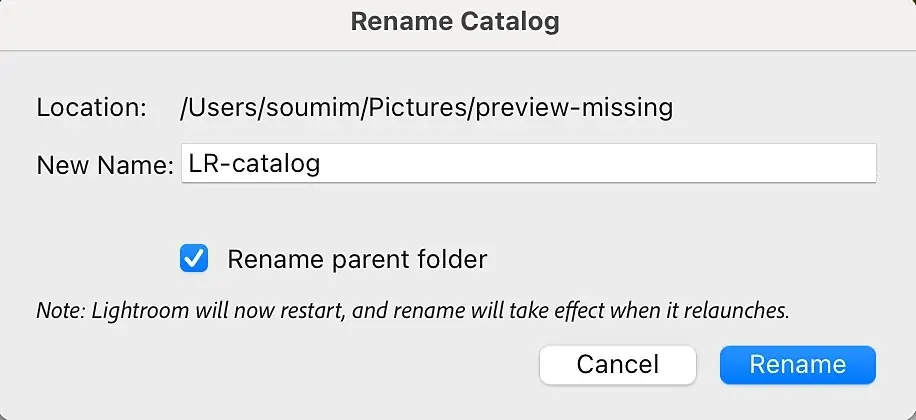
- Pick a folder with a clear name such as Lightroom Catalog and give the catalog a simple name.
- Open Lightroom’s preferences and look at the Catalog Settings page to see where the file lives and when it backs up.
- Set the backup option to run when you exit, and choose a backup folder on a different drive.
A Folder Plan That Lasts
Choose one structure and stay with it. A popular pattern is a top folder called Photos, then a year, then a date and short description such as 2026-06-14 Beach Trip. Dates sort correctly and keep things in order. Avoid creating folders by subject, because one photo often belongs to several subjects. Use keywords and collections for subjects instead, as explained in collections and keywords.
Moving Files Safely
Always move, rename or delete photo folders from inside Lightroom’s Library module, in the Folders panel. Dragging a folder in Windows Explorer or macOS Finder breaks the link, and Lightroom shows missing-file warnings. If that happens, right-click the folder and use the option to find the missing folder.
Common Mistakes
- Keeping the catalog on an external drive that is not always connected.
- Creating a new catalog for every shoot, which makes searching impossible.
- Skipping backups because the photos are copied elsewhere. The photos are safe, but the edits are not.
- Renaming folders in File Explorer or Finder instead of in Lightroom.
Handy for this: Pen Tablet — precise retouching. (affiliate link)
Advanced Preview Cache, Backups And Recovery
Understanding The Preview Files
The previews file holds standard and one-to-one previews so that browsing is fast without reading each raw file. It can grow very large. It is safe to delete, because Lightroom will rebuild previews, but the rebuild takes time. You can set how long one-to-one previews are kept, and automatic discarding after 30 days is a reasonable default for large libraries. See Lightroom performance for related tuning.
Smart Previews For Offline Work
Smart previews are compact, lossy raw files that allow editing when the original drive is disconnected. They are useful when the photos live on an external drive and you travel with only a laptop. You can create them during import or later from the Library menu. Edits made on a smart preview apply to the original when it is reconnected. Details are in smart previews.
Backing Up The Catalog Properly
Lightroom’s built-in backup makes a compressed copy of the catalog file, and it can test integrity at the same time. Each backup lands in a dated folder, so over months many copies pile up. Delete the old ones on a schedule, keeping the latest few. The built-in backup does not copy your photos, so you need a separate backup for the originals. A reliable plan is a second drive with a mirrored copy and one more copy kept offsite or in cloud storage.
Recovering From Trouble
If Lightroom reports the catalog is corrupt, first try to open it again after a restart. Next, use the integrity check offered at the prompt. If that fails, restore the most recent backup by opening the .lrcat file from the backup folder. You lose only edits made since the backup, which is why frequent backups matter.
Merging Catalogs
You can import one catalog into another with File, Import from Another Catalog. Lightroom shows the photos in the source catalog and lets you decide how to treat duplicates and changed settings. This is the safe way to combine a laptop catalog made on the road with your main catalog at home.
Metadata Written To Files
By default, edits live only in the catalog. You can have Lightroom write the settings and metadata to files, producing sidecar files for raw images. That helps if another program needs the keywords or if you want a second record of your work. It does take extra time on large batches, so many users apply it only to finished projects.
Try It
- Open Catalog Settings and note where the catalog file is stored and what the backup schedule is set to.
- Create a backup folder on a different drive and set Lightroom to back up when it closes.
- Look at your photo folders in the Library module. If they are sorted by date, you already have a good structure.
- Run one backup now and confirm the dated folder appears in your chosen location.
- Write a short note listing where the catalog, previews and photos live so you can find them quickly.
Common Questions
Does the Lightroom catalog contain my photos?
No. It holds records, edits, ratings, keywords and collections. The photo files stay in the folders you chose, so both the catalog and the photos need backing up.
Can I keep my catalog on an external drive?
You can, but the drive must be connected whenever you open Lightroom. A fast internal drive is usually better, with backups copied to the external drive.
Is it safe to delete the previews file?
Yes. Lightroom rebuilds previews as needed. Browsing is slower until the cache is rebuilt, but no edits are lost.
How many catalogs should I have?
One for most people. A single catalog lets you search every photo at once. Use separate catalogs only for fully separate clients or businesses.
Related Lessons
- Lightroom Import Settings to decide how new photos enter the catalog.
- Collections, Keywords, And Finding Photos to organize without extra folders.
- Lightroom Smart Previews to edit when your drive is disconnected.
- Lightroom Classic vs Lightroom to confirm which version needs a catalog.
- Lightroom Performance to keep a large catalog responsive.
Gear That Helps With This
Hand-picked kit that makes this lesson easier to put into practice.
Some links are affiliate links: if you buy through them we may earn a small commission at no extra cost to you. How this works.