
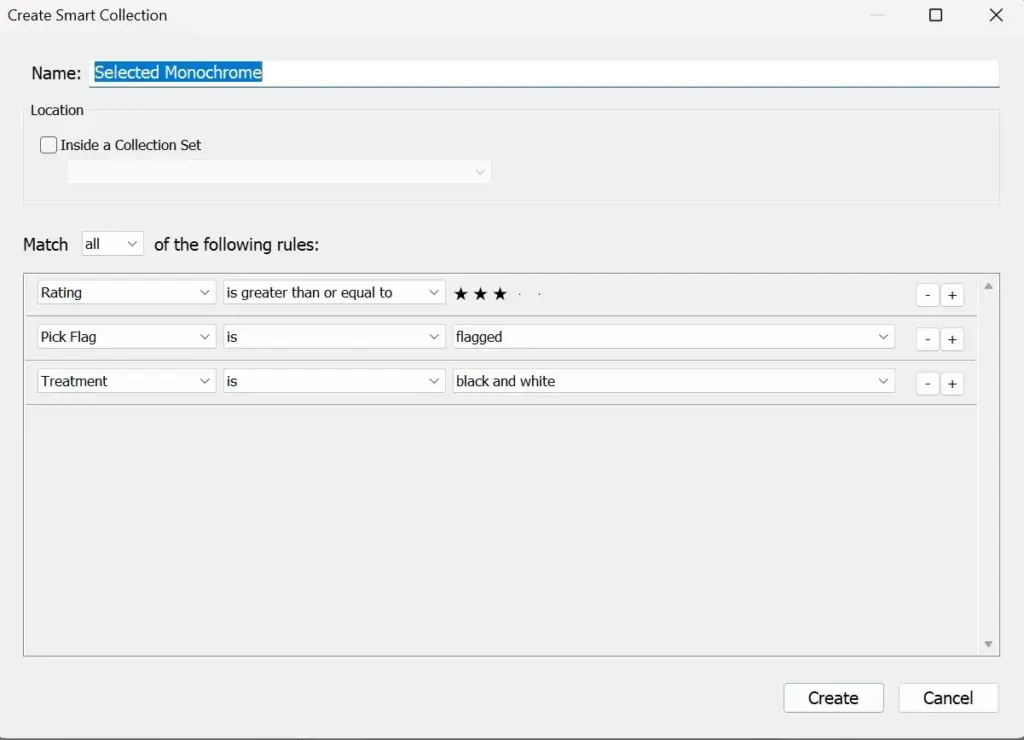
Smart collections are collections in Lightroom Classic that fill themselves automatically with every photo matching a set of rules, such as five-star rating, a certain keyword, or a lens. When your photos change, the collection updates on its own, so you can build a view once and use it for years.
Why It Matters
As a catalog grows, finding the right images becomes harder, and manual organization takes time that most photographers do not have. A smart collection lets you ask a question, such as which of my edited pictures from last year are rated four stars or higher, and see the answer instantly.
They also reduce mistakes. Instead of dragging images into folders and forgetting some, you let the rules do the sorting, which makes your workflow consistent from one shoot to the next.
Beginner Creating Your First Smart Collection
A smart collection is created in the Collections panel. Unlike a regular collection, you cannot drag images into it by hand, because the rules decide what belongs.
Step By Step
- In the Library module, click the plus sign in the Collections panel header.
- Choose Create Smart Collection.
- Give it a name, such as Five Star Picks, and choose where to place it.
- Choose a rule, for example Rating, then is greater than or equal to, then five stars.
- Click Create. The collection fills immediately.
Useful Starter Ideas
| Name | Rules |
|---|---|
| Five Star Picks | Rating equals five stars |
| To Edit | Rating at least three stars, and has adjustments is false |
| Portfolio Candidates | Rating at least four stars, and keyword contains portrait |
| Recent Imports | Added date is in the last 7 days |
| Wide Angle Shots | Focal length is less than 35mm |
| High ISO Review | ISO is greater than 6400 |
Combining Rules
You can add rules with the plus button and choose to match all, any, or none of them. Match all narrows results, such as four stars and landscape keyword. Match any broadens results, such as photos tagged either birds or wildlife. Use the minus button to remove a rule.
Common Mistakes
- Trying to drag photos into a smart collection, which does nothing.
- Writing rules that overlap in confusing ways and getting zero results.
- Forgetting that ratings and flags must be set before photos appear.
- Using a slow rule such as any searchable field on a very large catalog.
Daily Habit
After importing, give picks a rating, then check your To Edit smart collection. Edited photos drop out of it automatically, so it shrinks as you work, and you always see what remains. See culling photos in Lightroom for rating strategy.
Handy for this: ND And Polarizing Filters — control light and glare. (affiliate link)
Advanced Rule Design, Performance And Workflow Integration
What You Can Filter On
Rules can use file attributes, such as file type, color label or folder, and metadata such as capture date, camera model, lens, aperture, shutter speed, ISO, focal length and keywords. They can also test edit status, such as whether adjustments have been applied, and develop settings such as preset used. This makes it possible to build views for particular gear, conditions or editing states. Good metadata supports good rules, so settle on a consistent file naming convention and keyword scheme.
Smart Collections Versus Regular Collections
A regular collection is a hand-picked list that persists, while a smart collection is a saved query. Use regular collections for curated sets, such as a gallery for a client. Use smart collections for status views, such as what needs editing. You can place both inside collection sets to keep the panel tidy. For manual sets, see Lightroom collections.
Performance On Large Catalogs
Smart collections are evaluated each time you open them, and rules on indexed fields such as rating, date and flag are quick. Broad text searches, such as any searchable field, take longer on catalogs with hundreds of thousands of photos. If a smart collection feels slow, narrow it with a rating or date rule, and keep the catalog optimized. Settings that affect speed are covered in Lightroom performance and Lightroom catalog setup.
Workflow Examples
Create a Needs Keywords smart collection with a keyword rule set to is empty, so you can see unkeyworded photos after import. Make an Export Candidates collection that matches four stars or higher and a green label. Create a Wedding Reception collection by combining date range, camera model and a keyword. Use virtual copies for alternate edits, with a smart collection that finds copies using the copy name rule. See virtual copies.
Smart Collections And Backups
Smart collections are stored in the catalog, not in the image files, so they travel with a catalog backup. Keywords and ratings written to metadata are stored in the files or XMP sidecars if you choose, but the smart collection definitions are not. Back up your catalog regularly, along with your photos, following a 3-2-1 backup strategy.
Sharing Rules Across Catalogs
You can export a smart collection as a preset by right-clicking and choosing Export Smart Collection Settings, which creates a small file. Import it into another catalog, and the same rules appear. This is useful for teams or if you maintain separate catalogs for work and personal pictures. Keep a note of how each rule works so that you can maintain them.
Naming And Organizing Smart Collections
A clear naming scheme keeps the panel usable as you add more rules. Put smart collections into a collection set called Workflow for status views, another called Gear for lens and camera queries, and another called Projects for client or trip filters. Start workflow names with a number so they sort in order, such as 1 To Rate, 2 To Edit, 3 To Export. Keep names short enough to read in the narrow panel, and avoid duplicating a rule across several collections, since you will have to update each one if your system changes.
Troubleshooting Empty Or Wrong Results
If a smart collection shows no photos, check each rule one at a time by turning the others off, since a single wrong condition empties the set. Make sure the rule type matches how your metadata is stored, such as keywords being exact words versus contains. Remember that photos in stacks, or hidden in folders outside the current catalog, will not appear, and that a smart collection includes virtual copies as separate items. If results seem out of date, check that metadata was saved to the catalog and that you are not filtering the grid with a separate library filter bar at the top.
Try It
- Rate ten photos with different star values in your catalog.
- Create a smart collection called Four Stars Plus with a rating rule of greater than or equal to four.
- Add a second rule so that the photos must have been taken in the last year.
- Change the rating on a photo and watch the collection update.
Common Questions
What is the difference between a collection and a smart collection?
A collection holds photos you choose by hand, while a smart collection holds photos that match rules. The membership of a smart collection changes automatically when metadata changes.
Can I add photos to a smart collection manually?
No. Membership is decided by the rules. To include a photo, change its metadata so it matches. If you need a hand-picked set, use a regular collection.
Do smart collections slow down Lightroom?
Only if the rules are complex or the catalog is very large. Most rules based on rating, date or keyword are quick. Avoid wide text search rules when you can.
Do smart collections work in Lightroom cloud?
They are a feature of Lightroom Classic. The cloud version uses albums and search instead. See Lightroom Classic vs Lightroom for how they differ.
Related Lessons
- Lightroom Collections for hand-picked groups of photos.
- Culling Photos In Lightroom to set the ratings that smart rules rely on.
- Lightroom Catalog Setup for building a catalog that scales.
- Virtual Copies to track alternate versions.
- File Naming Convention for consistent metadata and names.
Gear That Helps With This
Hand-picked kit that makes this lesson easier to put into practice.
Some links are affiliate links: if you buy through them we may earn a small commission at no extra cost to you. How this works.