
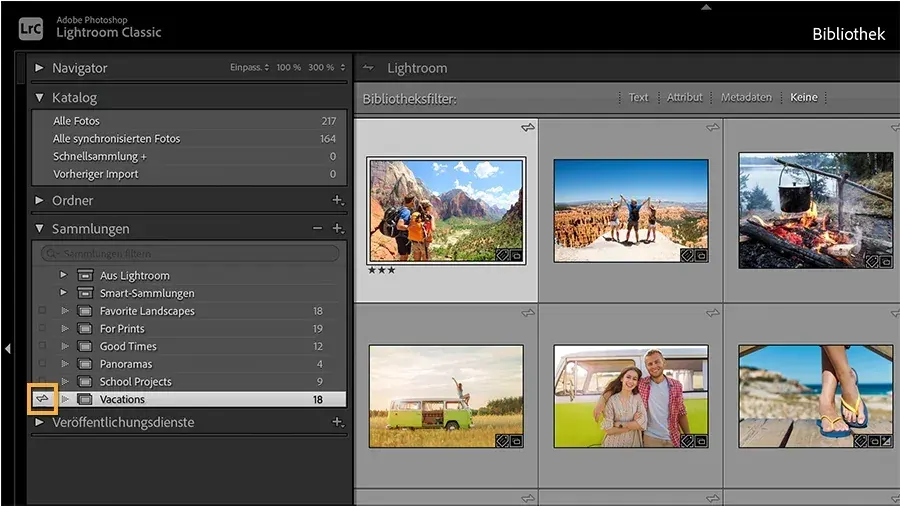
Lightroom collections are virtual groups of photos that live in the catalog. A photo can sit in many collections at once, and the files never move. Combined with keywords, which describe what is in each photo, collections make it easy to find images for a client, a portfolio or a project.
Why It Matters
Folders answer one question: where is this file stored? But photographers ask many questions. Which photos went to the client? Which are in my portfolio? Which show a lighthouse? A single folder cannot answer them all, because a file can live in only one folder.
Collections and keywords answer these questions without duplicating files or changing the folder layout. With a small amount of structure, you can find any photo in seconds, even in a library of many thousands.
Beginner Lightroom Collections, Sets And Keywords Basics
Collections appear in the Collections panel on the left side of the Library module in Lightroom Classic. A collection is a named list that points at photos in the catalog. Adding a photo to a collection does not copy the file, and removing it from a collection does not delete it.
Creating A Collection
- In the Collections panel, click the plus sign on the right side of the header and choose Create Collection.
- Type a clear name, such as Smith Wedding Selects.
- Check Include selected photos if you have already selected the photos you want.
- Click Create. The collection appears in the panel.
To add more photos, drag them from the grid onto the collection name. Pressing B adds the selected photo to the target collection. The target collection can be set by right-clicking a collection and choosing Set as Target Collection.
Collection Sets
A collection set is a folder that holds collections. Use sets to keep order, such as a set named Clients that holds one collection per job, and another set named Portfolio that holds collections per theme. Create a set with the same plus menu by choosing Create Collection Set.
Quick Collection
The Quick Collection is a temporary holding area found under the Catalog panel. Press B on a photo to add it. It is useful for gathering photos for a task, and you can convert it to a regular collection afterwards by choosing Save Quick Collection from the File menu.
Keywords
Keywords are text tags saved with each photo. Use the Keywording panel on the right side of the Library module. Select photos, click in the field, and type words separated by commas, such as lighthouse, sunset, Maine. Lightroom suggests existing keywords as you type, which helps you stay consistent.
Keywords Versus Collections
| Tool | Best for | Example |
|---|---|---|
| Folder | Where the file is stored | 2026/2026-06-14 Beach Trip |
| Collection | A project, job or purpose | Smith Wedding Selects |
| Keyword | What is in the photo | lighthouse, sunset |
Common Mistakes
- Using folders as the main way to organize by subject, which leads to a tangle of copies and duplicates.
- Typing keywords inconsistently, such as car, cars and automobile for the same idea.
- Creating collections with vague names like New or Stuff.
- Forgetting that deleting a photo from a collection leaves it in the catalog, then assuming it is gone.
Handy for this: Pen Tablet — precise retouching. (affiliate link)
Advanced Building A System That Scales
Keyword Hierarchies
Lightroom supports nested keywords. For example, Maine can sit under United States, and Lighthouse under Architecture. Create them in the Keyword List panel by clicking the plus sign, then use the options to put the keyword inside another. When you search for the parent keyword, photos tagged with children are included if you apply the search correctly. Hierarchies keep the list tidy as it grows and cut the risk of duplicates.
Exporting Synonyms And Privacy
Each keyword has options to include on export, export containing keywords and export synonyms. Turn off Include on Export for private tags, such as a client name or a note-to-self, so these are not written into files you share. Synonyms let you add alternate words for search engines without cluttering your own list.
Finding Photos
The Library Filter bar, shown by pressing the backslash key, has a Text tab, an Attribute tab and a Metadata tab. The Text tab searches keywords, file names, captions and other fields. The Metadata tab lets you filter by columns such as camera, lens, date and keyword together. Saved filter presets let you return to a common search in one click. For automatic groups, see smart collections.
Collections As Working Sets
Collections can remember their own sort order, and you can drag photos into a custom order to prepare a slideshow or book. When you export or print from a collection, the order carries over. Collections also sync to Lightroom mobile and the web if you turn on sync, which allows review on a phone. See Lightroom Mobile for details.
Plan A Simple Structure
Do not build a big system on day one. Start with a few sets: Clients, Projects, Portfolio and Favorites. Add keywords for people, places and subjects you often search for. Tag photos right after culling, since you only keyword the keepers. Culling routines are described in culling photos.
Cleaning Up
If keywords grow messy, use the Keyword List to rename or merge them. Renaming a keyword changes it for every photo that uses it. To merge, drag one keyword onto another. Remove unused keywords by choosing Purge Unused Keywords from the Metadata menu, then clean up what is left.
Backups And Portability
Collections live inside the catalog, so back up the catalog regularly. Keywords can also be written to sidecar files so other programs can read them. If you plan to move to different software, write metadata to files first. Catalog backups are covered in catalog setup.
Try It
- Create a collection set called Practice and inside it a collection named First Selects.
- Select ten photos, add them with the B key or by dragging, and open the collection to confirm they appear.
- Select five of those photos and add the keywords of a place and a subject using the Keywording panel.
- Press the backslash key, choose the Text tab, type one keyword and confirm only the tagged photos show.
- Open the Keyword List panel and nest one keyword inside a broader one.
Common Questions
Do collections copy my photos?
No. A collection is a list of pointers inside the catalog. Photos stay in their original folders, and a single photo can belong to many collections.
What happens to a photo if I remove it from a collection?
It stays in the catalog and in its folder. Removing it from a collection only removes the link. To delete the file, use the delete command in the grid.
Should I organize by folders or collections?
Use folders for storage, by date for example, and collections for meaning, such as client, project or theme. Keywords then describe subjects for searching.
Can I search keywords and collections together?
Yes. Use the filter bar with the Text or Metadata tab while a collection is selected, and the search applies only to that collection.
Related Lessons
- Smart Collections to build groups that update by themselves.
- Culling Photos Fast to choose keepers before you keyword them.
- Lightroom Catalog Setup to back up the catalog that holds your collections.
- Lightroom Import Settings to apply batch keywords at import.
- Lightroom Mobile to sync collections to your phone.
Gear That Helps With This
Hand-picked kit that makes this lesson easier to put into practice.
Some links are affiliate links: if you buy through them we may earn a small commission at no extra cost to you. How this works.