
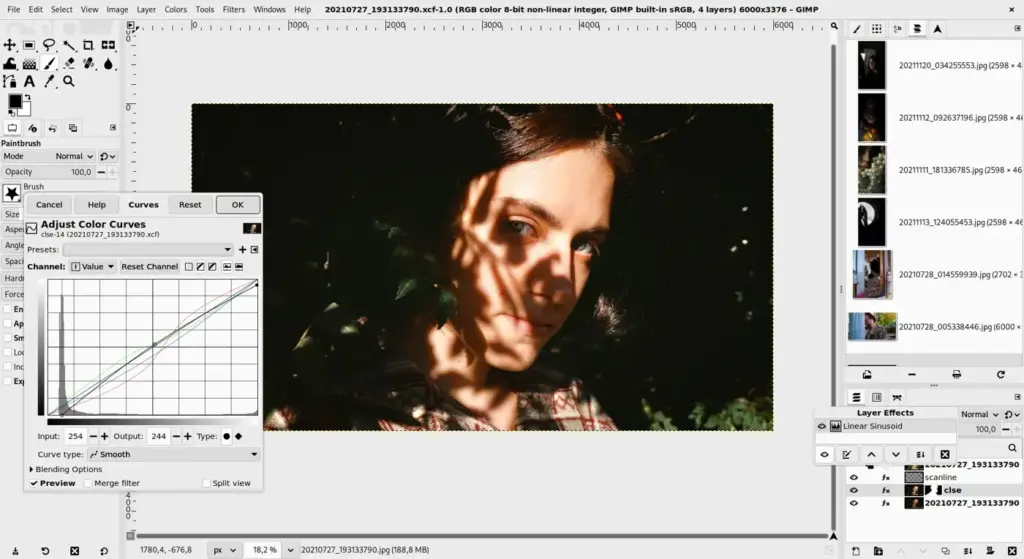
This gimp review finds a free, open-source image editor with layers, masks, retouching and scripting that handles most photo editing tasks. It is powerful and costs nothing. The interface is less polished than Photoshop, raw and non-destructive workflows are limited, and learning takes time, so it suits hobbyists and budget users.
Verdict From This GIMP Review
GIMP is a mature pixel editor that handles cropping, retouching, layered composites, color correction and graphics work. It supports layers, masks, paths, selections and a long list of filters, and can be extended with plug-ins and scripts.
It is not a Photoshop clone, and users used to Adobe often struggle with differences in workflow. Non-destructive tools are more limited, and the interface can feel awkward at first, though recent versions have improved.
For free, it offers remarkable capability, and many hobbyists and some professionals use it successfully.
Performance and Reliability
GIMP runs well on modest hardware and handles moderately large files without trouble. Very large files with many layers and filters can slow things down, and some operations are single-threaded. Recent versions have improved performance and added better support for high bit depth. The program is generally stable. Keeping layer counts reasonable, working at appropriate resolutions and saving regularly in the native format helps avoid problems with big projects. Working in a lower bit depth speeds up some operations, while higher bit depth preserves more tonal information for careful corrections. Choose according to the job, and close unused images to free memory.
Key Features
Layers and Masks
A full layer system with blend modes and masks supports complex composites. The ideas are the same as in layer masks and blend modes.
Selection and Retouching
Selection tools, paths, clone, heal and dodge and burn tools support serious retouching. See frequency separation for a classic technique that works here too.
Filters, Plug-Ins and Scripting
A large collection of filters is available, and plug-ins and scripts extend it for batch work and specialized effects.
Color and Tone Adjustment
Curves, levels and color tools allow detailed corrections. For background on tonal range, see dynamic range.
Format Support
It opens many formats and exports widely. Raw files need a companion raw converter, so understanding raw vs JPEG helps you plan your workflow.
Learning Curve and Support
Learning GIMP takes patience, especially for Photoshop users who expect familiar menus. The community offers a huge number of tutorials and written guides, and the official documentation is thorough. Many beginners find it easier to focus on a handful of tools, such as layers, masks, selections and curves, and to learn keyboard shortcuts early. Within a few weeks of regular use, most people become comfortable. The single-window mode makes the layout feel more familiar, and customizing shortcuts to match other editors can ease the transition. Practice with real projects, such as removing a distraction or building a simple poster, rather than only following feature tours.
Pricing
GIMP is free and open source with no paid version or subscription. It is maintained by volunteers and funded by donations.
There is nothing to buy. Many users pair it with a free raw editor such as darktable or RawTherapee for a complete no-cost workflow.
Check the project site for the latest stable version, since older packages in system repositories may be outdated.
Is It Good Value?
Value is hard to beat because it is free. It is particularly useful for people who edit occasionally and do not want a subscription. The hidden cost is time spent learning and working around limitations. If you edit professionally every day, the time saved by a commercial tool can outweigh its price. For hobbyists, GIMP is often enough for a lifetime. It also stays useful as a companion to other tools. You can use it for quick cleanups, batch scripts and graphics work even if your main editing happens elsewhere, and there is no license to renew or lose.
Pros and Cons
What It Does Well
- Free with no limitations on use.
- Strong layer, mask and retouching tools.
- Large community, plug-ins and tutorials.
- Cross-platform, including Linux.
- Scriptable for automation.
Where It Falls Short
- The interface is less intuitive than commercial rivals.
- Non-destructive editing is limited.
- No built-in raw development.
- Fewer AI tools and generative features.
- Color management and CMYK support are limited.
Bottom Line
GIMP is a capable, free editor that rewards persistence. It is not a perfect replacement for Photoshop, but for most hobbyist tasks it is more than enough. If you want to avoid subscriptions and are willing to learn, it is a great choice. If you rely on advanced non-destructive features, test it carefully first. Keep plug-ins limited to those you trust and update them with the main program, since mismatched versions are a common source of problems. Save layered work in the native format and export copies for sharing. Before relying on any free tool for paid work, run a complete test project from import to final export, and confirm the output looks right on the screens and prints your clients will actually use. That habit catches color and sizing surprises early, and it costs only an hour.
Who It Is For
GIMP suits students, hobbyists and anyone who needs a capable pixel editor without cost. It is also good for Linux users and people who like to customize their tools with scripts.
Professionals who need a smooth Adobe workflow, advanced non-destructive editing or print color management will find limits.
Start with fundamentals. The lessons on cropping and canvas size and selection tools translate well.
Getting Started
Open a photo and duplicate the background layer. Adjust curves on the copy, add a layer mask and paint to hide parts of the change. Try the clone and heal tools on a blemish, and crop the image. Export a JPEG at a reasonable quality. Next, open a second image as a layer and experiment with blend modes. Save your work in the native format so layers stay editable, and keep original files separate.
Before You Buy
Before committing to GIMP, run a short checklist. Confirm that your computer meets the system requirements, download the trial or free version if one exists, and test it on a real project from your own library rather than a demo file. Compare the exported result with what you get from your current tool, note how long each step takes, and check the vendor site for current pricing and upgrade terms. A program that suits the way you already work is worth more than one with a longer list of features.
Alternatives
Free and low-cost options for pixel editing include several strong choices.
| Alternative | Best Reason To Pick It |
|---|---|
| Adobe Photoshop | Industry standard with generative AI |
| Affinity Photo | Low-cost one-time purchase with polished tools |
| Darktable | Free raw editor to pair with GIMP |
| Pixelmator Pro | Mac editor with a modern interface |
Pair GIMP with a raw editor for a complete free workflow.
Common Questions
Is GIMP really free?
Yes. It is free and open source with no hidden costs.
Is GIMP as good as Photoshop?
It handles many tasks well, but Photoshop has more advanced tools, non-destructive features and generative AI.
Can GIMP edit raw files?
Not directly. You normally use a raw converter first, then edit the result in GIMP.
Is GIMP hard to learn?
The basics are manageable, but the interface and workflow differ from Photoshop, so expect a learning period.
Try It Yourself
See what it can do on your own photos and footage.
Some links are affiliate links: if you buy through them we may earn a small commission at no extra cost to you. How this works.