
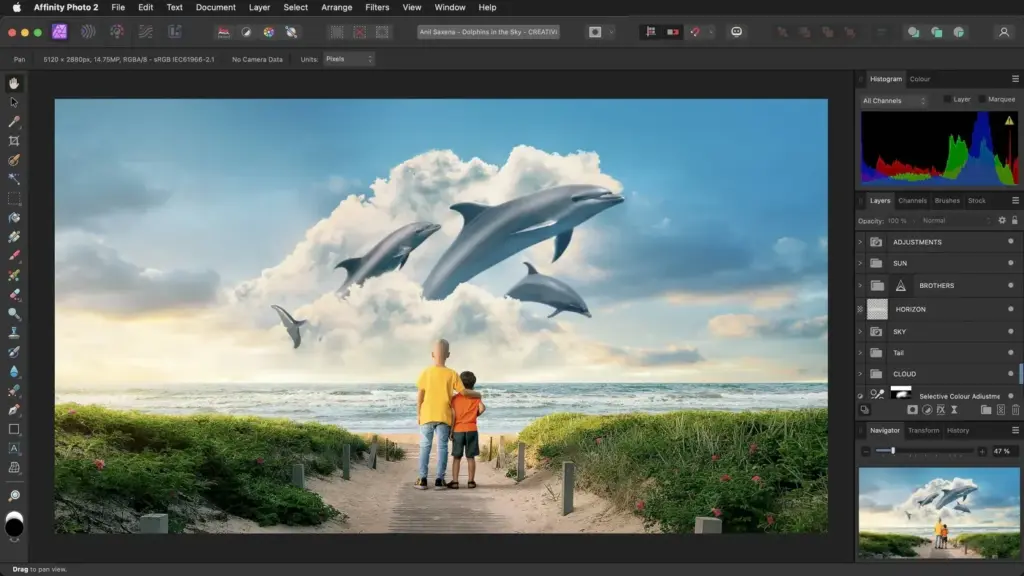
This affinity photo review finds a powerful, affordable alternative to Photoshop with layers, retouching, raw development and panorama tools in a one-time purchase. It is fast and capable, but its plug-in ecosystem and generative tools trail Adobe. For hobbyists and budget-conscious professionals it is excellent value.
Verdict From This Affinity Photo Review
Affinity Photo gives you a professional layered editor without a subscription. It handles non-destructive adjustments, masks, smart object style workflows, advanced retouching and large files with impressive speed, even on modest hardware.
It also includes tools that many editors charge extra for, such as focus stacking, HDR merging, panorama stitching and batch processing. For many photographers it covers everything they ever do in Photoshop.
Where it lags is ecosystem. There are fewer third-party plug-ins, fewer tutorials and less advanced AI, and exchanging complex files with Photoshop users sometimes needs care.
Performance and Reliability
Affinity Photo is known for speed. It opens large files quickly, pans and zooms smoothly and applies live filters in real time even on modest hardware. Memory usage is moderate, and the program is stable, rarely crashing during heavy work. Batch processing and big panoramas take time but do not freeze the interface. Because it is lighter than many competitors, it works well on older laptops, and the iPad version delivers a surprising amount of capability for mobile editing. Large panoramas and many-layer composites will still use plenty of memory, so it helps to merge layers you no longer need to adjust and to work at a sensible resolution. Saving regular versions protects you if a very heavy file ever misbehaves, and exporting a flattened copy keeps delivery files small.
Key Features
Layers, Masks and Adjustments
A full layer stack, live filters and adjustment layers allow non-destructive editing. If layering is new to you, the lessons on layer masks and blend modes apply almost directly.
Retouching Tools
Healing, clone, dodge and burn, and frequency separation tools make portrait and product retouching possible. See frequency separation for a classic technique.
Focus Stacking and Panoramas
Built-in merging handles macro stacks and stitched landscapes. Learn when to use them with focus stacking.
Raw Development
A Develop persona handles raw files with exposure, color and lens tools, adequate for many users though less refined than specialist raw editors.
Selection and Refinement
Selection brush, refine tools and channels support detailed cutouts. The principles are similar to Photoshop selection tools.
Learning Curve and Support
If you know another layered editor, you will feel at home quickly. The program is organized into personas, such as Photo, Liquify, Develop and Export, and each has its own toolset. The publisher offers a large library of tutorials, and many independent creators provide courses. The community is smaller than Adobe, so niche techniques may take longer to find. Expect a few weeks to feel comfortable, longer for advanced retouching. Keyboard shortcuts are customizable, which helps if you are moving from another editor and want familiar key commands. Many photographers also import their favorite brushes and presets from other programs to shorten the transition, although compatibility varies, so test any assets before relying on them for client work.
Pricing
Affinity Photo has historically been sold as a one-time purchase, usually at a modest price compared with a year of a subscription editor, with frequent sales. It is also available in a bundle with companion design and layout apps.
The publisher has changed its offerings and ownership in recent times, so check the vendor site for current pricing and what is included, including any free or subscription options.
Version upgrades have been optional paid purchases rather than forced subscriptions.
Is It Good Value?
This is where Affinity Photo shines. A single payment, often discounted, buys software that would otherwise cost much more over time. Even if you later choose a subscription editor, the initial outlay is small. The caveat is that ownership and licensing may change over time, so keep your installer and license information safe. For most people the savings and capabilities outweigh the smaller ecosystem. It also helps that the files you create stay in widely used formats, so your work is not locked into one program. Even if you eventually switch tools, layered exports and flattened images can move with you. For anyone who edits regularly but does not need the very latest cloud features, that long-term flexibility is a real part of the value.
Pros and Cons
What It Does Well
- One-time payment and no subscription required.
- Powerful layer, mask and retouching tools.
- Fast and light on system resources.
- Focus stacking, HDR and panoramas included.
- Works across Windows, Mac and iPad.
Where It Falls Short
- Smaller library of plug-ins, brushes and tutorials.
- No equivalent of Adobe generative fill.
- Raw processing is basic compared with dedicated editors.
- Complex PSD files may not match exactly.
- Company ownership and licensing changes create uncertainty.
Bottom Line
Affinity Photo is a rare case of powerful software at a fair price. It will not match every Photoshop feature, but it covers the majority of what photographers need and runs briskly on modest computers. If you dislike subscriptions or are starting out on a budget, it is an excellent choice. If you rely heavily on Adobe-specific tools or collaborate with Photoshop teams, test it carefully with your own files first. A sensible test is to take one project you already finished in another editor and recreate it here. Note where you feel slowed down, where you save time and which missing features you actually miss. That experiment will tell you more than any feature list, and it only costs an afternoon and a trial download.
Who It Is For
Affinity Photo suits hobbyists, students, small businesses and freelancers who want strong layered editing without a subscription. It is also a good fit for people who already have a raw editor and need a pixel editor to complement it.
If you collaborate daily with Photoshop users or depend on Adobe generative tools and plug-ins, Photoshop remains the safer choice.
Start by learning layers and masks, then retouching and selections. The Photoshop-oriented lessons on smart objects and crop and canvas translate well.
Getting Started
Open a photo and create adjustment layers for exposure and color. Add a mask to limit one adjustment to part of the image. Try the healing brush on a blemish and the selection brush on a subject. Practice with the Develop persona on a raw file, then switch to Photo. Export a JPEG using the Export persona. Once you have the basics, try focus stacking a short series or stitching a panorama to see the more specialized tools.
Before You Buy
Before committing to Affinity Photo, run a short checklist. Confirm that your computer meets the system requirements, download the trial or free version if one exists, and test it on a real project from your own library rather than a demo file. Compare the exported result with what you get from your current tool, note how long each step takes, and check the vendor site for current pricing and upgrade terms. A program that suits the way you already work is worth more than one with a longer list of features.
Alternatives
Photoshop alternatives vary in power and price.
| Alternative | Best Reason To Pick It |
|---|---|
| Adobe Photoshop | Industry standard with generative AI tools |
| GIMP | Free and open source with a steeper interface |
| Pixelmator Pro | Mac-only with a polished modern design |
| ON1 Photo RAW | Raw editor with layers in a perpetual license |
A free trial is usually available, so edit one of your real photos before buying.
Common Questions
Is Affinity Photo as good as Photoshop?
For most photographers it covers the essentials, but Photoshop has more advanced tools, plug-ins and generative AI.
Does Affinity Photo require a subscription?
It has traditionally been a one-time purchase. Check the vendor site for current offers.
Can Affinity Photo open PSD files?
Yes. It opens and saves PSD files, though some advanced features may not translate perfectly.
Can it edit raw files?
Yes. It has a raw development workspace, though dedicated raw editors offer more refinement.
Try It Yourself
See what it can do on your own photos and footage.
Some links are affiliate links: if you buy through them we may earn a small commission at no extra cost to you. How this works.