
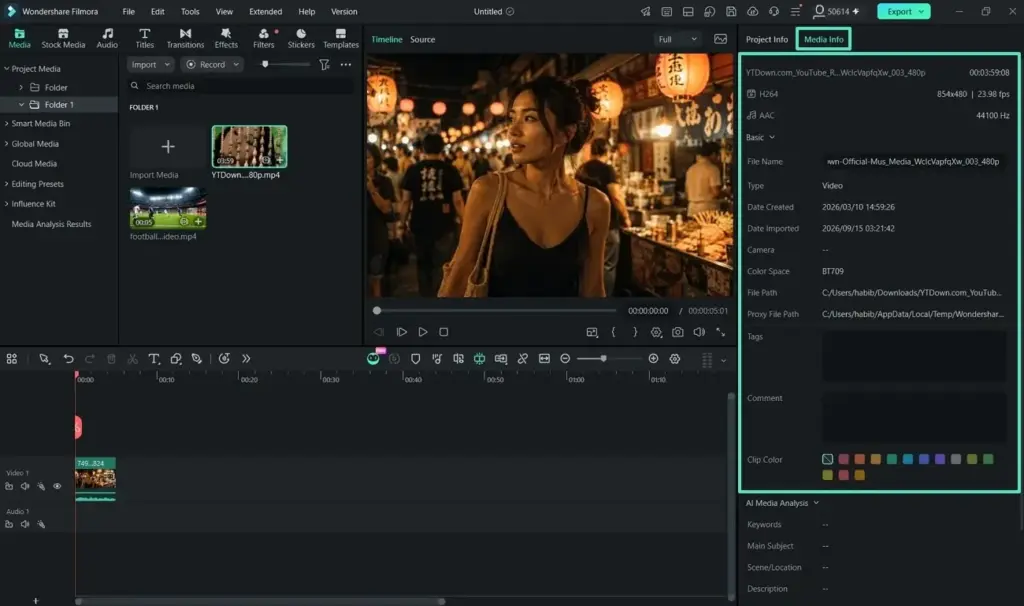
This wondershare filmora review finds a friendly, affordable editor that gets beginners from clips to finished video quickly. Its effects library, keyframing and AI helpers are generous. Depth is limited next to Premiere Pro or DaVinci Resolve, and watermarks on free exports are annoying, so it suits casual creators more than professionals.
Verdict From This Wondershare Filmora Review
Filmora is aimed at people who want to make good-looking videos without studying editing theory. The timeline is clean, effects and transitions are plentiful, and common jobs such as titles, speed changes and silence removal are one or two clicks away.
It is not a replacement for a professional editor. Color tools, audio mixing and project management are simpler than in Premiere Pro or Resolve, and large, long projects may feel limiting. Many creators outgrow it eventually.
For learning, short-form content, family videos and small business clips, however, it is a comfortable and quick way to get results.
Performance and Reliability
Filmora runs comfortably on mid-range computers, which is part of its appeal. Playback of ordinary 1080p footage is smooth, and 4K clips usually play well enough once you use the built-in proxy option. Exports are reasonably fast, particularly with hardware acceleration turned on. Very long timelines with many effects can slow down, and the program is less stable than professional editors when projects grow large, so save versions regularly. Because the interface is light, it starts quickly and does not demand much memory.
Key Features
Simple Timeline and Project Settings
The timeline is easy to read, and project setup is forgiving. Picking the correct frame size and rate still matters, so read Filmora project settings first.
Keyframing
Position, scale, opacity and many effects can be keyframed for smooth movement. The tutorial Filmora keyframing walks through a simple animation.
Motion Tracking
Attach text or graphics to a moving object, such as a label that follows a person. See Filmora motion tracking for tips on getting a clean track.
Silence Detection and AI Helpers
Automatic silence removal speeds up talking-head edits, and AI tools provide captions, background removal and audio cleanup. The lesson on silence detection shows how to use it without cutting natural pauses.
Effects, Titles and Stock
A built-in library of transitions, filters, animated titles and stock media helps polish videos quickly. Some items are reserved for paying subscribers or credit packs.
Learning Curve and Support
The learning curve is gentle. Most people can import clips, trim, add music and export a finished video within an hour of first opening the program. The company provides built-in tutorials, a library of video lessons and an active user community. Because features are labeled plainly, it is easy to discover tools by browsing. The limit appears when you want fine control, such as detailed color correction or multi-track audio mixing, where you will need to learn workarounds or move to a more capable editor.
Pricing
Filmora has historically offered a free version with a watermark on exports, plus paid plans billed monthly, yearly or as a one-time perpetual license. Annual pricing has typically been modest, often below the cost of professional editors.
Some AI and stock features use separate credits or higher tiers, so read the plan details carefully. Check the vendor site for current pricing, since promotions are frequent and prices vary.
The perpetual license is appealing if you dislike subscriptions, though it may not include future major versions.
Is It Good Value?
For beginners, the price is easy to accept. Annual plans are modest, and the perpetual license can be cheaper than a single year of a professional subscription. The catch is that some of the most attractive features, such as AI tools and stock media, can be limited by credits or higher tiers. Add up what you actually plan to use. If you only need basic editing, you may not need to pay at all, since free editors like CapCut and DaVinci Resolve cover similar ground.
Pros and Cons
What It Does Well
- Quick to learn, with a layout that does not overwhelm.
- Plenty of effects, templates and titles out of the box.
- Keyframes, tracking and silence detection are included.
- Perpetual license option avoids ongoing subscription cost.
- Runs well on modest computers.
Where It Falls Short
- Not as powerful as professional editors for complex projects.
- Watermark on free exports until you upgrade.
- Some AI and stock features cost extra.
- Color grading and audio mixing are basic.
- Collaboration and project management are limited.
Bottom Line
Filmora is a sensible first editor and a perfectly good tool for a lot of everyday video. It will not satisfy a professional colorist or a feature-length editor, but it does not try to. Its strengths are speed, friendliness and a generous set of creative effects. If you find yourself hitting limits, that is a sign of growth, and the skills you have learned will transfer to a more powerful program. Try the free version, check that the interface suits you, and upgrade only when you need the extras.
Who It Is For
Filmora suits beginners, students, social media creators and small businesses that want polished videos without a long learning curve. It is also a useful stepping stone for anyone who plans to move to a professional editor later.
Professionals who deliver client work with complex color, audio and collaboration needs should look at Premiere Pro or DaVinci Resolve. If your work is mostly short clips with captions, Filmora may be all you need.
Before you start, learn the basics of how video is stored. Video codecs and frame rates will save headaches at export.
Getting Started
Open a new project, choose the aspect ratio for your platform, and import a few clips. Drag them onto the timeline, trim the starts and ends, and add a simple transition. Try the silence detection tool on a talking clip, and add captions with the automatic tool. Add background music at a low volume under speech. Then explore a keyframe by animating the scale of a photo. Export a short test video at a modest quality to see how the program performs on your computer.
Before You Buy
Before committing to Wondershare Filmora, run a short checklist. Confirm that your computer meets the system requirements, download the trial or free version if one exists, and test it on a real project from your own library rather than a demo file. Compare the exported result with what you get from your current tool, note how long each step takes, and check the vendor site for current pricing and upgrade terms. A program that suits the way you already work is worth more than one with a longer list of features.
Alternatives
These editors cover the same ground at different depths.
| Alternative | Best Reason To Pick It |
|---|---|
| CapCut | Free, fast and popular for short-form video |
| DaVinci Resolve | Free professional tools with a steeper curve |
| Adobe Premiere Pro | Industry standard with deeper control |
| Lightworks | Traditional editing with a free tier |
If budget is tight, the free tiers of CapCut and Resolve deserve a trial before you buy.
Common Questions
Is Filmora good for beginners?
Yes. It is one of the easiest editors to learn and includes many ready-made effects and titles.
Does Filmora have a watermark?
The free version adds a watermark to exports. Paid plans remove it.
Is Filmora better than Premiere Pro?
Filmora is easier, but Premiere Pro offers far more depth. Choose by your skill level and project complexity.
Can Filmora edit 4K video?
Yes, it supports 4K, though performance depends on your computer and the codec of your footage.
Try It Yourself
See what it can do on your own photos and footage.
Some links are affiliate links: if you buy through them we may earn a small commission at no extra cost to you. How this works.