
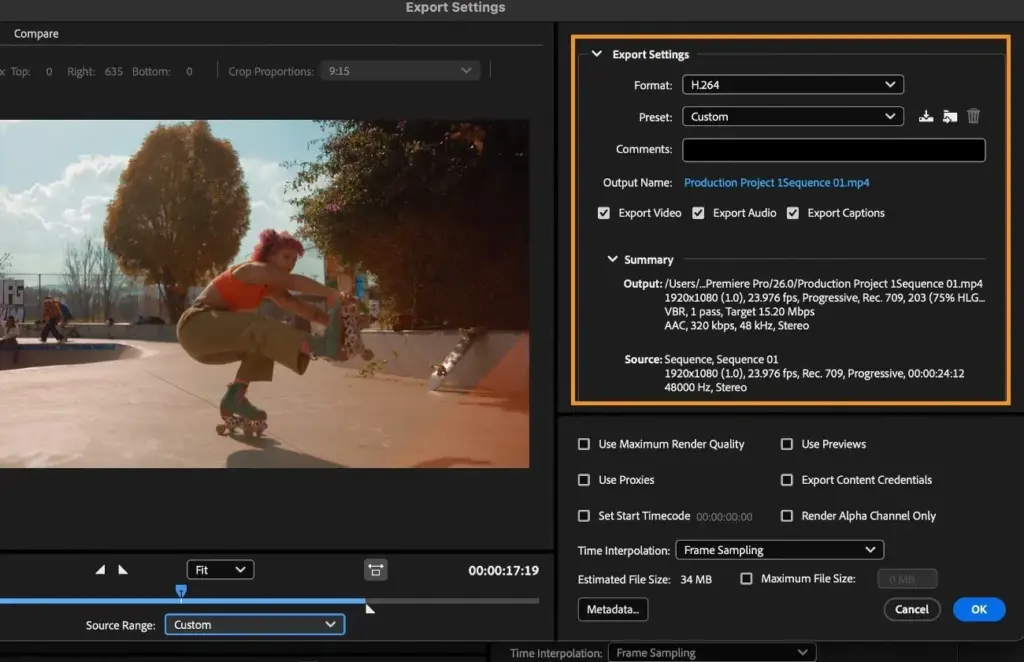
Video codecs are the methods a camera or editor uses to compress and store moving images. H.264 and H.265 make small files that are easy to share but harder to edit, while ProRes and RAW keep more image data, make larger files and edit more smoothly.
Why It Matters
Every camera setting that records video also chooses a codec, whether you notice or not. The codec decides how big your files are, how well they survive color grading, and how smoothly your computer plays them back.
Choosing well saves storage, avoids stuttering timelines and prevents the disappointment of footage that falls apart when you push the colors. It also helps you avoid paying for quality you cannot use.
Beginner Video Codecs In Plain Language
A codec is a pair of tools, one to encode video into a compact file and one to decode it for playback. Raw uncompressed video is enormous, so every camera compresses it. A container such as MP4 or MOV is only the wrapper that holds the video, audio and metadata; the codec is what is inside.
The Four Names You Will Meet
| Codec | File Size | Editing Feel | Best For |
|---|---|---|---|
| H.264 (AVC) | Small | Needs a fast computer | Sharing, web delivery, everyday recording |
| H.265 (HEVC) | Smaller still | Heavier to decode | High resolution and long clips on limited cards |
| ProRes | Large | Smooth, even on modest machines | Editing, color grading, professional delivery |
| RAW | Largest | Needs conversion or a capable app | Maximum grading control and visual effects |
Why Small Files Edit Slowly
H.264 and H.265 save space by storing a full picture only every so often and describing changes in between. Your computer must rebuild each frame from its neighbors, which takes effort. That is why a long clip can feel sluggish when you scrub it. Codecs like ProRes store every frame on its own, so the computer simply reads it.
Simple Rules To Start
- Record in H.264 or H.265 if your camera offers nothing else, and use the highest quality setting it allows.
- Pick the 10-bit option when you can, because it holds smooth gradients better. The lesson on 8-bit vs 10-bit video explains why.
- Keep the same codec through a project instead of mixing many types on one timeline.
- Buy faster cards if your camera records high bitrate files. See video bitrate for how data rate affects quality.
Common Mistakes
- Judging quality by file extension. An MP4 and a MOV can hold the same codec.
- Recording RAW for a simple interview and running out of storage in one afternoon.
- Editing long H.265 clips on an old laptop without making proxies, then blaming the software.
- Re-exporting the same file repeatedly with a heavy codec, which loses a little quality each time.
How Much Storage Do You Need
Storage is the practical limit for most people. A rough guide for 4K at 24 frames per second is about 5 to 10 gigabytes per hour for efficient H.265 at modest bitrates, tens of gigabytes per hour for high bitrate H.264 or H.265, and well over 100 gigabytes per hour for ProRes 422 HQ. Raw formats can use more again, though lighter RAW compression modes exist.
Before a shoot, multiply the data rate by the length of footage you expect, then add a margin for retakes. A spare card and a fast external drive are cheaper than reshooting.
Where Each Codec Shows Up
- Phones and entry cameras mostly record H.264 or H.265.
- Mirrorless video cameras offer all-intra modes and 10-bit options in the same menu.
- Cinema cameras often record ProRes or a manufacturer RAW format.
- Drones and action cameras favor H.265 to save space on small cards.
Handy for this: Camera Gimbal — smooth handheld footage. (affiliate link)
Advanced Codec Structure, Bit Depth And Delivery
Intraframe Versus Interframe
Intraframe codecs such as ProRes, DNxHR and many all-intra camera modes compress each frame independently. Interframe codecs use groups of pictures, where an I-frame is a complete image and P and B frames store only differences. Longer groups give smaller files but need more processing to reach any single frame. The lesson on all-intra vs long GOP covers the trade in detail.
Bit Depth, Chroma And Gamma
A codec is only one part of image quality. Bit depth sets how many tonal steps each channel holds: 8-bit gives 256 levels, 10-bit gives 1024. Chroma subsampling such as 4:2:0 or 4:2:2 sets how much color detail survives, covered in chroma subsampling. A 10-bit 4:2:2 file in a log profile gives far more grading room than an 8-bit 4:2:0 clip, even at the same resolution.
ProRes Flavors
ProRes comes in tiers. Proxy and LT are light and suit offline editing. ProRes 422 and 422 HQ are common mastering and delivery choices at 10-bit with 4:2:2 color. ProRes 4444 adds full color detail and an alpha channel for graphics. Bitrates rise with each tier, so a 4K project can need several hundred megabits per second.
RAW Is A Different Kind Of Thing
RAW video records sensor data before color processing, so white balance, ISO and tone are largely adjustable afterward. It is stored with its own light compression in formats such as Blackmagic RAW, ProRes RAW or Cinema DNG. The price is storage and workflow. Plan for fast media and backups, as in video offload workflow.
Match The Codec To The Stage
- Capture: the best codec your cards and workflow can handle, preferably 10-bit with log.
- Edit: native files if the machine copes, or proxies made in ProRes Proxy or a similar light codec.
- Master: an intraframe codec such as ProRes 422 HQ for archive and color finishing.
- Deliver: H.264 for broad compatibility, H.265 where the platform supports it and file size matters.
Software rarely changes the codec silently, but hardware acceleration helps: many chips decode H.264 and H.265 in dedicated circuits, which can make those files edit faster than their reputation suggests. Check your computer before deciding that you need to transcode everything.
Proxies And Optimized Media
When native files are too heavy, editors generate lightweight copies called proxies for cutting, then relink to the originals for export. Optimized media is a similar idea, where the software transcodes to an intraframe codec in the background. The edit decisions are identical, only the playback files differ. This is the standard way to cut 4K or 8K long-GOP footage on ordinary hardware.
Generation Loss And Mastering
Every lossy re-encode discards a little data. Encoding once from a high quality master is better than encoding an H.264 file from another H.264 file. Keep the project master in a high bitrate intraframe format, make each delivery from that master, and avoid sending a compressed file back into another edit when the original is available.
Hardware Decoding And Compatibility
Dedicated decoders in recent graphics cards and chips handle H.264 and often H.265 very efficiently, and some include 10-bit 4:2:2 support. Older machines may lack it, so the same file can play smoothly on one computer and stutter on another. Check your editor’s documentation for supported formats, and test a short clip before committing to a camera mode for a large project.
Try It
- Open your camera menu and write down the codec, bit depth, chroma setting and bitrate of each video mode.
- Record the same 20-second scene in two modes, such as H.265 and an all-intra mode.
- Compare file sizes, then scrub both clips in your editor and note which feels smoother.
- Apply a strong color change to each and look for blocky shadows or banding.
Common Questions
Is H.265 better than H.264?
H.265 reaches similar quality at roughly half the bitrate, so it suits high resolutions and long recordings. It is slower to decode and not every device or platform plays it, so H.264 stays the safe delivery choice.
Do I need ProRes for YouTube?
No. Platforms re-encode everything you upload. ProRes is useful for editing and as a high quality master, but a well-made H.264 export is fine for upload.
Is RAW video worth it?
It is worth it when you need heavy grading, difficult lighting or visual effects. For simple talking head work the extra storage and processing time rarely pay off.
Why is my video file so large?
A high bitrate, intraframe codec or high resolution all raise file size. A 4K ProRes clip can use ten times more space per minute than the same clip in H.265.
Related Lessons
- Video Bitrate to see how data rate shapes quality and file size.
- Chroma Subsampling for how much color detail each codec keeps.
- 8-Bit Vs 10-Bit Video to understand tonal steps and banding.
- All-Intra Vs Long GOP for the structure behind editing speed.
- Filmora Proxy Editing to make heavy clips play smoothly.
Gear That Helps With This
Hand-picked kit that makes this lesson easier to put into practice.
Some links are affiliate links: if you buy through them we may earn a small commission at no extra cost to you. How this works.