
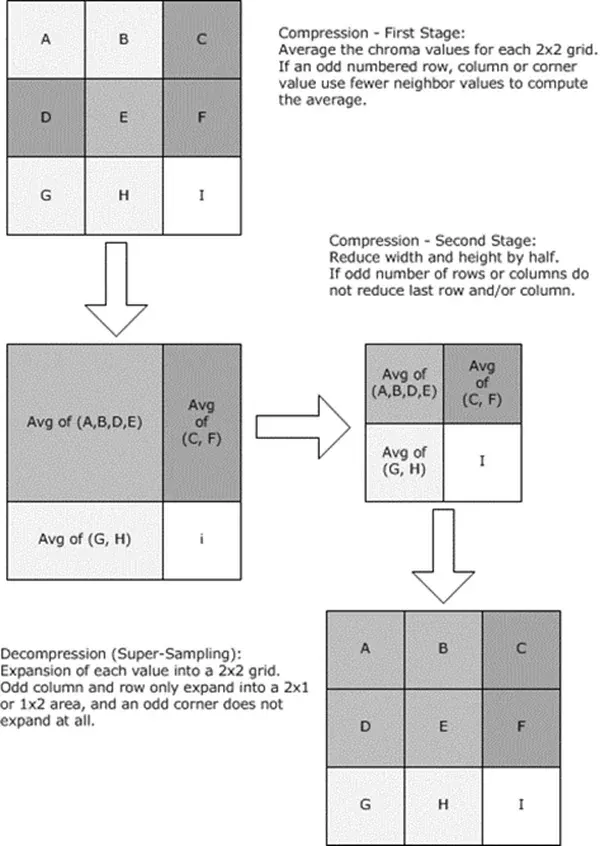
Chroma subsampling is a compression method that stores color information at a lower resolution than brightness, because the eye is more sensitive to detail in brightness. The numbers 4:2:0, 4:2:2 and 4:4:4 describe how much color is kept. More color data gives cleaner edges, better grading and better keying, but larger files.
Why It Matters
Two cameras can both record 4K video and still deliver very different color quality. The difference often lies in chroma subsampling, which is rarely shown in simple spec lists.
Knowing the numbers helps you choose a recording mode for green screen, color grading and fine detail such as colored text, and helps you avoid disappointment when footage will not key cleanly.
Beginner Chroma Subsampling For Beginners
Video is stored as luma, which is brightness, and chroma, which is color difference. Because the eye notices detail in brightness much more than in color, the encoder keeps full resolution for luma and reduces the resolution of chroma. This saves a lot of space with little visible loss in normal viewing.
Reading The Numbers
The three numbers describe a block of pixels, usually two rows of four pixels. The first number is the width of the block, which is four. The second tells how many chroma samples are in the first row, and the third how many are in the second row.
| Format | Color Resolution | Typical Use |
|---|---|---|
| 4:4:4 | Full resolution in both directions | High end cinema, graphics, raw conversions |
| 4:2:2 | Half horizontal, full vertical | Professional cameras, ProRes, broadcast |
| 4:2:0 | Half horizontal and half vertical | Most consumer cameras, streaming, H.264 and H.265 |
| 4:1:1 | Quarter horizontal | Older DV formats |
What You See
- Colored edges can look soft or blocky, especially bright red text on a dark background.
- Fine colored lines, such as thin cables or hair against a green screen, can look rough.
- In normal scenes with gentle color, 4:2:0 looks fine.
- After heavy grading, the lower color detail can show as noise or blockiness.
Choosing A Mode
- If you plan a green screen shoot, choose 4:2:2 or higher where possible.
- If you will grade heavily, choose 10-bit 4:2:2 or better.
- If you only share to social media, 4:2:0 is usually enough.
- Check storage, since higher quality takes more space.
Common Mistakes
- Believing that 4K resolution means better color. The two are separate.
- Recording 4:2:0 for a keying job and fighting jagged edges later.
- Assuming a 4:2:2 file is always better, even when it is heavily compressed.
- Forgetting that the final delivery is usually 4:2:0 anyway.
One Line Summary
Use 4:2:0 for casual delivery, 4:2:2 for serious work, and 4:4:4 when graphics and compositing demand it. Match the recording mode to the job and the storage you have.
Handy for this: ND And Polarizing Filters — control light and glare. (affiliate link)
Advanced Color Reconstruction, Keying And The Pipeline
How The Decoder Reconstructs Color
When a player shows 4:2:0 video, it upsamples the chroma back to full resolution by interpolation. Simple methods, like nearest neighbor, produce blocky edges, and better filters, such as bilinear or bicubic, produce smoother ones. Editing software usually does a good job, but results vary between players. The reconstruction cannot recover detail that was never stored, so thin colored features stay soft.
Keying And Compositing
Chroma keying depends on accurate color edges. In 4:2:0, the color resolution is a quarter of the picture, so edges between a subject and a green background are blurry, and the key may show a halo or fringe. Higher chroma resolution gives cleaner mattes, especially with hair and motion blur. See green screen in After Effects and Filmora green screen for the keying side, and use spill and edge controls to reduce the limits of the footage.
Interaction With Bit Depth And Bitrate
Color quality depends on chroma subsampling, bit depth and bitrate together. A 10-bit 4:2:2 file at a moderate bitrate may look better than an 8-bit 4:4:4 file at a very low bitrate. Learn how the other pieces work in 8-bit vs 10-bit video, video bitrate and video codecs. Raw formats avoid subsampling because color is created when the raw file is processed.
Camera Modes And Internal Recording
Many cameras record 4:2:0 internally but output 4:2:2 or 4:4:4 over HDMI, which an external recorder can capture. Some cameras record 4:2:2 internally in a higher quality mode with larger files. Check the camera specification table and the menu, since the setting may be tied to a codec, bit depth or frame rate. Compare compression styles in all-intra vs long GOP.
Testing Your Camera
- Shoot a chart with fine red and blue lines against a neutral background.
- Record in each available mode, keeping other settings the same.
- View at 200 percent in your editor and compare the colored edges.
- Try a quick key on a green screen sample to see how the edges hold up.
- Note file size and decide which mode gives the best value.
Working With Subsampled Footage
Avoid scaling and recompressing multiple times. Edit in a high quality intermediate codec, such as ProRes or DNxHR, if you plan heavy effects, and export a high quality master before making smaller delivery files. Add a slight blur to the matte edge when keying low color resolution footage, which hides blockiness. Apply color changes carefully, since extreme saturation exposes blockiness.
Delivery
Most streaming and broadcast delivery uses 4:2:0 for efficiency, so the extra chroma from a 4:4:4 source is reduced at the last step. The benefit of higher chroma is in the middle of the workflow, in grading and compositing, where each step can lose precision. Keep high chroma until the last export, then make the compressed version.
Chroma Subsampling In Graphics
Screen captures, titles and animations with sharp colored edges suffer most from 4:2:0, since they contain thin colored lines on flat backgrounds. When you export graphics for video, use a 4:4:4 or 4:2:2 codec for the master and make the final compressed version last. Where possible, avoid putting tiny red text on black in the final design, because even a good encoder will soften it.
Try It
- Find the video recording options in your camera menu and note whether chroma subsampling is listed.
- Record a short clip of a colorful object against a plain background in each available mode.
- Zoom in to the edges on your computer and compare the sharpness of the colored lines.
- Decide which mode to use for green screen and which for casual shooting.
Common Questions
Is 4:2:2 much better than 4:2:0?
For gentle color and normal viewing, the difference is small. For keying, strong grading and sharp colored edges, 4:2:2 is clearly better.
Does 4K 4:2:0 have 4K color?
No. The color information is stored at half resolution in each direction, so a 4K frame has 2K color resolution.
Do phones record 4:2:0?
Most do. Some phones can record higher quality formats, but the details depend on the model and settings.
Does subsampling affect photos?
JPEG images often use 4:2:0 or 4:2:2 chroma subsampling, while raw files store sensor data before color is created.
Related Lessons
- 8-Bit Vs 10-Bit Video for the other half of color quality.
- Video Codecs to see where subsampling is set.
- Green Screen In After Effects for keying footage.
- Video Bitrate for how data rate affects quality.
- Log Footage for color that benefits from high quality formats.
Gear That Helps With This
Hand-picked kit that makes this lesson easier to put into practice.
Some links are affiliate links: if you buy through them we may earn a small commission at no extra cost to you. How this works.