
Video bitrate is the amount of data used to store each second of video, usually measured in megabits per second. A higher bitrate keeps more detail and gives larger files, while a lower one makes smaller files with more compression, so the right value depends on codec, resolution, frame rate and purpose.
Why It Matters
Bitrate decides two things you care about: how good the video looks and how much space and bandwidth it needs. Cameras record at high bitrates to keep quality for editing, while streaming and uploads use lower bitrates so files play smoothly.
Knowing the numbers helps you buy cards and drives, pick camera settings and choose export options. It also explains why two files of the same resolution can look very different, and why a bigger file is not always better.
Beginner Video Bitrate Basics
Units And Conversion
Bitrate is measured in megabits per second, written Mbps, and file size is usually in megabytes. Eight bits make one byte, so 100 Mbps is about 12.5 megabytes per second, or roughly 750 megabytes per minute. A one hour clip at 100 Mbps takes about 45 gigabytes.
Typical Values
| Use | Typical Bitrate |
| Phone 4K recording | 50 to 100 Mbps |
| Mirrorless 4K, standard quality | 100 to 150 Mbps |
| Mirrorless 4K, high quality | 200 to 400 Mbps |
| Streaming 1080p | 5 to 10 Mbps |
| Streaming 4K | 15 to 25 Mbps |
These are rough guides, and exact numbers vary by camera, codec and service.
What Affects Bitrate
– Resolution and frame rate, since more pixels and frames need more data.
– Codec efficiency. Newer codecs such as H.265 can match H.264 quality at lower rates.
– Scene complexity. Foliage, confetti and noise need more data than a plain wall.
– Compression type, discussed in all-intra versus long GOP.
Constant And Variable Bitrate
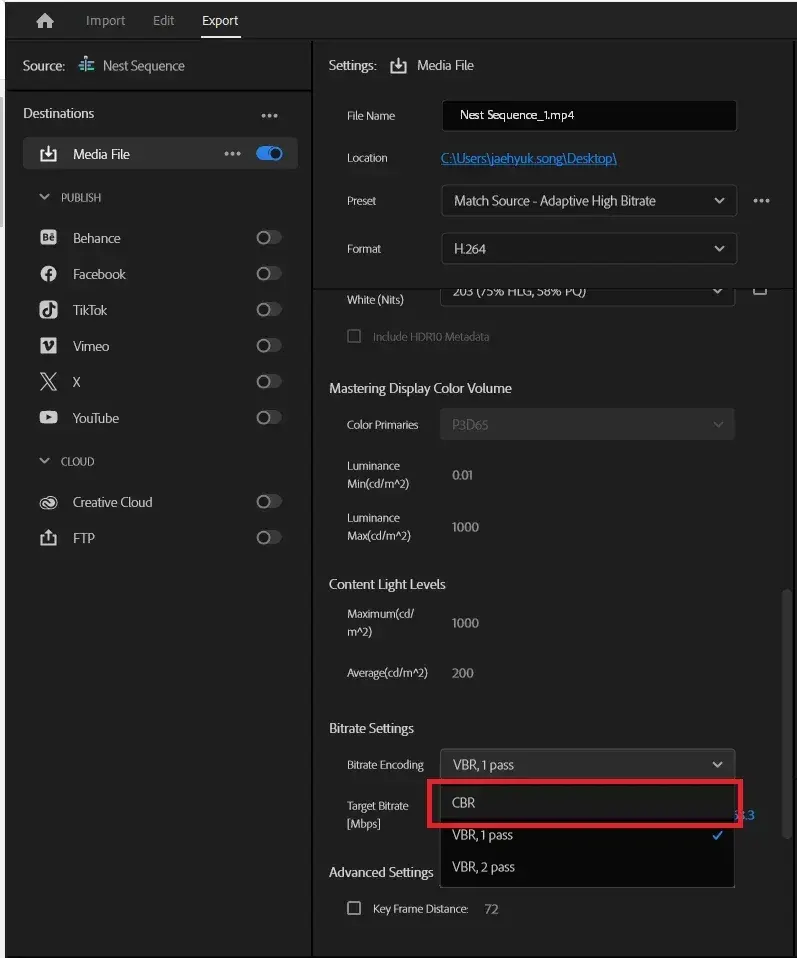
Constant bitrate, or CBR, uses the same rate throughout, which is predictable. Variable bitrate, or VBR, uses more data for complex scenes and less for simple ones, which gives better quality for the same average size. Cameras often use constant rates, while exports and streaming often use variable.
Common Mistakes
– Assuming a higher number always means better quality.
– Exporting at the camera bitrate when the destination needs far less.
– Using too low a bitrate on fast, detailed scenes.
– Buying a card that cannot sustain the write speed.
Handy for this: Camera Gimbal — smooth handheld footage. (affiliate link)
Advanced Choosing And Managing Video Bitrate
Codecs And Efficiency
Codecs compress video in different ways, so the same bitrate can look different. H.264 is widely compatible, H.265 and AV1 are more efficient but need more processing, and professional codecs such as ProRes use higher rates for editing quality. See video codecs for the differences and chroma subsampling and 8-bit versus 10-bit video for other factors that affect file size and quality.
Frame Rate And Resolution
Doubling the frame rate roughly doubles the data needed for the same quality, though compression efficiency softens this. Going from 1080p to 4K increases the pixel count by four times, so bitrate rises by a large amount. If storage is limited, consider whether 4K at 60 frames per second is needed, or whether 4K at 24 or 30 is enough. For choosing, see video frame rates.
Camera Settings
Cameras usually offer several quality levels. Compare the bitrates listed in the manual, not the names. Higher bitrate recording is helpful when you will grade heavily, shoot fast motion or use a lot of fine detail. A modest bitrate is fine for simple talking head video. Test your camera and note the card speeds required, and check external SSD storage if you record to an external drive.
Export Settings
For delivery, a lower bitrate is normal. Platforms re-encode uploads, so exporting at a reasonable quality rate, such as 15 to 30 Mbps for 4K web video, usually looks good. Using variable bitrate with a target and a maximum helps. In editing software, see Adobe Media Encoder and Filmora export settings for options.
Two-Pass And Quality Settings
Two-pass encoding analyzes the video first, then allocates bits where needed, giving better results at a target file size. It takes longer. For a quick turnaround use one pass. For a final delivery where size matters, use two passes or a constant quality mode if available.
Checking Quality
Judge video on a good display at full size, not a thumbnail. Look at dark gradients, fine textures and fast movement, where compression artifacts like blocks and banding appear first. If problems show, raise the bitrate or reduce the resolution or frame rate.
Planning Storage
Estimate storage before a shoot. Multiply the bitrate by the total recording time, and add a margin. Eight hours at 150 Mbps takes about 540 gigabytes, so plan cards and drives accordingly, and back up with a method such as the 3-2-1 backup strategy.
Bitrate And Streaming
Streaming services recommend bitrates for live broadcasts, since the connection must sustain it. A stable upload speed at least double the bitrate helps avoid drops. Lower the bitrate or resolution if the connection is poor, because a smooth lower quality stream beats a stuttering sharp one.
Hidden Costs Of Very High Bitrates
Very high bitrates fill cards and drives quickly, slow transfers and demand faster computers for editing. Proxy editing helps by letting you edit with small files and relink to originals for export. Evaluate whether the extra quality will ever be visible in the final delivery.
Variable Frame Rate Phone Video
Phone recordings sometimes use a variable frame rate and a variable bitrate, which can cause audio sync issues in editors. Converting to a constant frame rate before editing avoids them. See conform frame rate for the steps.
A Practical Rule Of Thumb
Record at the highest bitrate your workflow can handle, edit with proxies if needed, and deliver at a lower bitrate suited to the platform. The camera file is your master, and exports are copies for viewing.
Try It
- Record one minute of the same scene at two quality levels on your camera.
- Compare the file sizes and calculate the bitrate by dividing size in megabits by 60 seconds.
- View both at full size and look at fine detail and dark gradients.
- Export one clip at two bitrates for the web and compare them on your own screen.
Common Questions
What is a good bitrate for 4K video?
Cameras commonly record 4K at 100 to 400 Mbps, while streaming 4K usually uses 15 to 25 Mbps. The right value depends on codec, frame rate and use.
Does higher bitrate mean better quality?
Usually it keeps more detail, but returns diminish. Codec, resolution and scene content matter too, so two files with the same bitrate can differ in quality.
How do I convert bitrate to file size?
Divide the bitrate in megabits per second by eight to get megabytes per second, then multiply by the duration in seconds.
What is the difference between CBR and VBR?
Constant bitrate uses the same rate throughout, while variable bitrate adjusts to scene complexity and generally gives better quality at the same average size.
Related Lessons
- Video Codecs to compare compression methods.
- All-Intra Versus Long GOP for how compression style affects bitrate.
- 8-Bit Versus 10-Bit Video for color depth and file size.
- Filmora Export Settings to set bitrate when exporting.
- External SSD Storage to plan storage for high bitrate footage.
Gear That Helps With This
Hand-picked kit that makes this lesson easier to put into practice.
Some links are affiliate links: if you buy through them we may earn a small commission at no extra cost to you. How this works.