
This snapseed review finds a free, capable mobile editor from Google that rivals many paid apps. It offers selective adjustments, healing, curves, perspective correction and raw support in a gesture-driven interface. It is excellent for quick, precise phone edits, but lacks batch editing, a library and modern AI features.
Verdict From This Snapseed Review
Snapseed has been a favorite phone editor for years, and for good reason. It is free, has no watermark, and offers a surprisingly deep set of tools that include selective adjustments, a healing brush, curves and perspective correction. Few free apps give you this much control.
Its interface is built around swiping. Slide up or down to choose an adjustment, then left or right to change its strength. That makes quick edits fast, though it takes a short time to learn and it can feel odd if you are used to sliders on a list.
Development has been slow in recent years, so you will not find the newest AI tricks that competing apps promote. What it does offer is reliable, predictable editing that works well on a phone screen, and it has no account or sign-in requirement for the basics.
Performance and Quality
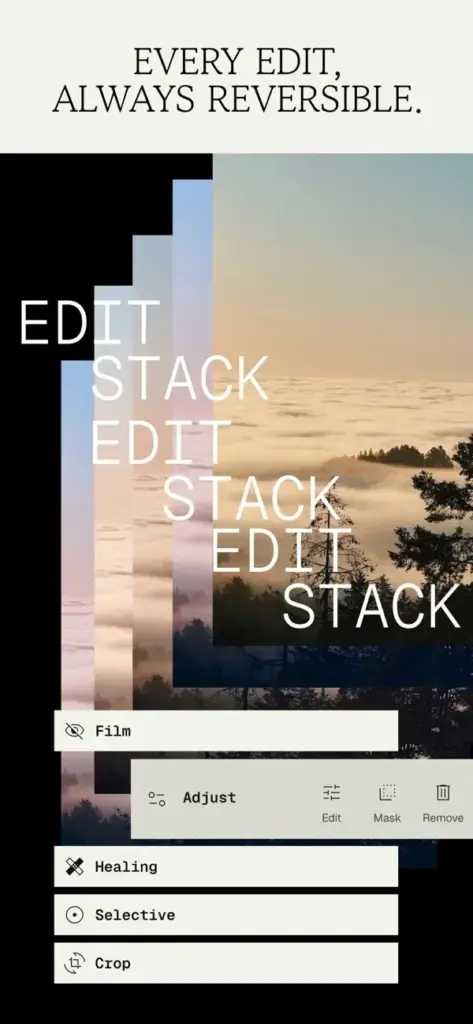
The app opens quickly and handles ordinary phone photos without lag. Large raw files take longer, and very long stacks of edits can slow down on older phones. Exports retain good quality when you choose the high setting. Because edits are applied in a stack, you can return to an earlier step, change it and keep the rest, which is more forgiving than many mobile editors. Saving a copy rather than overwriting the original is a good habit, since the app can replace files if you let it.
Key Features
Selective and Brush Tools
The selective tool places control points on parts of the image so you can brighten a face or darken a sky without affecting the rest. The brush tool paints exposure, temperature or saturation by hand. The idea matches the approach in the lesson on the adjustment brush, adapted for touch.
Healing and Cleanup
Tap a distracting object, dust spot or blemish and the healing tool fills it using surrounding texture. It works well on small items and plain backgrounds, and less well on large or detailed areas. Compare it with healing and clone tools on a computer for harder jobs.
Curves and Tonal Control
Curves, white balance and a tune image panel give real control over tone and color, including per-channel curves. Using them follows the same logic as curves in Photoshop, and learning one teaches you the other.
Looks, Filters and Creative Effects
Built-in looks, vintage and grain filters, black and white styles, double exposure and glamour glow offer a wide creative range. You can save your own looks and reuse them on future photos, which gives a lightweight way to keep a consistent style.
Perspective, Crop and Raw
Perspective correction straightens leaning buildings, and the crop tool offers fixed aspect ratios. Raw files in DNG format can be opened and developed with a basic raw panel, though it is far simpler than a desktop converter. Choosing a ratio is easier if you read about aspect ratios.
Learning Curve
Most people become comfortable within an hour, because each tool is a single panel with a clear purpose. The gesture controls are the main hurdle. Once you know that vertical swipes select a parameter and horizontal swipes change it, editing becomes quick. There are few menus to get lost in, which is a relief compared with feature-heavy mobile apps.
Sharing and Export
You can export to the gallery, share directly to other apps, or save a copy. The export dialog lets you choose the format and quality, and it offers a size option for web use. There is no built-in cloud library, so backing up your edits depends on your phone or cloud photo service rather than the app itself.
Where It Falls Short
There is no batch editing, no catalog and no layers in the desktop sense. AI object removal and generative tools are absent, and the interface has changed little in years. For social media posts and travel photos that is fine. For consistent series, product work or heavy retouching, you will want a desktop editor and a library.
Editing Workflow That Works
Start with Tune Image to set exposure, contrast and white balance, then use Selective for a face or sky, and finish with Healing for stray spots. Crop last, using a ratio suited to where the picture will be shown. Save a copy at each major stage so you can step back, and export once at high quality. This order keeps edits tidy and avoids the over-processed look that comes from piling on filters before the basics are right.
Value for Money
At no cost, the question is simply whether it does enough. For most phone photographers the answer is yes. It replaces several paid apps for everyday editing, and its selective tools handle jobs that basic filter apps cannot. Even if you later move to a subscription editor, Snapseed remains a handy second app for quick cleanup, perspective fixes and one-off looks, and it costs nothing to keep installed alongside whatever else you use.
Pricing
Snapseed is free. There is no subscription, no watermark and no paid tier for the core tools, which makes it one of the best values in mobile editing. It is available for both Android and iPhone.
Because the business model can change, check the vendor site for current terms. At the time of writing there is nothing to pay, so the only cost to try it is a little storage space and some time learning the gestures.
Pros and Cons
What Works Well
- Completely free with no watermark
- Selective editing, healing and curves in one app
- Editable stack lets you revisit earlier steps
- Works with raw DNG files
- Clean, fast and no account needed
What Holds It Back
- No batch editing or library
- Few modern AI tools
- Swipe gestures take time to learn
- Updates are infrequent
Who It Is For
It suits anyone who edits photos on a phone and wants more than a filter. Travelers, hobbyists and social media users will find its selective and healing tools more than enough for polished results, all without paying anything.
It is less suited to people who shoot professionally, edit in volume or want a synced library across devices. Those users will want a catalog editor. Whatever you choose, keep your originals intact and read about camera to phone transfer if you are bringing images from a camera to edit on the go.
Alternatives
Plenty of mobile editors compete for the same job.
| Alternative | Best Reason To Pick It |
|---|---|
| Adobe Lightroom Mobile | Full raw editing and cloud sync |
| VSCO | Film-style presets and a creative community |
| Adobe Photoshop Express | Quick fixes, collages and templates |
| Pixelmator Photo | Polished Apple-only mobile editing |
If you want free and capable, Snapseed is hard to beat. If you want sync, presets and AI tools, look at the others.
Common Questions
Is Snapseed really free?
Yes. It has no subscription and no watermark, and all its core tools are included.
Can Snapseed edit raw photos?
Yes, it opens DNG raw files and offers a basic development panel, though far simpler than desktop software.
Does Snapseed work offline?
Yes. Editing happens on your device, so no internet connection is needed.
Is Snapseed good for beginners?
Yes. The tools are clear and each has a single purpose, though the swipe gestures take a short time to learn.
Try It Yourself
See what it can do on your own photos and footage.
Some links are affiliate links: if you buy through them we may earn a small commission at no extra cost to you. How this works.