
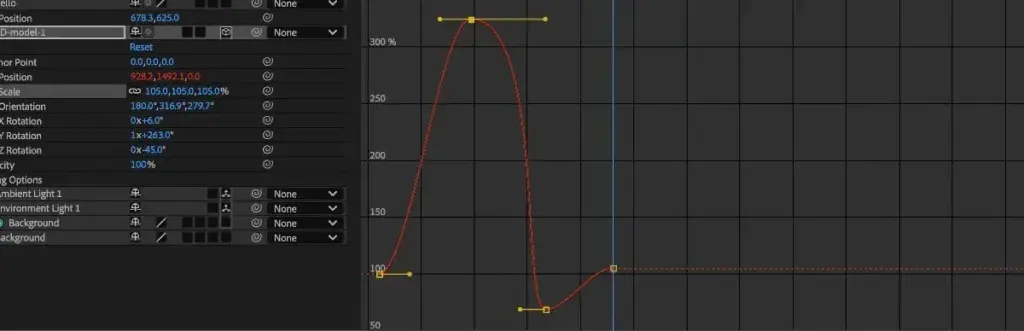
The graph editor in After Effects is a view of your keyframes as curves, showing how a property changes over time. By reshaping those curves you control easing, speed and overshoot, which turns stiff, mechanical movement into animation that feels natural.
Why It Matters
Keyframes alone only tell After Effects where a property should be at a given time. The motion between them is determined by interpolation, and the default is linear, which feels robotic. Most professional-looking animation comes from adjusting that in-between motion.
The graph editor makes the in-between visible and editable. Once you can read it, you can fix motion that looks off, match the feel of a brand, and build reusable animations that look consistent.
Beginner Keyframes And Easy Ease For Beginners
A keyframe records a property value at a moment. Click the stopwatch beside a property, such as Position, to turn on animation, then move the playhead and change the value. After Effects creates a keyframe at each change.
Basic Keyframing Steps
- Select a layer and press P to show Position.
- Click the stopwatch to set the first keyframe at the start.
- Move the playhead forward and drag the layer to a new location.
- Preview the motion with the spacebar.
- Select both keyframes and press F9 to apply Easy Ease.
Keyframe Types
| Type | Shortcut or look | Behavior |
|---|---|---|
| Linear | Diamond | Constant speed, with sudden start and stop |
| Easy Ease | F9, hourglass shape | Slows into and out of the keyframe |
| Ease In | Shift+F9 | Slows arriving at the keyframe |
| Ease Out | Ctrl+Shift+F9 | Slows leaving the keyframe |
| Hold | Ctrl+Alt+H | Value stays until the next keyframe, then jumps |
Helpful Habits
- Use fewer keyframes with good easing instead of many keyframes.
- Name and color layers so you know what moves.
- Press U to reveal only animated properties and UU to show modified properties.
- Move whole sets of keyframes by selecting and dragging them in the timeline.
Common Mistakes
- Leaving everything linear and wondering why motion feels stiff.
- Using the same easing on every property, so motion looks uniform.
- Setting keyframes with the stopwatch off, which changes the value for the entire layer.
- Creating keyframes at awkward times instead of working with beats or frame counts.
Try A Bounce
Animate a circle from the left to the right of the frame in one second, then apply Easy Ease. Notice how it starts and ends softly. This is the first step toward lifelike movement.
Handy for this: Pen Tablet — precise retouching. (affiliate link)
Advanced Reading And Editing The Graph Editor
Opening The Graph Editor
Select a property with keyframes in the Timeline and click the Graph Editor button, or press Shift+F3. The editor shows curves for the selected properties. At the bottom, the choose graph type menu lets you pick Value Graph or Speed Graph, and you can show reference graphs for other properties.
Value Graph Versus Speed Graph
The Value Graph shows the property value over time, with vertical position meaning the value. The steeper the curve, the faster the change. The Speed Graph shows the rate of change, with height meaning speed. A flat line at the bottom means no movement, and a hill means acceleration then deceleration. Use the Speed Graph to create smooth starts and stops, and the Value Graph to shape overshoot and bounce.
Bezier Handles And Influence
Each Bezier keyframe has handles. Dragging a handle horizontally changes influence, which is how long the ease lasts, and vertical movement changes the speed at the keyframe. Long handles produce a long, gentle ease, while short handles produce a quick settle. You can also type exact numbers using Keyframe Velocity, found by pressing Ctrl+Shift+K, which allows you to set speed and influence for incoming and outgoing motion.
Creating Overshoot And Settle
In the Value Graph, drag a handle so the curve rises above the end value, then returns. The layer will move past its target and settle back, which feels like inertia. Subtle overshoot of a few percent suits user interface animation, while larger overshoot suits playful motion. Combine with small scale changes for added life. For automatic bounce, see expression basics.
Spatial And Temporal Interpolation
After Effects separates how a layer moves through space from how it moves through time. Spatial interpolation is the path, shown as a motion path in the Composition panel with handles on position keyframes. Temporal interpolation is the timing, shown in the Graph Editor. Changing one does not change the other, which allows you to curve a path and still control speed. Right click a keyframe and choose Separate Dimensions to give X and Y independent timing.
Looping And Reuse
Once you have good curves, save them as presets, copy and paste keyframes between layers, or use loop expressions. See loop out, animation presets and time remapping for related techniques. Motion blur makes fast movements look smoother, as covered in motion blur.
Working With Multiple Properties In The Graph Editor
You can show several properties at once to compare their timing. Select the properties in the timeline, then enable Show Selected Properties in the graph editor options. Matching the curves of scale and opacity, for example, keeps a logo reveal feeling unified. Offsetting one by two or three frames adds a sense of follow-through, as the second element seems to react to the first.
Practical Timing Guidelines
Animation timing is measured in frames, and small changes matter. A quick interface movement often lasts 8 to 15 frames at 30 frames per second, while a large title move may take 30 to 45 frames. Ease out, meaning fast start and slow finish, feels natural for elements entering the screen, and ease in suits elements leaving. Avoid animating everything at the same pace, and let the most important element settle last so the eye lands on it.
Troubleshooting Curves That Behave Strangely
If an object slows to a stop in the middle of a move, a keyframe may have an unwanted ease. Select it, check its type, and reset it to linear or Bezier as needed. If an animation overshoots wildly, look for handles that extend beyond the neighboring keyframes in the value graph. Pulling them back toward the keyframe reduces the overshoot. When a motion path has odd kinks, check the spatial handles in the composition window and drag them to create a smoother arc.
Try It
- Animate a layer’s Position across the screen over one second.
- Open the Graph Editor, switch to the Speed Graph, and select both keyframes.
- Apply Easy Ease and drag the handles to lengthen the ease out.
- Switch to Value Graph and pull the final handle slightly above the end value to create an overshoot.
Common Questions
What does the graph editor do in After Effects?
It displays and edits how properties change over time as curves. You use it to adjust speed, easing, overshoot and timing, which controls the feel of an animation.
What is the difference between Easy Ease and Bezier keyframes?
Easy Ease is a preset that applies smooth in and out to a keyframe. Bezier keyframes let you control the handles yourself. Easy Ease keyframes can be edited with handles in the Graph Editor.
How do I make an object bounce?
Create position keyframes for each bounce and use Ease In on the way down and Ease Out on the way up, or edit the Value Graph to overshoot. Expressions can also add automatic bounce.
Why does my animation feel mechanical?
Linear interpolation and identical timing on every element usually cause this. Apply easing, offset the timing of related layers by a few frames, and shape the curves in the Graph Editor.
Related Lessons
- Shape Layers to build elements that you then animate.
- Expression Basics to automate bounce and loops.
- Motion Blur for smoother fast movements.
- Loop Out to repeat animation easily.
- After Effects Interface to learn the panels you use with keyframes.
Gear That Helps With This
Hand-picked kit that makes this lesson easier to put into practice.
Some links are affiliate links: if you buy through them we may earn a small commission at no extra cost to you. How this works.