
Null objects are invisible layers in After Effects that carry position, scale and rotation but do not render. You link other layers to a null with the parent setting, so moving or rotating the null moves the whole group. This lets you control many layers from a single handle and build simple rigs.
Why It Matters
When several layers need to move together, such as a logo and its text, animating each one separately is slow and error-prone. Any later change means redoing all the keyframes.
Parenting links layers so they follow a controller. Null objects make the controller clean and invisible, and give you a tidy way to build camera rigs, character joints and motion graphics templates.
Beginner Parenting And Null Objects For Beginners
Parenting means one layer, the child, inherits the transformations of another layer, the parent. When the parent moves, scales or rotates, the child follows, while the child can still have its own animation on top. Opacity is not inherited.
Create A Null Object
- Choose Layer, then New, then Null Object.
- A small outlined square appears in the composition, and a new layer appears in the timeline.
- Rename it with a clear name such as Logo Control.
- Move the null where you want the pivot point to be.
- Do not turn off the eye icon, since nulls do not render and do not need hiding.
Parent Layers To The Null
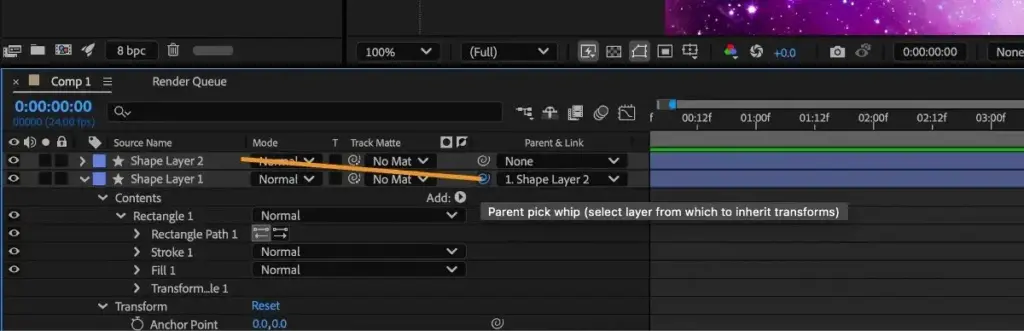
In the timeline, find the Parent and Link column. If it is hidden, right-click the column header to show it. For each layer you want to link, choose the null from the parent drop-down, or drag the pick whip spiral from the child to the null. The layers now follow the null.
Simple Examples
| Task | How Nulls Help |
|---|---|
| Move a logo and text together | Parent both to one null and animate the null |
| Zoom a group of layers | Scale the null and the children scale with it |
| Rotate several items around a point | Place the null at the pivot and rotate it |
| Control a camera path | Parent a camera to a null and animate the null |
Tips
- Use the anchor point of the null as the pivot for the group.
- Name the nulls so the timeline stays readable.
- Use label colors to separate controllers from content layers.
- Keep children simple and put the main motion on the null.
Common Mistakes
- Parenting a layer to itself or in a loop, which After Effects does not allow.
- Animating the child and the parent in conflicting ways, which makes motion hard to predict.
- Forgetting that parenting does not carry opacity.
- Leaving nulls with default names, which gets confusing in large projects.
First Rig Idea
Build a bouncing ball with a shadow. Parent the ball and shadow to a null, animate the null along the ground, and keep the up and down bounce on the ball itself. You get a clear separation between travel and bounce, which is easy to edit later.
Handy for this: Wide-Angle Zoom Lens — take in the whole scene. (affiliate link)
Advanced Rigs, Hierarchies And Expressions
Parent Hierarchies
You can chain parents so that a layer is the child of a null that is itself the child of another null. Hierarchies are the basis of character rigs, where a body null moves the whole figure, an arm null moves the arm and a hand null moves the hand. Each null controls its own level of motion, and the animation stays organized. Keep the hierarchy shallow when you can, since deep chains are hard to read and edit.
Parenting And Transform Order
The child transformations are applied relative to the parent. If you set a parent after you animate the child, the child may jump because its values are now relative to the parent. Use the Shift key while you choose a parent to keep the child in its current place, or choose the parent first before animating. Also remember that the anchor point of the parent defines the pivot for rotation and scale.
Camera And 3D Rigs
A 3D camera can be parented to a null, which separates the position of the camera from its point of interest and its rotation. Use one null to move the camera along a path and another to control the orbit. For more on cameras and layers in space, see 3D layers and camera. Nulls also make simple stabilization and shake easier, which you can combine with expressions such as wiggle.
Linking With Expressions
Add an expression control, such as a slider or a checkbox, to a null and link properties of many layers to it using the pick whip. A single slider can then control the speed, size or color of many elements. This is how reusable templates and toolkits are built. The pick whip approach is described in the lesson on expressions, and it pairs well with the repeating effects in loop out.
Tracking And Nulls
Motion tracking data can be applied to a null, and then other layers can be parented to it, so one track drives many elements. This keeps the tracking data in one place and makes adjustments easy, as covered in motion tracking. The same idea works for a corner pin result, as in corner pin.
Organizing Large Projects
- Place nulls at the top of the timeline and give them a bright label color.
- Group related layers by pre-composing them, as in pre-compose.
- Use a naming convention such as CTRL for controllers.
- Lock finished controllers so they are not moved by accident.
- Document complex rigs with a note layer or comment markers.
Troubleshooting
If a layer does not follow its null, check that the parent is set and that the layer is not locked into a different structure. If layers drift or jump, check the anchor point and the stacking of parents. If you cannot find a null in a large comp, use the Solo switch or search by name in the timeline search box. If a null seems to move incorrectly in 3D, check that the layers are all 3D and have matching settings.
Designing For Reuse
When you build a rig that other people will use, keep the controls in one place, name them clearly and hide complexity inside precompositions. Provide only the few handles that matter, such as position, scale and a color slider. A rig with five clean controls is easier to hand over than one with fifty, and it makes template creation easier.
Try It
- Create a shape layer and a text layer in a new composition.
- Add a null object, place it at the center between them and rename it Group Control.
- Set both layers to use the null as their parent.
- Animate the null position, scale and rotation and watch both layers follow.
Common Questions
Why use a null instead of parenting to a visible layer?
A null has no visible content, so it never shows in the render and can be placed anywhere. It keeps control separate from artwork.
Does parenting affect opacity?
No. Opacity is not inherited. To fade a group, animate a precomposition or use an expression-linked slider.
Why did my layer jump when I added a parent?
Its transform values are now relative to the parent. Hold Shift when choosing the parent to keep its position, or set the parent before animating.
Can I parent a camera to a null?
Yes. This is a common way to move or orbit a camera with simple controls.
Related Lessons
- After Effects Expressions Basics to link controls with code.
- 3D Layers And Camera for camera rigs.
- Pre-Compose In After Effects for grouping layers.
- Motion Tracking In After Effects to drive a null with tracked data.
- Shape Layers for building simple characters and graphics.
Gear That Helps With This
Hand-picked kit that makes this lesson easier to put into practice.
Some links are affiliate links: if you buy through them we may earn a small commission at no extra cost to you. How this works.