
After Effects expressions are short pieces of JavaScript attached to a property that calculate its value for every frame. With a single line you can make a layer shake with wiggle, spin with time, or follow another layer with the pick whip, replacing many hand-set keyframes and making animation easier to change.
Why It Matters
Keyframes are fine for a few moves, but they become slow when you need random shaking, endless rotation or many layers that must stay connected. Changing one value can mean editing dozens of keyframes.
Expressions solve that by describing the motion as a rule. They are also surprisingly approachable, because a handful of short lines cover most everyday needs.
Beginner After Effects Expressions For Beginners
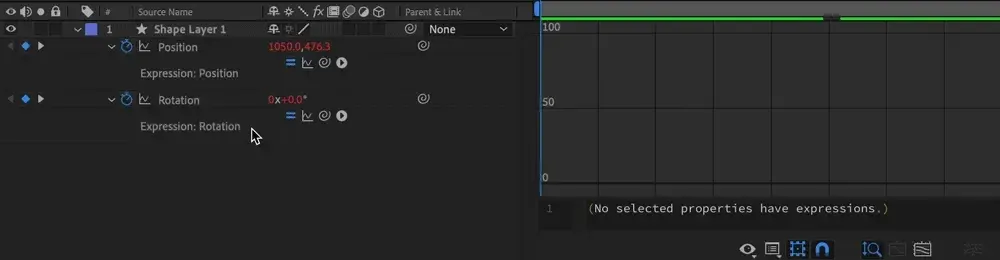
To add an expression, select a property, press Alt and click its stopwatch on Windows, or Option and click on a Mac. A text field opens beside the property. Type a line, click outside it and the property is now driven by the code. Expressions appear in red, and an error banner appears if the line is wrong.
Wiggle
The wiggle expression adds random movement. The format is wiggle(frequency, amplitude). For example, wiggle(3, 20) on Position moves the layer about three times per second by up to 20 pixels. It is useful for camera shake, floating objects, flickering lights and subtle life in a still image.
Time
The time variable holds the current time in seconds. Putting time*90 on Rotation turns the layer 90 degrees per second without any keyframes. Multiplying time by a number sets the speed, and the effect continues for as long as the layer lasts.
The Pick Whip
The pick whip is the small spiral icon beside the expression field. Drag it onto another property and After Effects writes the link for you. For example, linking the Scale of one layer to a Slider Control means that one slider can control many layers. It is a good way to build a simple rig. See parenting and null objects for a related way to link layers.
| Expression | Result |
|---|---|
| wiggle(2, 30) | Random movement, two times per second, up to 30 units |
| time*100 | A value that increases by 100 each second |
| loopOut(“cycle”) | Repeats keyframed motion forever |
| value + 50 | Keeps the original value and adds 50 |
Quick Tips
- Use Position or Rotation for first tests, since you can see changes clearly.
- Press the equals sign button beside the stopwatch to turn an expression off without deleting it.
- Copy and paste expressions across layers, but check that any linked layers still exist.
- Read error messages closely. They show the line number and what After Effects could not understand.
Common Mistakes
- Typing smart quotes copied from a document, which breaks the code.
- Forgetting that wiggle applies to the current value, so keyframes still work underneath it.
- Missing brackets or commas in a line.
- Using too much amplitude, which makes a shake look like an earthquake.
A Small First Project
Make a title that floats gently. Add text, apply wiggle(0.5, 10) to Position, and keep the frequency low for a slow drift. Add a Drop Shadow effect and link its Distance to the layer Scale with the pick whip. In a few minutes you have a living title with no keyframes, and changing the numbers gives different moods.
Handy for this: Fast Wide-Angle Lens — gather more starlight. (affiliate link)
Advanced Variables, Arrays And Control Layers
How Expressions Think
Every expression ends with a value of the same type as the property it drives. Position is an array of two numbers, for x and y, while Rotation and Opacity are single numbers. If you want wiggle to affect only x, you can write temp = wiggle(2, 40); [temp[0], value[1]]. The first part holds the wiggled result, and the second returns a new array using the wiggled x and the original y. Understanding arrays is the key to using expressions with Position and Scale.
Loop Expressions
The loopOut and loopIn expressions repeat keyframes after the last or before the first one. The cycle type repeats the same motion, pingpong plays back and forth, and offset continues a motion by adding the change each time. They are ideal for spinning wheels, bouncing balls and breathing effects, and they pair well with the easing described in After Effects graph editor.
Control Layers And Sliders
Add Effect, Expression Controls, then Slider Control to a null layer, and link several properties to it with the pick whip. Now one slider changes the amplitude of many wiggles, or the speed of many spinning layers. You can keyframe the slider itself to ramp the effect up and down. This approach is a cornerstone of reusable motion graphics templates.
Useful Functions
- linear(t, tMin, tMax, value1, value2) maps one range of values onto another, such as changing opacity as a layer moves across the screen.
- ease() does the same with smooth start and end.
- random(min, max) gives a different number, and seedRandom(seed, true) keeps it constant for each layer.
- thisComp.layer(“Name”).transform.position reads from another layer.
- index gives the layer number, useful for offsetting many copies in time.
Debugging
If an expression fails, After Effects displays a yellow warning icon and disables it. Read the message, which often says an object is undefined or a property cannot be found. Check spelling and capitalization, as JavaScript is case sensitive. If you rename a layer, expressions that mention it by name need updating, while pick-whipped ones update automatically. When you build complex rigs, keep names short and clear.
Where Expressions Are Used
Text animators, shape layers and time remapping all benefit from them. A shape layer can have an expression-driven path or size, and text can be linked to a slider to show a counter. For examples see shape layers and text animators, where expressions add variation without more keyframes.
Performance And Habits
Expressions are fast for ordinary uses, but heavy ones that read many layers can slow previews. Convert finished motion to keyframes with Animation, Keyframe Assistant, Convert Expression to Keyframes when you need to hand it off or reduce load. Save useful lines as animation presets, as covered in animation presets, so you do not retype them. Build a small library of snippets you trust.
Thinking In Rules
The mindset shift is to describe behavior instead of positions. Rather than saying the object is at 100 at one second and 200 at two, you say that it moves 100 units per second. This makes edits painless: change the length of the composition, and the behavior still works. When you find yourself setting more than a handful of similar keyframes, ask whether a short rule could do the job.
Try It
- Create a solid layer and set its anchor point to the center.
- Alt-click the Rotation stopwatch and type time*60 to rotate once every six seconds.
- Alt-click Position and type wiggle(2, 25), then play the preview.
- Add a Slider Control to a null, pick-whip the wiggle amplitude to it, and change the slider to control the shake.
Common Questions
Do I need to know programming to use expressions?
No. A few ready-made lines such as wiggle, time and loopOut cover most needs, and you can learn the rest slowly. Copying and adjusting examples is a normal way to start.
Why is my expression showing a yellow warning?
There is an error in the code, often a typo, a missing bracket or a layer that no longer exists. Click the warning icon to read the message and fix the line.
Can I combine keyframes and expressions?
Yes. Keyframes set the base value, and the expression modifies it. For example, you can keyframe a position move and add wiggle for a hand-held feel.
How do I stop an expression temporarily?
Click the equals sign icon next to the property to disable it. The expression remains in the field and you can turn it back on when needed.
Related Lessons
- After Effects Graph Editor for easing the keyframes underneath expressions.
- Parenting And Null Objects to link layers without code.
- After Effects Loop Out for repeating motion with a simple expression.
- Text Animators to animate type with expressions and selectors.
- After Effects Motion Blur to make fast expression-driven motion look natural.
Gear That Helps With This
Hand-picked kit that makes this lesson easier to put into practice.
Some links are affiliate links: if you buy through them we may earn a small commission at no extra cost to you. How this works.