
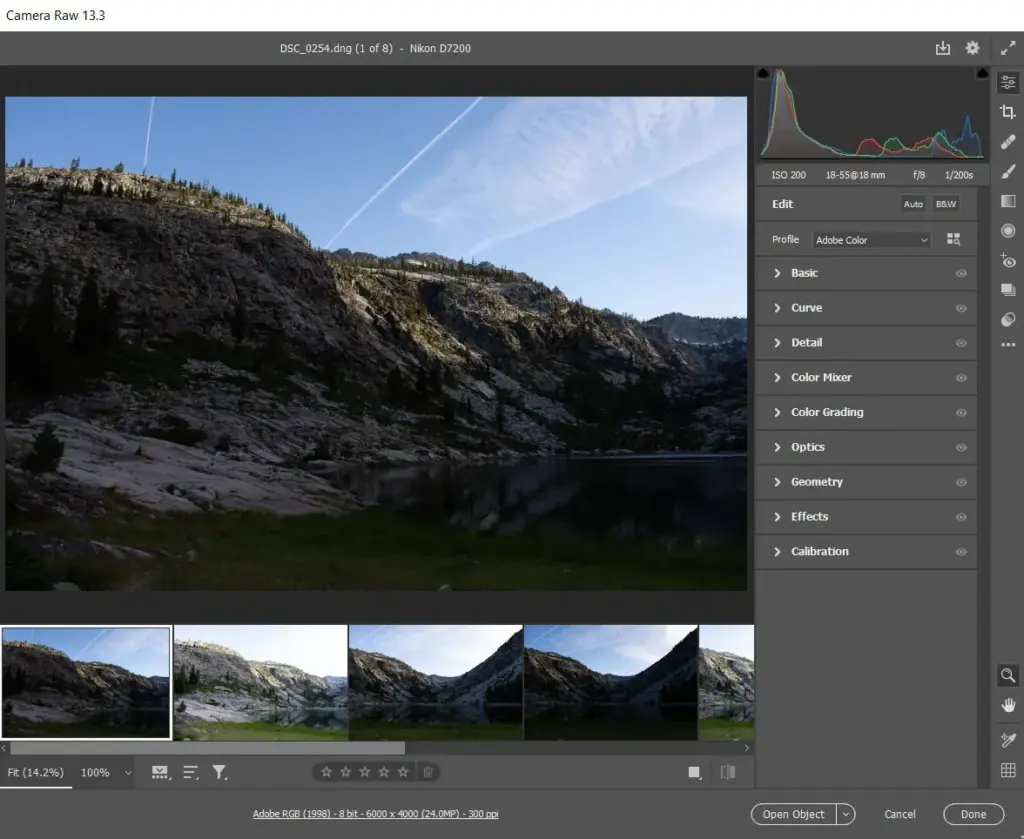
This adobe camera raw review finds a powerful raw converter that shares its engine with Lightroom. It offers masking, denoise, profiles and local adjustments, and opens inside Photoshop or Bridge. It suits photographers already paying for Adobe, but offers no catalog and needs a subscription to use fully.
Verdict From This Adobe Camera Raw Review
Adobe Camera Raw is the raw processing engine that sits inside Photoshop and Bridge. It shares its development controls with Lightroom, so the sliders, masks and profiles will feel familiar if you have used either. The difference is that Camera Raw is a stage in a larger workflow, not a library, so there is no catalog to manage.
For a photographer who already lives in Photoshop, that is a strength. A raw file opens, you tone it with the full set of development controls, and then you either save the result or send it onward as a smart object for deeper work. Nothing needs importing and nothing is locked in a database.
The limitation is organization. Camera Raw cannot search, collect or filter a large library on its own, so most people pair it with Bridge or switch to Lightroom when volume grows. As an editing engine, though, it is among the best available.
Performance and Quality
Raw conversion quality is excellent, with strong highlight recovery, clean shadow lifting and accurate color profiles for most cameras. Denoise uses machine learning and can rescue high ISO frames, though it takes time on large files and benefits from a capable graphics processor. The dialog opens quickly for ordinary files and stays responsive while you drag sliders. Very large panoramas and heavily masked files slow things down. Keeping the program and camera support current is the easiest way to avoid odd color or missing profiles.
Key Features
Basic and Tone Controls
Exposure, contrast, highlights, shadows, whites and blacks give broad control over tone, while curves allow precise shaping. The approach matches the lesson on the Lightroom basic panel, and the curve tools follow the same logic as the tone curve in Lightroom.
Masking and Local Adjustments
Subject, sky, background and object selections are generated automatically, and brushes, gradients and range masks refine them. You can lift a face, darken a sky or recolor a single object without leaving the dialog. See Lightroom masks and luminance range masks for the concepts.
Denoise and Detail
The AI denoise tool reduces grain while keeping texture, which often matters more than sharpening. It pairs well with raw files shot at high sensitivity, and the topic is explained in Lightroom denoise. Texture, clarity, dehaze and sharpening sliders complete the detail controls.
Color Tools and Profiles
The color mixer, color grading wheels and calibration panel let you shape hue, saturation and luminance. Camera matching and creative profiles give a starting look, and a built-in lookup table system lets you apply custom grades. For the theory, read the Lightroom color mixer.
Filter and Smart Object Workflow
Inside Photoshop you can open an image as a smart object so Camera Raw settings stay editable, or use it as a filter on any layer. That flexible approach is described in the Camera Raw filter lesson.
Presets and Synchronizing
Settings can be saved as presets and applied to many images at once, which is a quick way to keep a series consistent. In Bridge you can select a group of raw files, open them together and synchronize edits across the set. Copy and paste of settings works between programs that share the engine, so a look built here can travel to Lightroom later without recreating it by hand.
Learning Curve
Beginners should find the panels logical, since they follow the order in which most raw edits are made. The deeper tools, such as masks and range selection, take more practice. Because Camera Raw is a shared engine, every hour spent learning it also improves your results in Lightroom and Photoshop, so the knowledge transfers across the whole Adobe suite.
File Support and Output
The program reads raw files from a very wide range of cameras, plus JPEG, TIFF and other common formats. It can save edited results as DNG, JPEG, TIFF or PSD, and it stores edits in sidecar files or inside the file, depending on format. Updates arrive regularly to add new camera support, so confirm yours is listed before relying on it for important work.
Value for Money
Because the engine is shared, you are not paying for it twice. Photoshop owners get a full raw developer at no extra charge, and Bridge users get a convenient way to batch process folders. The real value comes from consistency: the same tone curve, masking and color tools work in Camera Raw, Lightroom and Photoshop, so a look you refine here can be reused elsewhere without relearning anything. That continuity saves time on every project and makes the cost easy to justify for working photographers.
Pricing
Camera Raw is not sold on its own. It comes with Photoshop and Bridge, and Adobe photography plans that include those programs also provide it. A free tier of Bridge can open Camera Raw for basic editing in some setups, but plans and terms change often.
Check the vendor site for current pricing and plan contents before you buy. If you only want raw editing and a library, a Lightroom plan covers that for less than a full creative suite, while Photoshop owners already have Camera Raw included.
Pros and Cons
What Works Well
- Shares its engine with Lightroom for top-tier raw quality
- Excellent masking, denoise and color tools
- Works as a filter or smart object in Photoshop
- No catalog to build or maintain
- Regular camera and lens support updates
What Holds It Back
- No library or search features of its own
- Needs a Photoshop or Bridge plan to use
- Denoise and masks can be slow on older computers
- Not a standalone product
Who It Is For
It suits Photoshop users who want raw editing in the same place, photographers who prefer folders over catalogs, and designers who occasionally process raw files. Anyone who already uses Bridge for browsing will find the pairing smooth.
If you shoot thousands of frames a month and need to search and collect them, Lightroom is the more comfortable home for the same engine. Start by shooting raw rather than JPEG, as explained in raw versus JPEG, because Camera Raw only shows its full strength with raw data.
Alternatives
Several raw editors cover similar ground, each with a different workflow.
| Alternative | Best Reason To Pick It |
|---|---|
| Adobe Lightroom Classic | Same engine plus a searchable catalog |
| Capture One | Excellent color handling and tethering |
| DxO PhotoLab | Strong lens corrections and noise reduction |
| Affinity Photo | One-time purchase with a raw develop persona |
If your work is mostly edit-and-deliver, Camera Raw is plenty. If you manage a large archive, a catalog editor will save time.
Common Questions
Is Adobe Camera Raw free?
It is included with Photoshop and Bridge, but those carry their own plans. Check the vendor site for current pricing.
What is the difference between Camera Raw and Lightroom?
They share the same editing engine. Lightroom adds a catalog, search and collections, while Camera Raw works on individual files.
Can Camera Raw open JPEG files?
Yes. It can edit JPEG and TIFF files too, though raw files give far more room for adjustment.
Does Camera Raw edit non-destructively?
Yes. Edits are stored as instructions in sidecar files or the file itself, and the original pixel data is untouched.
Try It Yourself
See what it can do on your own photos and footage.
Some links are affiliate links: if you buy through them we may earn a small commission at no extra cost to you. How this works.