
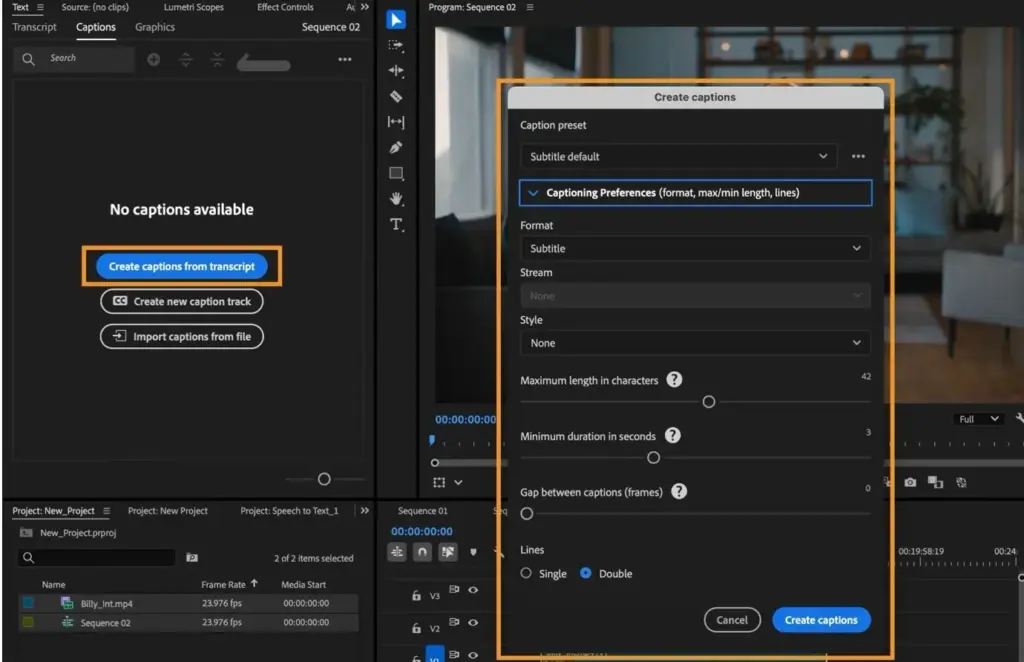
Premiere captions are timed text lines created in Premiere Pro, usually by running speech-to-text transcription on your sequence and then generating captions from that transcript. You edit the text, set style and length rules, and then export either burned-in captions or a sidecar file such as SRT.
Why It Matters
Many viewers watch video with the sound off, and captions also make your content usable for people who are deaf or hard of hearing. Platforms increasingly reward captioned videos with longer watch time, and some clients require them as a deliverable.
Writing captions by hand is slow. Speech-to-text gets you most of the way in minutes, but only a careful review turns a rough transcript into something professional, so the workflow matters more than the button.
Beginner Making Premiere Captions From Speech
Open The Text Panel
Go to Window, then Text, or open the Captions and Graphics workspace. Select the Transcript tab. This is where Premiere stores the written version of your audio.
Generate A Transcript
1. Click Transcribe sequence, or right-click a clip and choose Transcribe.
2. Choose the language and, if you have several speakers, turn on speaker labeling.
3. Select the audio track that holds dialogue. Mute music tracks first if they confuse the result.
4. Wait for the process to finish. Longer files take longer, and a good microphone gives better accuracy.
Correct And Create Captions
Read through the transcript and fix names, brand words and numbers. Click any word to jump to that moment in the sequence. Then choose Create captions from transcript, and set the options.
- Characters per line: 32 to 42 is common for readability.
- Minimum duration: about 1 second.
- Lines: one or two per caption.
- Gap between captions: a few frames.
Style Captions
Open the Essential Graphics panel with a caption selected. Choose a clear sans serif font, a size that remains readable on a phone, and a contrasting fill with a dark outline or background box. Make one caption look right, then save it as a style so every caption matches.
Export
Use File, Export, Media. For sidecar files, choose the Captions tab and pick a format such as SRT. To embed, choose Burn Captions Into Video.
Common Mistakes
– Trusting the transcript without proofreading.
– Using tiny text that disappears on phones.
– Placing captions over faces or lower graphics.
– Making lines so long they are gone before they can be read.
Handy for this: Speedlight Flash — add light anywhere. (affiliate link)
Advanced Accuracy, Timing And Delivery For Premiere Captions
Improving Accuracy Before You Transcribe
Speech-to-text works best with clean dialogue, low background noise and one voice at a time. Reduce noise first with audio noise reduction or speech enhancement when the track is rough. Rename speaker tracks so labels carry through, and keep music and effects off the track being transcribed.
Caption Timing Rules
Common broadcast guidance sets reading speed around 17 to 21 characters per second and limits each caption to two lines. Short lines break at natural phrases, not in the middle of a name or verb phrase. Use the split and merge tools in the Text panel to rebalance lines, and nudge timing with small trims so a caption appears slightly before the word is spoken.
Open Versus Closed Captions
Closed captions live in a separate track or sidecar file and can be turned on or off by the viewer. Open or burned-in captions are part of the picture. Use closed captions for YouTube and broadcast where possible, and burned-in captions for social platforms that do not read sidecar files, or for stylized animated text.
Multiple Languages
You can duplicate a caption track and translate it, keeping timing identical. Create each language as its own track, export separate SRT files and name them with language codes such as en, es and fr. Machine translation needs a human check, especially for idioms, names and cultural references.
Working With Text Based Editing
Because the transcript is linked to the timeline, you can also cut by editing text. That approach is covered in text-based editing, and it pairs naturally with captioning since each edit updates the timing of the words. For on-screen style beyond basics, see essential graphics.
Platform Settings
Vertical social video needs larger type and safe margins away from interface buttons. A common safe area leaves about 10 percent at the top and bottom, and more at the bottom for the description area. Preview your export on a real phone before delivery. For final encoding choices, see export settings.
Fixing Common Transcription Problems
Speech-to-text engines stumble on proper names, product terms, strong accents, overlapping speakers and fast speech. Build a short list of difficult words before you start, then search the transcript for each one after processing. Use Find and Replace in the Text panel to correct repeated errors in one step. Watch for homophones such as there and their, missing question marks, numbers written as words or digits inconsistently, and filler words you may want to keep or trim depending on style.
Style Consistency Across A Project
Choose conventions early and write them down. Decide whether you show music notes or sound descriptions in brackets, how to mark a speaker change with a dash or a name label, and whether numbers under ten are spelled out. Consistency is what makes captions feel professional, and it matters most when several editors work on one series. Save a caption style and a short caption template project so each episode starts with the same settings.
Accessibility Requirements
Captions for accessibility differ from simple subtitles. They include speaker identification when it is not obvious, meaningful sound cues such as a door slam or applause, and music descriptions. Many clients and broadcasters follow guidelines that require accurate text, synchronization with speech, and positioning that does not hide important content. If you deliver to a streaming service, check the technical specification, since it may demand a particular file format, frame rate and character limit.
Review Before Delivery
Play the sequence from start to finish with sound off and read only the captions. If the story is understandable and nothing flashes by too quickly, the pacing is right. Then listen with sound on and watch for drift, where captions slowly fall out of sync after edits. Re-export if you changed the timeline after creating the captions, because captions do not follow clips automatically unless they were built from the same sequence.
Try It
- Pick a one-minute clip with clear dialogue and transcribe it in the Text panel.
- Correct every wrong word, then create captions with 36 characters per line and two lines maximum.
- Style the first caption, save the style and apply it to the rest.
- Export an SRT file and also a version with burned-in captions, then watch both on a phone.
Common Questions
Does Premiere Pro transcribe speech automatically?
Yes. Premiere Pro can transcribe a sequence or clip into text in the Text panel, which you then turn into timed captions. Review and edit the result for accuracy before you publish.
What is an SRT file?
SRT is a plain text caption format holding numbered entries with start and end times and the caption text. Most platforms accept it as a sidecar file.
How many characters should a caption line have?
Aim for about 32 to 42 characters per line with no more than two lines, and keep reading speed under roughly 21 characters per second.
Should I burn captions into the video?
Burn them in when the platform does not support sidecar files or when you want stylized text. Otherwise use closed captions so viewers can switch them off.
Related Lessons
- Text Based Editing to cut video by editing the transcript.
- Essential Graphics for styling caption text and layouts.
- Premiere Speech Enhancement for cleaning dialogue before transcribing.
- Premiere Export Settings to deliver the finished captions.
- Filmora Auto Captions to compare another editor’s approach.
Gear That Helps With This
Hand-picked kit that makes this lesson easier to put into practice.
Some links are affiliate links: if you buy through them we may earn a small commission at no extra cost to you. How this works.