
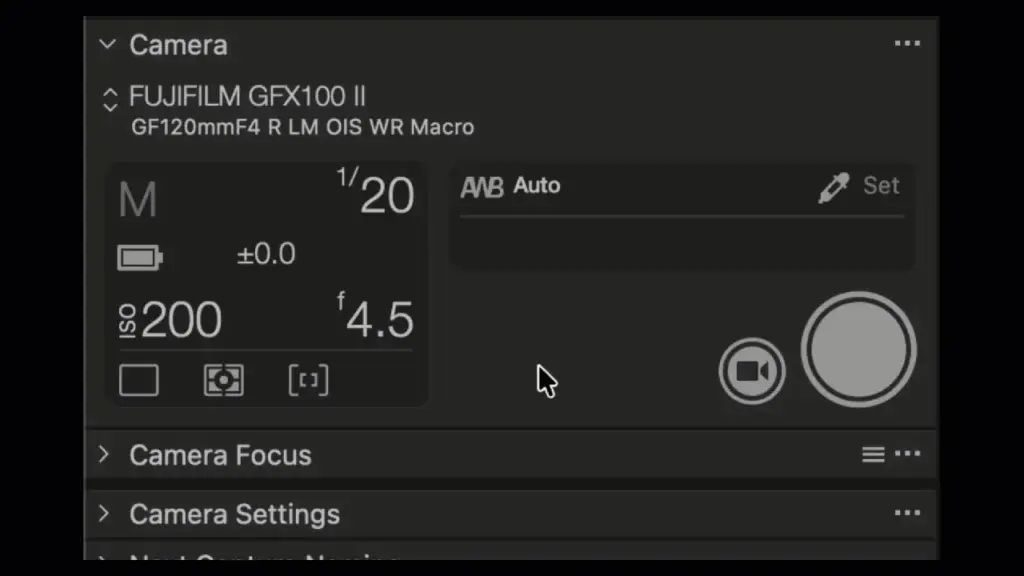
Capture One tethering connects a camera to a computer so each photo appears on screen as it is taken, saved directly into a session folder, with names and looks applied automatically. It speeds up studio, product and portrait work by letting everyone check focus, exposure and expression on a large display.
Why It Matters
A camera screen is small and hard to judge. In a studio, clients, art directors and models want to see results immediately, and you want to confirm focus and lighting before moving on.
Tethering also organizes files at capture, so you avoid memory card transfers and naming mistakes. Capture One is known for fast, stable tethering and strong support for many camera models, which is why it is popular in commercial work.
Beginner How To Start Tethering
What You Need
– A supported camera and a good USB cable, ideally short and high quality.
– A computer with Capture One installed.
– A session or catalog ready to receive the images.
– A camera battery that is fully charged, or a dummy battery with power.
Step By Step
1. Create a new session, which holds capture, selects, output and trash folders.
2. Connect the camera with the cable and turn it on.
3. Open Capture One and wait for the camera to appear in the Camera tool.
4. Choose the Capture tool and set the naming format, such as a job name plus a counter.
5. Press the capture button or the shutter on the camera, and watch the image appear in the viewer.
Settings You Can Control
Many cameras let you set aperture, shutter speed, ISO and white balance from the software. Use live view to compose and focus. Check that the image format is raw, or raw and JPEG if you need quick previews.
Cable Tips
A cable that is too long or poor quality causes dropouts. Use a short cable, and a cable lock or tether tool to avoid pulling on the camera port. Keep the cable plugged into a port directly on the computer, not a crowded hub.
Common Mistakes
– Forgetting to create a session and saving files in a random folder.
– Letting the camera battery run out during a shoot.
– Using the wrong naming and overwriting earlier files.
– Pulling a cable and damaging the camera port.
Handy for this: Fast Memory Cards — never miss a burst. (affiliate link)
Advanced A Professional Capture One Tethering Workflow
Sessions And Folder Structure
Sessions keep each job in a self-contained folder, which makes backup and delivery simple. Capture One saves to the Capture folder, and you move favorites to Selects and exports to Output. Learn more in sessions and catalogs. Plan folder names before the shoot, as covered in folder structure for photos.
Naming Convention
Use a naming template with tokens such as job name, date and counter, so each file has a unique name. A consistent scheme prevents confusion later, and see file naming conventions for planning. Rename at capture, not afterward, to keep the record straight.
Applying Styles At Capture
You can apply a style or preset automatically to each new capture, so the client sees a finished look on screen. Set the style in the Capture tool before shooting. For building looks, read Capture One styles. Keep the style light, since exposure and white balance may need adjusting per shot.
Live View And Focus Checks
Live view lets you compose on the computer screen. Zoom in to check focus before shooting. For product photography, use focus peaking if your camera supports it, or take a test shot and zoom the preview to 100 percent. See tethered shooting for general tips.
Guides And Overlays
Capture One has composition guides, grids and overlays, so you can make sure the subject fits the layout for packaging, advertising or social media. Use crop overlays when shooting for a specific aspect ratio. Layers and masks let you try ideas in the session, and read Capture One layers.
Backup During The Shoot
Tethering writes to one drive, so set up a second copy. Use a second memory card in camera when possible, as covered in dual card slots, and copy the session folder to another drive at breaks. Follow the plan in card offload workflow.
Wireless Tethering
Some cameras support Wi-Fi tethering. It is convenient but slower and less reliable than a cable. Use it for small jobs or when movement matters, and keep the camera near the router. For critical shoots, use a cable.
Troubleshooting
If the camera does not appear, check the cable, the USB mode on the camera and whether other software has taken the connection. Restart the camera and Capture One if needed. Update firmware, as discussed in camera firmware update.
Working With Clients
Show the large screen to the client in a quiet place. Use rating and color tags to mark favorites during the shoot, so selection is quick afterward. Keep a clear workflow so you can give them a link or a contact sheet after.
Power And Stability
Use a dummy battery or a power adapter for long studio days. See camera battery life for planning. Make sure the computer is charged and that sleep settings do not interrupt capture.
Output After The Shoot
When the shoot ends, select the best frames, adjust, and export in the formats you need. Use output recipes in Capture One to produce web and print files at once.
Summary
A good tether workflow includes a session, a short cable, clear naming, light styles and backups. Prepare these before the shoot and you can focus on photography.
Preparing The Studio Before The Client Arrives
Set up the camera, cable, lights and a test target before anyone else is in the room. Photograph a gray card or color checker, and set white balance and exposure from it, so the first images the client sees look right. Confirm that the naming template, output folders and style are correct, and make one test capture to prove the whole chain works. A short checklist taped to the computer prevents forgetting a step on busy days.
Reviewing Images With Others
Large monitors help, but screen color matters. Use a calibrated display if color accuracy is important, and tell the client which settings are applied so they do not mistake a quick preview for the final retouch. Use star ratings or color labels as the client chooses, and take notes about crops and retouching requests beside each frame. After the shoot, those notes guide your editing and keep the result close to what they approved.
Recovering From Problems
If the connection drops, do not unplug the cable mid-capture. Wait for transfers to finish, close the program if needed, reconnect and check that the last image is complete. If a file is missing in the session, look on the memory card first. Keeping a card in the camera as a backup means you rarely lose a frame, even when the computer misbehaves.
Try It
- Create a new session named for a test job with a naming template of job name plus counter.
- Connect your camera with a short cable and take ten test shots in live view.
- Apply a light style to new captures and rate your two favorites.
- Copy the session folder to a second drive and confirm all files are present.
Common Questions
What is tethered capture in Capture One?
It is shooting with the camera connected to the computer so images appear in Capture One as soon as they are taken and are saved directly to a chosen folder.
Do I need a session for tethering?
A session is recommended because it keeps capture, selects and output in one folder, but you can tether into a catalog too.
Can I tether wirelessly?
Some cameras support Wi-Fi tethering, but it is slower and less reliable than a cable, so use a cable for important shoots.
Why does Capture One not see my camera?
Check the cable and USB mode, close other apps that use the camera, restart both, and make sure the model and firmware are supported.
Related Lessons
- Tethered Shooting for general tether tips.
- Capture One Sessions And Catalogs to organize jobs.
- Capture One Styles to apply looks at capture.
- File Naming Conventions to name files at capture.
- Card Offload Workflow to back up files safely.
Gear That Helps With This
Hand-picked kit that makes this lesson easier to put into practice.
Some links are affiliate links: if you buy through them we may earn a small commission at no extra cost to you. How this works.