
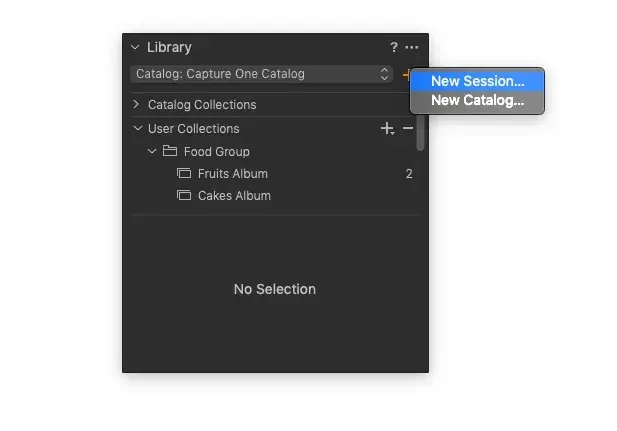
Capture One sessions are self-contained project folders that store the raw files, edits, outputs and settings for a single shoot. Catalogs are databases that reference images stored anywhere. Sessions suit studio and tethered work on one job at a time, and catalogs suit large personal libraries.
Why It Matters
Choosing between a session and a catalog is the first decision in Capture One, and it affects how you organize, back up and move your work. A wrong choice is easy to change, but a good one saves time on every shoot.
Understanding the difference helps you find files, share jobs with colleagues and avoid slow performance with huge libraries.
Beginner Capture One Sessions And Catalogs For Beginners
A session is a folder with a fixed structure: Capture, Selects, Output and Trash. Images arrive in Capture, you move your favorites into Selects, exports go to Output and rejected images go to Trash. Everything lives in one place, so the folder can be moved or archived as a whole.
A catalog is a single database file plus references to original image files. Edits are stored in the database, and the images can stay in any folder on any drive. You can search across all images by keyword, rating or date.
Side By Side
| Feature | Session | Catalog |
|---|---|---|
| Best for | One shoot or client job | Large library of many shoots |
| Structure | Fixed folders inside one project | Database with references to files |
| Portability | Easy to move the whole folder | Move the catalog and the image files separately |
| Tethering | Native and fast | Possible, but slower on large catalogs |
| Search across jobs | Limited to the open session | Search the entire library |
Starting A Session
- Choose File, then New Session.
- Name the session after the client or job and choose a location on a fast drive.
- Set the capture folder naming and the output location if you want custom ones.
- Import or tether your images, and begin selecting and editing.
- When done, move the session folder to your archive drive.
Starting A Catalog
Choose File, then New Catalog, name it and place it on a drive with plenty of space. Import images from cards or folders, and decide whether to copy them into the catalog folder or leave them in place. Use collections, albums and smart albums to organize.
Which Should You Use
- Use sessions for client jobs, studio work, product shoots and tethering.
- Use a catalog for a personal archive, travel images and long-term organization.
- Use both: sessions for the shoot and a catalog for the finished selects.
Common Mistakes
- Moving image files outside Capture One in a catalog, which causes offline images.
- Putting a session on a slow external drive and then wondering why it lags.
- Opening one catalog from two computers at once.
- Forgetting to back up the session folder after the shoot.
Starting Simple
If you are unsure, start with sessions for each job, and keep a catalog only for final selects. This keeps the working files tidy and makes it easy to hand off or archive a project. You can always build a larger catalog later.
Handy for this: Fast Memory Cards — never miss a burst. (affiliate link)
Advanced Workflows, Shortcuts And Safe Habits
Session Structure And Naming
Name sessions with a consistent pattern such as date, client and job. Inside each session, Capture One adds the standard folders, and you can add subfolders and albums to separate looks or locations. Use the session favorites to give quick access to the folders you use most. A consistent naming scheme makes the archive easy to search later, as in file naming convention.
Tethering With Sessions
Sessions keep the live capture fast, because the program only has to track a small folder. Set the capture name format and counter, choose the live view and use the capture pad. For setup and tips, see Capture One tethering and tethered shooting.
Moving Between Sessions And Catalogs
You can import a session into a catalog, preserving edits and metadata. This lets you keep a project folder for the job and still search it with the rest of your work later. Similarly, you can export a catalog subset as a new session for a colleague. Check the import options for whether to copy or reference the files.
Handy Shortcuts And Habits
- Use keyboard shortcuts to rate and color tag images quickly while culling.
- Move your selected images to the Selects folder so you can work only with those.
- Use styles and presets to start each edit from a consistent look, as in Capture One styles.
- Use the session capture folder as the first backup target and copy to a second drive at breaks.
- Close the program before moving folders in the operating system.
Backups And Archives
A session folder contains everything, so a simple copy of the folder is a full backup. Follow the habit in 3-2-1 backup strategy, keeping three copies on two kinds of media with one off-site. For catalogs, back up both the catalog file and the original image folders, since the catalog alone is useless without the files. Capture One can also create catalog backups automatically at intervals.
Performance Considerations
Large catalogs with hundreds of thousands of images can slow down, especially when stored on a spinning drive. Keep the catalog on an SSD and consider splitting by year. Sessions stay fast because each one is small. Clear the cache occasionally, and keep the program updated.
Team And Client Work
Sessions make handing work to an assistant or client straightforward, since a single folder holds images, edits and outputs. For a shared setup, put the session on a network drive and make sure only one person opens it at a time. Record the capture and output settings in a short note so a colleague can continue the job.
Converting And Merging Libraries
To combine many sessions into a catalog, import each session and keep the images in their original folders. Use a consistent keyword set and a rating scale before you import, so that searches work across the combined library. Verify with a few test searches before you delete or move any original folders.
Try It
- Create a new session in Capture One and name it with the date and a job name.
- Import a few images, rate some and move your favorites to Selects.
- Export a version to Output and look at the folder in your file manager.
- Copy the whole session folder to another drive as a backup and open it from there to confirm it works.
Common Questions
Can I convert a session to a catalog?
Yes. Import the session into a catalog and choose whether to keep the original files in place. Edits and metadata are carried over.
Which is faster, a session or a catalog?
A session is usually faster for tethering and for one job, because it only tracks a small set of files. Very large catalogs can slow down.
Are my edits saved in a session?
Yes. Edits are stored inside the session folder, so they move with it.
Should I use a session for family photos?
You can, but a catalog is more convenient if you want to search across years and events.
Related Lessons
- Capture One Layers for local adjustments after you organize.
- Capture One Tethering to shoot straight into a session.
- Capture One Styles for repeatable looks across a shoot.
- Lightroom Catalog Setup to compare the catalog approach in Lightroom.
- Folder Structure For Photos for organizing your archive.
Gear That Helps With This
Hand-picked kit that makes this lesson easier to put into practice.
Some links are affiliate links: if you buy through them we may earn a small commission at no extra cost to you. How this works.