
A color managed workflow is a chain of settings and profiles that keeps colors looking the same from your camera to your editing software, your monitor, the web and the printer. Each step either tags the image with a color space or converts it, so the numbers in the file are always interpreted correctly.
Why It Matters
Color numbers mean nothing by themselves. The same RGB values look different on different screens, and the same file can look dull in one browser and vivid in another if the color space is not handled correctly. Without management, photos shift between programs, prints come back darker, and clients see something different from what you approved.
A color managed workflow gives you predictable results. You edit on a calibrated screen, keep files in a wide color space while working, and convert once at the end to the right space for each output.
Beginner Setting Up A Color Managed Workflow
The Main Pieces
| Piece | Purpose |
|---|---|
| Color space | Defines the range of colors, such as sRGB or Adobe RGB |
| Profile | A small file describing how a device shows color |
| Monitor calibration | Measures and corrects your display |
| Color settings in software | Tell programs how to treat tagged files |
| Export conversion | Converts to the right space for the output |
Understanding Color Spaces
sRGB is the standard for the web and most screens, and it is the safest choice for sharing. Adobe RGB is wider and useful for printing, but it looks dull on screens that do not support it. ProPhoto RGB is very wide and suited to raw editing, though it requires 16-bit files. Read more in color spaces: sRGB and Adobe RGB and ICC profiles.
A Simple Color Managed Workflow Step By Step
- Shoot raw, so the color space is chosen later, in editing.
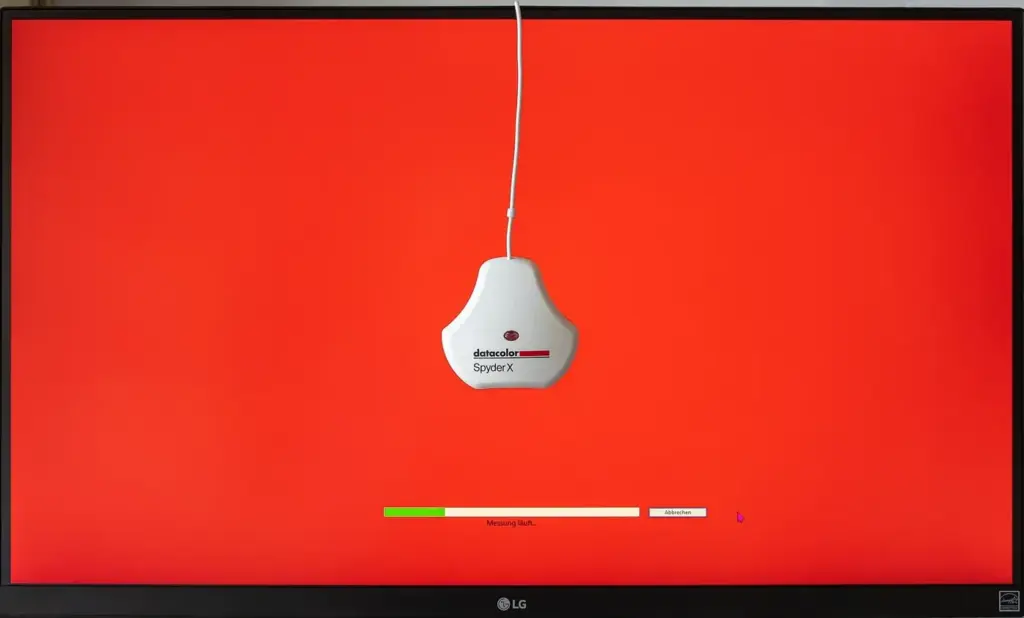
- Calibrate your monitor with a hardware colorimeter and set the brightness to a sensible level for the room.
- Open the raw file in an editor and use a wide working space such as ProPhoto RGB or Adobe RGB for editing.
- Edit the photo, checking the histogram and color on the calibrated monitor.
- Export for the web in sRGB with the profile embedded.
- For printing, soft proof with the printer paper profile and export in the format your lab asks for.
Calibrating Your Monitor
A colorimeter is a small device placed on the screen that measures what it displays and builds a profile. Aim for a white point near 6500 K, a gamma of 2.2 and a luminance of about 100 to 120 candelas per square meter for general editing, or lower for print work in dim rooms. Recalibrate about once a month, because screens drift as they age. See monitor calibration.
Setting Software Preferences
In Photoshop, open Color Settings and choose a preset that preserves embedded profiles, and ask to be warned about mismatches. In Lightroom, the working space is fixed for the editor, and you choose the export space. In video editors, set the project color space deliberately and keep it consistent through edit and grade.
Common Mistakes
- Exporting a wide gamut file to the web without converting to sRGB, which makes colors look flat.
- Editing on an uncalibrated laptop screen with the brightness set to maximum.
- Stripping profiles to reduce file size, so browsers guess the color space.
- Mixing color spaces during one project without converting.
A Quick Test
Take one photo, export it twice, one in sRGB and one in Adobe RGB with the profile removed, and open both in a browser. The second will look dull, which shows what a missing profile does.
Handy for this: Monitor Calibrator — colors you can trust. (affiliate link)
Advanced Advanced Color Management
Rendering Intents And Soft Proofing
When a color falls outside the gamut of a destination, the conversion uses a rendering intent. Perceptual compresses all colors to preserve relationships, and relative colorimetric keeps in-gamut colors exact and clips the rest. Relative colorimetric with black point compensation is a common choice for photographs. Soft proofing in Photoshop or Lightroom simulates the paper and printer on your screen, and a gamut warning highlights colors that will shift. See soft proofing for printing and printing photos at home.
Bit Depth And Working Space
Wide color spaces spread values across a larger range, so 8-bit files show banding and posterization more easily. Use 16-bit files for editing in ProPhoto RGB, and convert to 8-bit only at the final export. Raw files hold far more color information than JPEG files, which is another reason to shoot raw. See raw versus JPEG and bit depth explained.
Color Management In Video
Video uses color spaces such as Rec. 709 for standard dynamic range, Rec. 2020 for wide gamut and HDR, and camera log spaces for capture. A managed pipeline converts from the camera space into a working space, grades, and then outputs to the delivery space. DaVinci Resolve offers a color managed mode and ACES for this. Check your monitor and viewer settings, because a mismatch between the viewer and the export is a common source of washed out video. See log footage, Resolve color nodes and conforming footage for related workflow steps.
Browsers, Phones And Social Platforms
Most modern browsers read embedded profiles and convert them, but many social platforms strip metadata and convert to sRGB on upload. The safest approach is to export in sRGB yourself and check the result on a phone. Phones with wide gamut screens display sRGB images accurately, and untagged images are treated as sRGB. Apple devices may show Display P3 images more vividly, which is fine when the profile is embedded.
Printing With Profiles
Printer and paper profiles describe how a specific combination reproduces color. Use the profile from the paper manufacturer, let the application manage colors rather than the printer driver, and turn off color management in the printer driver to avoid double conversion. Print at the right size and check results under good light with a neutral viewing booth or daylight bulbs. See print sizes and resolution.
Troubleshooting
- Colors look different in Photoshop and the browser: check that the profile is embedded and the browser is color managed.
- Prints are darker than the screen: lower monitor brightness and calibrate.
- A skin tone shift appears after export: check the conversion and rendering intent.
- Video looks washed out: confirm the viewer color space matches the export.
Building A Checklist
Keep a short checklist taped near the screen, covering calibration date, working space, export space and proof settings. A repeatable routine saves hours of correcting color problems after delivery.
Try It
- Calibrate your display, or check its factory profile, and write down the date.
- Edit a raw file in a wide working space and export two versions, one sRGB and one untagged.
- Compare both in a browser and on a phone.
- Soft proof the image for a paper profile and note any gamut warnings.
Common Questions
What is a color managed workflow?
It is a process in which every device and program knows the color space of the image, so colors are converted correctly and look consistent from capture to output.
Should I use sRGB or Adobe RGB?
Use sRGB for the web and general sharing. Use Adobe RGB or ProPhoto RGB for editing and print work when your screen and printer can use the wider range.
Do I need to calibrate my monitor?
Yes, if color accuracy matters. An uncalibrated display can have a color cast or the wrong brightness, which affects every edit you make.
Why do my colors look dull on the web?
Often the file was exported in a wide color space without being converted to sRGB. Convert to sRGB on export and embed the profile.
Related Lessons
- Color Spaces: sRGB And Adobe RGB for choosing the right space.
- Monitor Calibration to measure and correct your display.
- Soft Proofing For Printing to preview print results.
- ICC Profiles to understand what profiles do.
- Raw Versus JPEG for the best starting point.
Gear That Helps With This
Hand-picked kit that makes this lesson easier to put into practice.
Some links are affiliate links: if you buy through them we may earn a small commission at no extra cost to you. How this works.