
Lightroom vs Classic comes down to where your photos live. Lightroom Classic is a desktop program that keeps a catalog and your original files on drives you control. Lightroom is a cloud-based app that stores originals online and syncs them to your phone, tablet, web browser and computer, with a simpler layout.
Why It Matters
Adobe sells two programs with nearly the same name, and the choice affects how you store, find and back up every picture you take. Picking the wrong one is not a disaster, but moving a large library from one to the other takes time, and some work does not carry over cleanly.
Both programs edit photos non-destructively and use the same raw processing engine, so a basic edit looks the same in either. The real differences are storage, organization, device access and extra features. Understanding them first saves hours of rework later.
Beginner How The Two Programs Differ
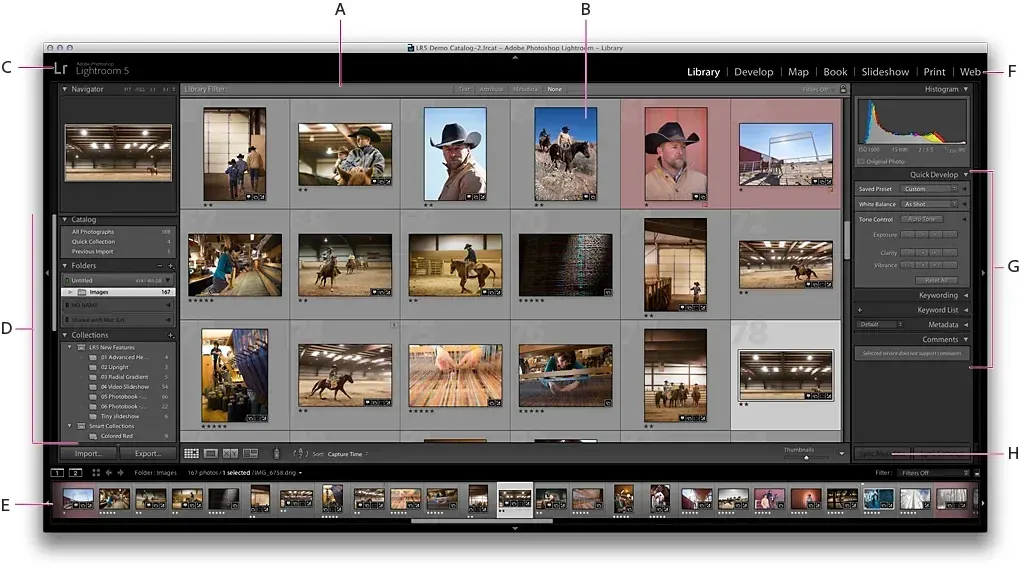
Lightroom Classic is built around a catalog, a database file on your computer that records where each photo lives and what edits you applied. The original files stay in folders on your internal drive or an external drive. You decide the folder structure, and the catalog only points at the files. Classic runs on Windows and macOS only.
Lightroom, sometimes called the cloud version, works the other way. When you import, the originals upload to Adobe’s cloud storage, and every device signed in to your account sees the same library. There is no catalog file for you to manage. You can edit on a laptop, continue on a phone and finish in a web browser, and the changes follow you. Lightroom also has apps for iPhone, iPad and Android phones.
Side By Side
| Question | Lightroom Classic | Lightroom |
|---|---|---|
| Where do originals live? | Your own drives, in folders you choose | Adobe cloud storage, with optional local copies |
| How is the library organized? | Folders, collections, keywords, flags, ratings | Albums, keywords, flags, ratings, automatic search |
| Works offline? | Yes, fully | Partly, with local storage turned on |
| Runs on phones and tablets? | No, only syncs selected collections | Yes, full apps |
| Printing, books, tethering | Built in | Limited or not available |
| Learning curve | Steeper | Gentler |
Who Should Pick Which
Choose Lightroom Classic if you shoot large batches, keep your files on your own drives, want fine control over folders and metadata, shoot tethered to a computer, or need print and book features. It suits wedding, event and sports photographers with tens of thousands of files.
Choose Lightroom if you edit on several devices, want automatic cloud backup, prefer a clean layout, or shoot mostly on a phone. It also suits beginners who do not want to think about catalogs and file locations.
How To Check What You Have
- Open the program and look at the title bar or the opening splash. Classic shows the name Lightroom Classic.
- Look for a Library module tab row with Library, Develop, Map and other names across the top. That layout means Classic.
- If you see a left-hand panel of photo groups with a sync icon and no module tabs, you are in the cloud version.
- Check your Adobe subscription page to see which storage amount is included, since cloud storage fills up.
Common Mistakes
- Installing both and importing the same folder into each, which creates two unrelated sets of edits for the same photos.
- Choosing the cloud version for a huge archive and running out of cloud storage.
- Assuming the two programs sync with each other automatically. They connect only through specific sync settings.
- Deleting original files in Finder or File Explorer in Classic, which breaks the catalog link and shows missing-file warnings.
Handy for this: Pen Tablet — precise retouching. (affiliate link)
Advanced Catalog Versus Cloud: What Changes In Practice
Catalog Mechanics In Classic
The Classic catalog stores edits as instructions rather than changing the original. Previews of each image are kept in a separate cache folder, which makes browsing fast but takes disk space. Because the catalog is a single database, backing it up matters as much as backing up the photos. Classic can prompt you to back up the catalog on exit, and a copy stored on a different drive protects you if the main drive fails. See Lightroom catalog setup for a sensible folder plan.
Raw files can also carry edits in a sidecar file ending in .xmp, or you can ask Classic to write edits into the file metadata for formats that allow it. That gives other programs a chance to read your keywords and ratings. Writing metadata to files is optional and slower on big libraries.
Syncing Classic With The Cloud
Classic is not cut off from the cloud. You can sync chosen collections so that a smaller preview version appears on your phone or in the web app. Edits you make on the phone flow back to Classic. Only the synced collections move, and the full-resolution originals stay on your drives unless you choose otherwise. This gives you a hybrid setup: the main archive on local drives and the current project on the go.
Choosing For Backup And Risk
Cloud storage is not a complete backup plan on its own. A deletion in the cloud app can propagate to every device. Classic users must handle backups themselves, but they also hold complete control. A solid approach for either program is three copies of important files, on two kinds of media, with one copy stored in a different place.
Moving From One To The Other
Adobe provides a way to bring a Classic catalog into the cloud version, and edit settings come along for most photos. Some Classic-only features, such as certain print layouts, do not transfer. Test with a small catalog copy before moving thousands of images. Keep the old catalog until you are sure everything arrived.
Speed And Hardware
Classic reads files from your drive, so a fast internal drive and plenty of memory improve browsing. The cloud version depends on your internet speed during uploads and when you open photos that are not stored locally. If you work in a place with poor internet, Classic is the safer choice. If you travel with only a tablet, the cloud version is the better fit. Performance tips are covered in Lightroom performance.
Try It
- Write down where your photos are stored today and how many you have. A library above roughly 50,000 files usually favors Classic.
- List the devices you edit on. If you need a phone or tablet as a full editing device, note that.
- Decide whether you need printing, books, tethered shooting or external plug-ins. Any one of these points to Classic.
- Import 50 sample photos into the version you lean toward and edit three of them. Notice whether the layout feels natural.
- Check how much storage your plan includes and compare it with the size of your library.
Common Questions
Can I use both Lightroom Classic and Lightroom?
Yes. A Creative Cloud Photography plan normally includes both. Many people use Classic for the main archive and sync selected collections to the cloud version for phone editing.
Is Lightroom Classic better than Lightroom for quality?
No. Both use the same raw processing engine, so the same settings give the same look. The difference is in organization, storage and extra features.
Do I lose my edits if I switch?
Usually not. Edit settings can be carried over when you migrate, but some Classic-only features may not transfer. Test with a copy first and keep the original catalog.
Which is easier for a beginner?
The cloud version has a simpler layout and no catalog to manage. Classic offers more control but asks you to learn folders, catalogs and backups.
Related Lessons
- Lightroom Catalog Setup for a clean folder plan and backup routine in Classic.
- Lightroom Import Settings to bring new photos in with the right defaults.
- Lightroom Mobile to edit on a phone and sync back to your desktop.
- Lightroom Export to deliver finished photos at the right size and format.
- Lightroom Performance to speed up a slow catalog or cloud library.
Gear That Helps With This
Hand-picked kit that makes this lesson easier to put into practice.
Some links are affiliate links: if you buy through them we may earn a small commission at no extra cost to you. How this works.