
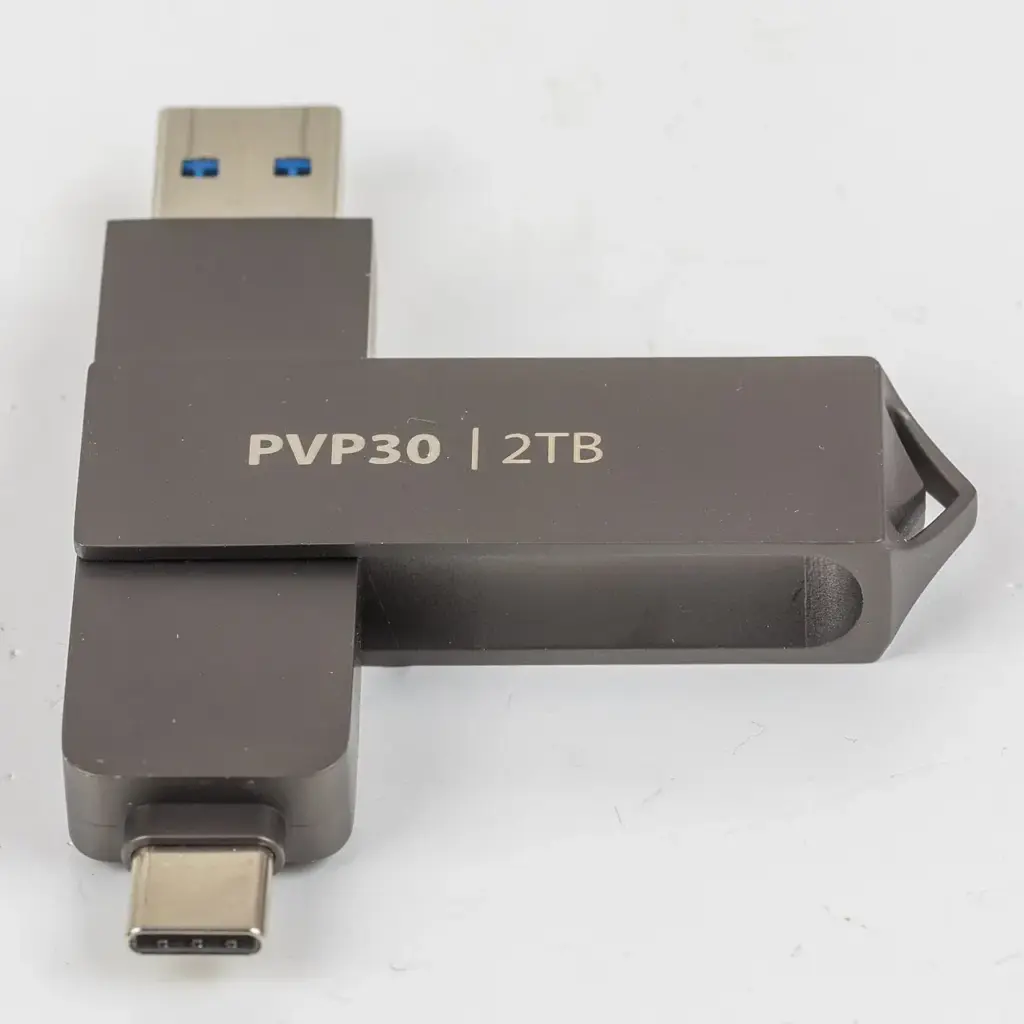
Field backup with a phone means copying your memory cards to a portable SSD while you travel, using the phone as the controller. Connect a card reader and an SSD to the phone, copy the folders with the Files app, check the file count and sizes, and keep the card until the copy is confirmed.
Why It Matters
A memory card is a single point of failure. Cards fail, get lost, or are stolen from a bag, and a day of travel photos can disappear in a moment. Backing up at night in a hotel or a tent, without a laptop, is the safest habit a traveling photographer can build.
Modern phones can do this job. With USB-C, a small card reader and a pocket-sized SSD, you can make a second copy of every card in a few minutes. The setup weighs less than a paperback, and adds a real layer of safety to any trip.
Beginner Field Backup With A Phone: The Basic Setup
What You Need
- A phone with a USB-C port, or a Lightning adapter if you have an older iPhone.
- A card reader that matches your cards, such as SD or CFexpress, with a USB-C plug.
- A portable SSD, 500 GB or larger, formatted exFAT so both phone and computer can read it.
- Short USB-C cables or a small powered hub.
- A power bank for long copy sessions.
Copying Files Step By Step
- Plug the card reader into the phone, then insert the card. A removable storage folder should show in the Files app on iPhone, or the file manager on Android.
- Plug the SSD into the phone, either through a hub or the second port of the card reader.
- Open the card, find the DCIM folder and select the new photos or the whole folder.
- Copy, do not move, the files to a folder on the SSD named with the date and place.
- When copying ends, compare the number of files and the total size on the card and on the SSD.
- Open a few images at 100 percent from the SSD to confirm that they are not corrupt.
Choose The Right Gear
| Item | Tip |
|---|---|
| Phone | Non-Pro iPhones with USB-C run at USB 2 speed, so copies are slow. Pro models and many Android phones are much faster. |
| Card reader | Pick a UHS-II or CFexpress reader that matches your card speed. |
| SSD | A rugged, bus-powered SSD of 500 GB to 2 TB handles trips well. |
| Cables | Short, high quality cables avoid dropouts. Carry a spare. |
| Power | A small power bank keeps the phone alive during large copies. |
The Golden Rules
- Never format a card until you have at least two verified copies, ideally three.
- Copy first, check second, delete last.
- Keep the SSD and the cards in different bags, so one loss does not take both.
- Do the copy every evening, not at the end of the trip.
Common Mistakes
- Moving files instead of copying them, which leaves one copy only.
- Disconnecting the SSD before a copy finishes, which can corrupt files.
- Using a phone with very low battery and the copy stopping halfway.
- Mixing several trips in one folder with no names, which makes files hard to sort later.
Handy for this: Fast Memory Cards — never miss a burst. (affiliate link)
Advanced Checksum Verification, Battery Use And Naming Files
Why A Simple Copy Is Not Enough
A file manager reports that a copy is done, but it does not prove that every byte is identical. A flaky cable, a weak card reader or a tired SSD can write a damaged file without showing an error. Checking file count and size catches missing files, and opening samples catches some corruption. A checksum, which is a short number computed from every byte of a file, catches nearly all errors.
Checksum Verification Options
Offload tools on a laptop, such as those used by video crews, copy files and compare checksums with algorithms like xxHash or MD5 automatically. On a phone the options are more limited. Some Android file managers and apps can show an MD5 or SHA-256 value for a selected file, and a few dedicated camera offload apps compare source and destination. If your phone does not offer this, keep the card untouched until you can run a proper verification on a computer at home, using the same checksum tool on both the card copy and the SSD copy. The card offload workflow describes the full routine.
Battery And Power Use
A card reader and an SSD both draw power from the phone, and large copies can use several percent of the battery. To protect against surprises, start copies with at least 50 percent battery, plug in a power bank through a powered hub if you have one, and turn on airplane mode and lower the screen brightness. Heat slows both phone and SSD, so do not copy in direct sun or with a case that traps warmth. If the copy fails with a power error, delete the partial files on the SSD and start again, then recheck the totals.
Naming And Organizing In The Field
Create one folder per day with a clear name, such as the date in year-month-day order, followed by the place. Inside it, make one subfolder per card or camera, like A7 card 1 or R5 card 2. Camera files with repeating numbers, such as IMG_0001, can overwrite one another if two cameras use the same name, so separate them by folder. If you rename files, do it on the computer later, using a naming scheme described in file naming convention, and keep the original names inside the copy so the backup stays an exact mirror of the card.
Speeds And Expectations
A card of 128 GB can take 10 to 20 minutes with a fast phone and reader, and well over an hour with a slow USB 2 connection. Large RAW files and video fill cards quickly, so plan for this. A good approach is to start the copy at the end of the day, let it run during dinner, and check the totals before bed. Use a sleeve or a pouch that keeps the cable plugs from being pulled during the copy.
Where This Fits In A Bigger Plan
A phone and SSD copy is the second copy in the field. It is not the whole plan. The classic 3-2-1 backup strategy calls for three copies on two kinds of storage, with one stored elsewhere. In the field, the card is copy one and the SSD is copy two. At home, the files go to a computer and an offsite or cloud backup. Some travelers also upload a small set of picks over a hotel connection, which adds a protected copy away from the gear.
Security And Protection
Treat the SSD as a valuable item. Keep it in a padded pouch, separate from the cards, and pack it in carry-on baggage when flying. Use SSD encryption if your drive supports it, and keep the password in a secure place. If you travel with several cards, use a card case that marks used and empty cards, so a full card never goes back into the camera by mistake.
Try It
- Plug a card reader and an SSD into your phone and copy one small folder of photos from a card.
- Compare the file count and total size on the card and the SSD, then open three images at 100 percent.
- Create a folder pattern for a trip with the date and place, and one subfolder for each card.
- Time a copy of a full card and note how much battery it used, so you can plan for a real trip.
Common Questions
Can I back up photos to an SSD using only my phone?
Yes. With a USB-C phone, a card reader and a portable SSD, you can copy cards through the Files or file manager app. Check the file count and size afterward.
Should I delete the card after copying to the SSD?
No, not on the road. Keep the card until you have at least two verified copies elsewhere, because a single copy on an SSD can still fail or be lost.
What format should the SSD use?
exFAT works with phones, Windows and macOS, and handles large files. Check the drive with your phone before the trip.
Why is my phone copy so slow?
The phone port, cable, reader or SSD may be limiting speed. Some phones, including non-Pro USB-C iPhones, run at USB 2 speed, so large cards take much longer.
Related Lessons
- 3-2-1 Backup Strategy for a full plan that goes beyond the field copy.
- Card Offload Workflow to verify copies on a computer at home.
- External SSD Storage to choose and care for a drive.
- File Naming Convention for a clean naming system.
- Camera To Phone Transfer for sharing files wirelessly on the road.
Gear That Helps With This
Hand-picked kit that makes this lesson easier to put into practice.
Some links are affiliate links: if you buy through them we may earn a small commission at no extra cost to you. How this works.